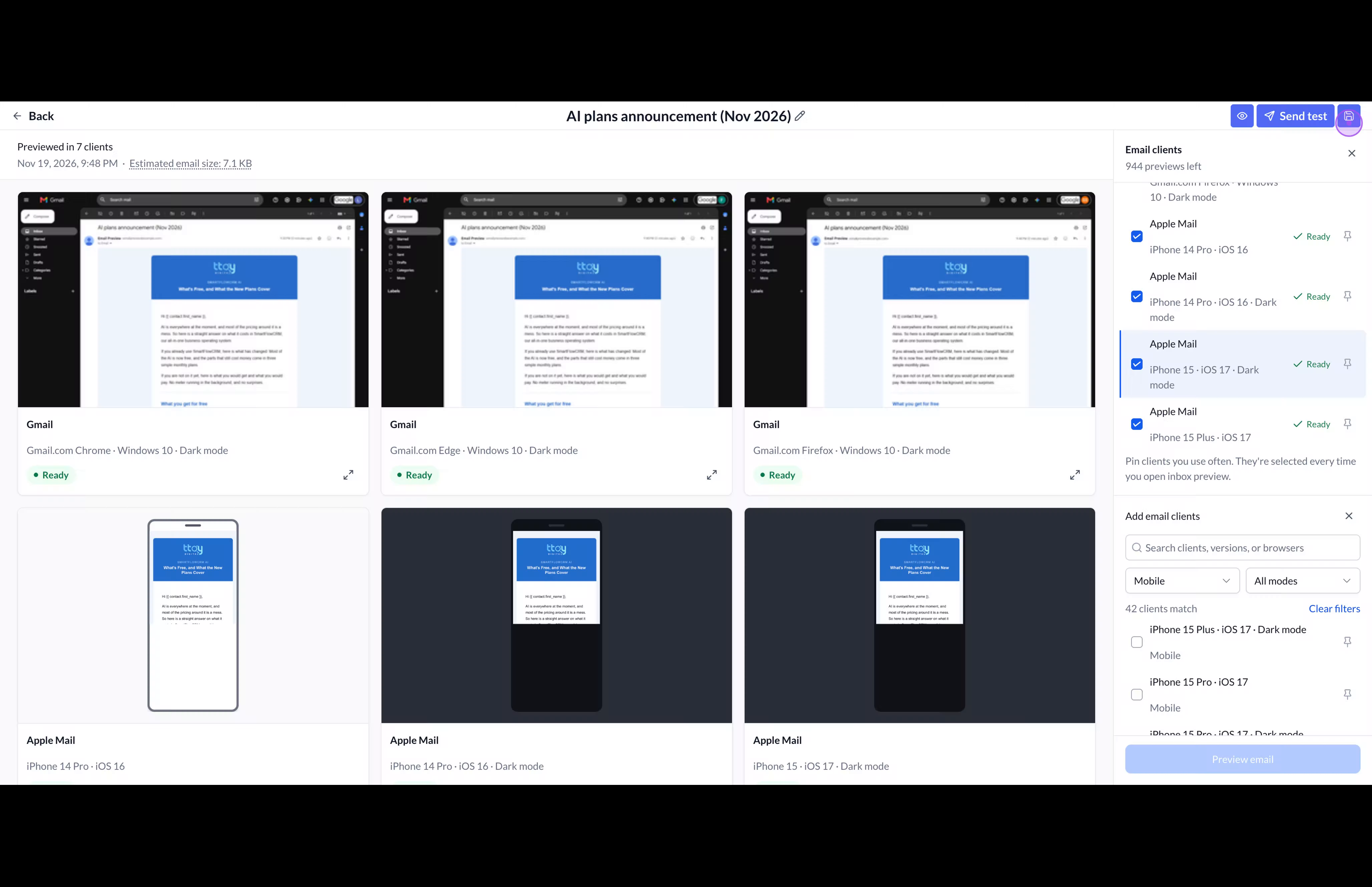
Use SmartFlow’s Inbox preview to check how an email renders across desktop and mobile inbox clients before sending a test. Select the clients you want to compare, generate their previews, and inspect each rendering for layout and styling issues.
In the email editor, click Inbox preview in the top toolbar. SmartFlow opens the preview workspace and displays the Email clients panel on the right.
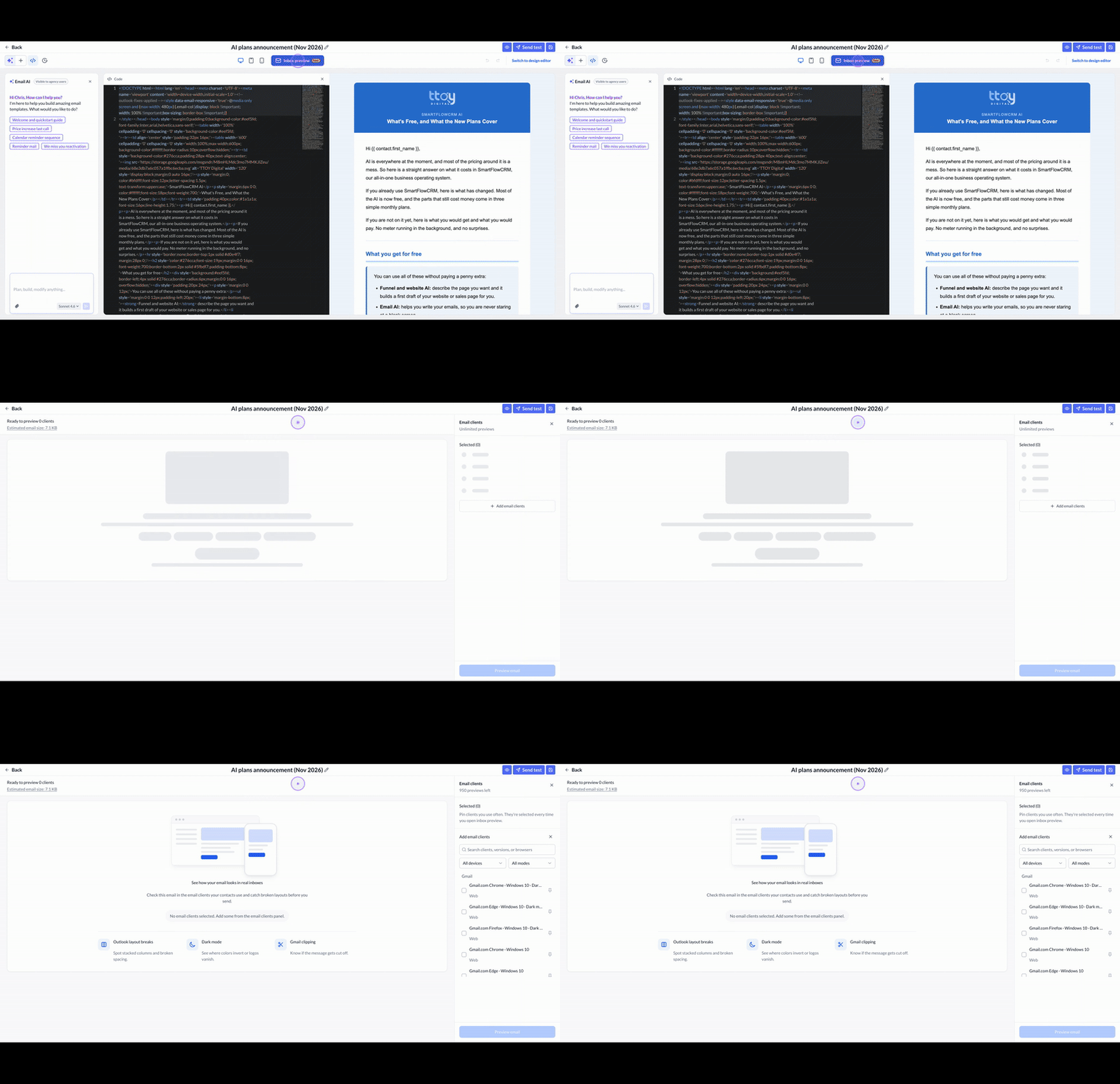
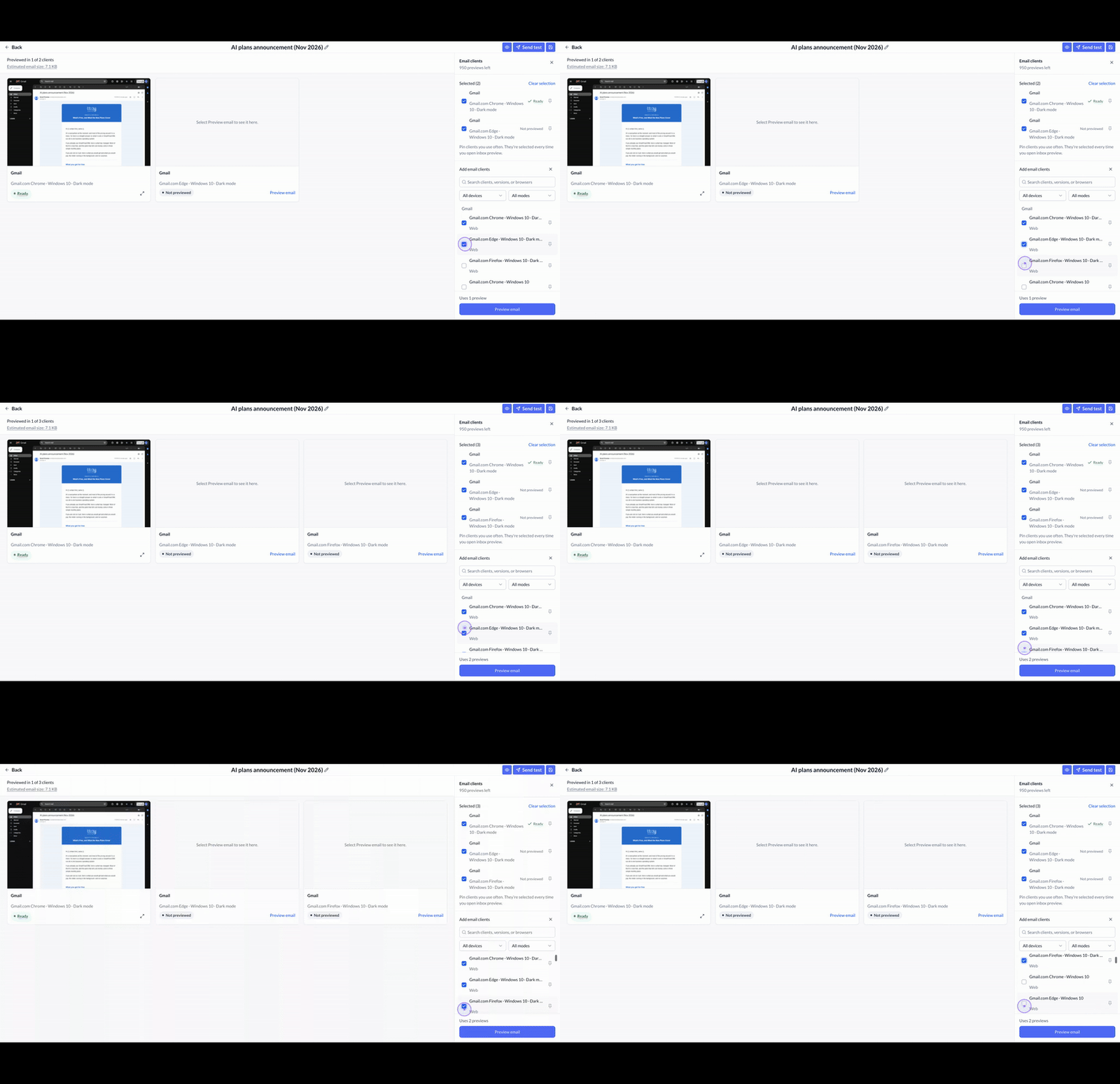
In the Email clients panel, check the desktop Gmail versions you want to test, such as Gmail.com in Chrome, Edge, and Firefox on Windows 10. Your selections appear in the Selected list and as cards in the preview workspace.
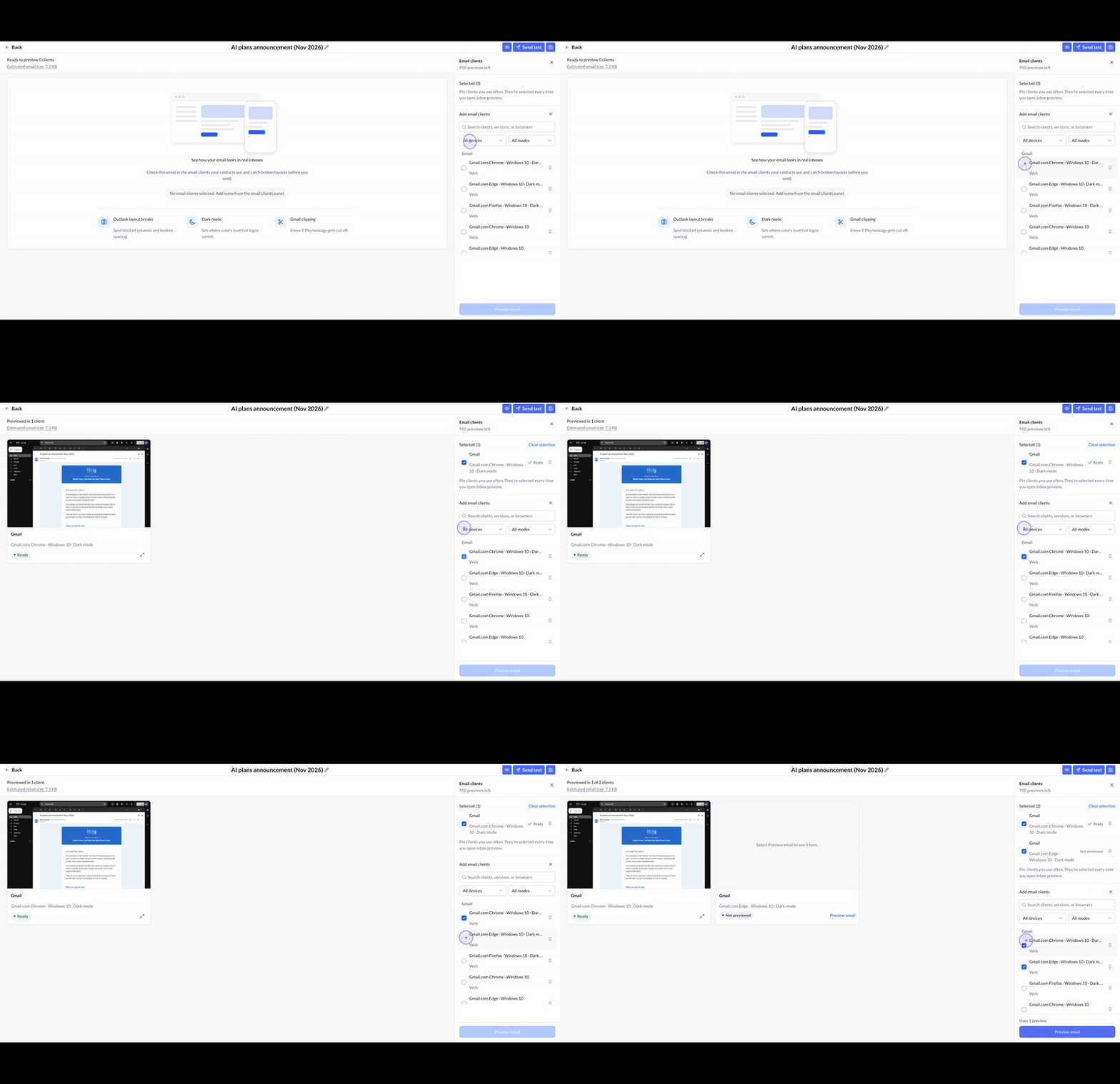
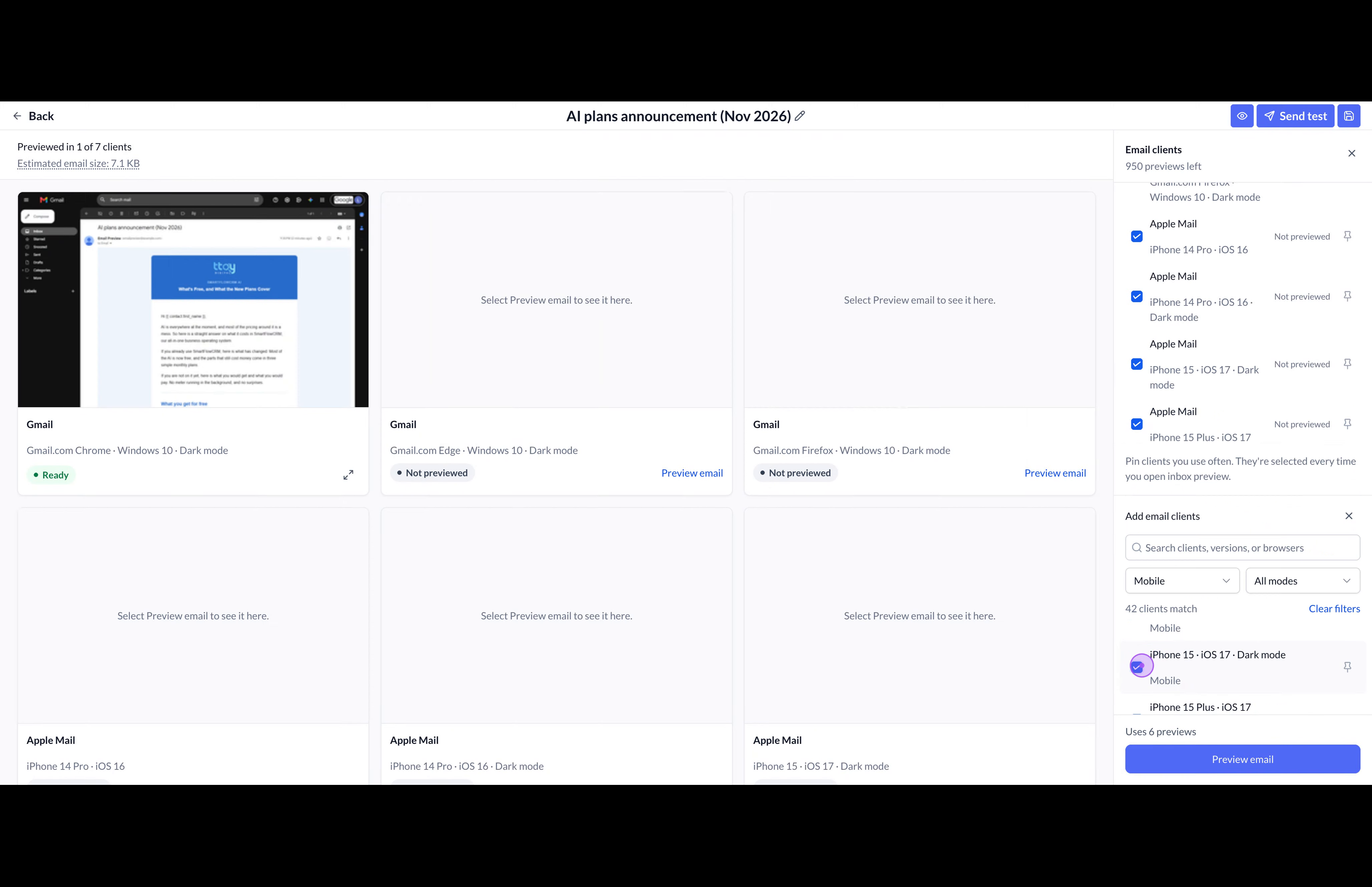
Next, select the Apple Mail configurations you want to include, such as iPhone 14 Pro with iOS 16. Add both light- and dark-mode entries if you want to compare how colors, logos, and spacing render in each mode.
To find more phone configurations, open the All devices dropdown and choose Mobile. The available-client list narrows to mobile devices.
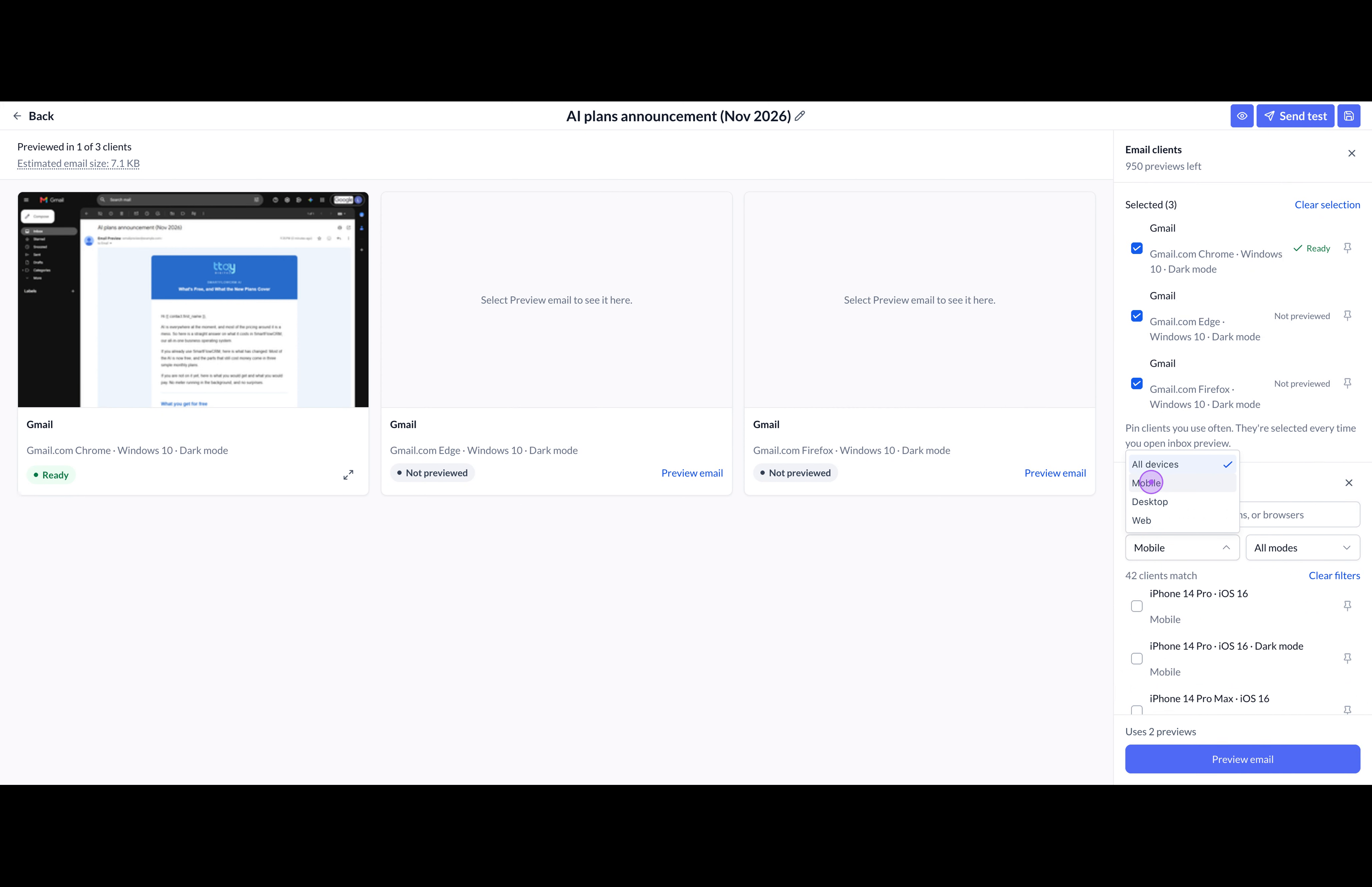
Check the remaining iPhone and iOS variants you want to test, including any dark-mode configurations. Confirm your choices in the Selected list. If you need to start over, use Clear selection.
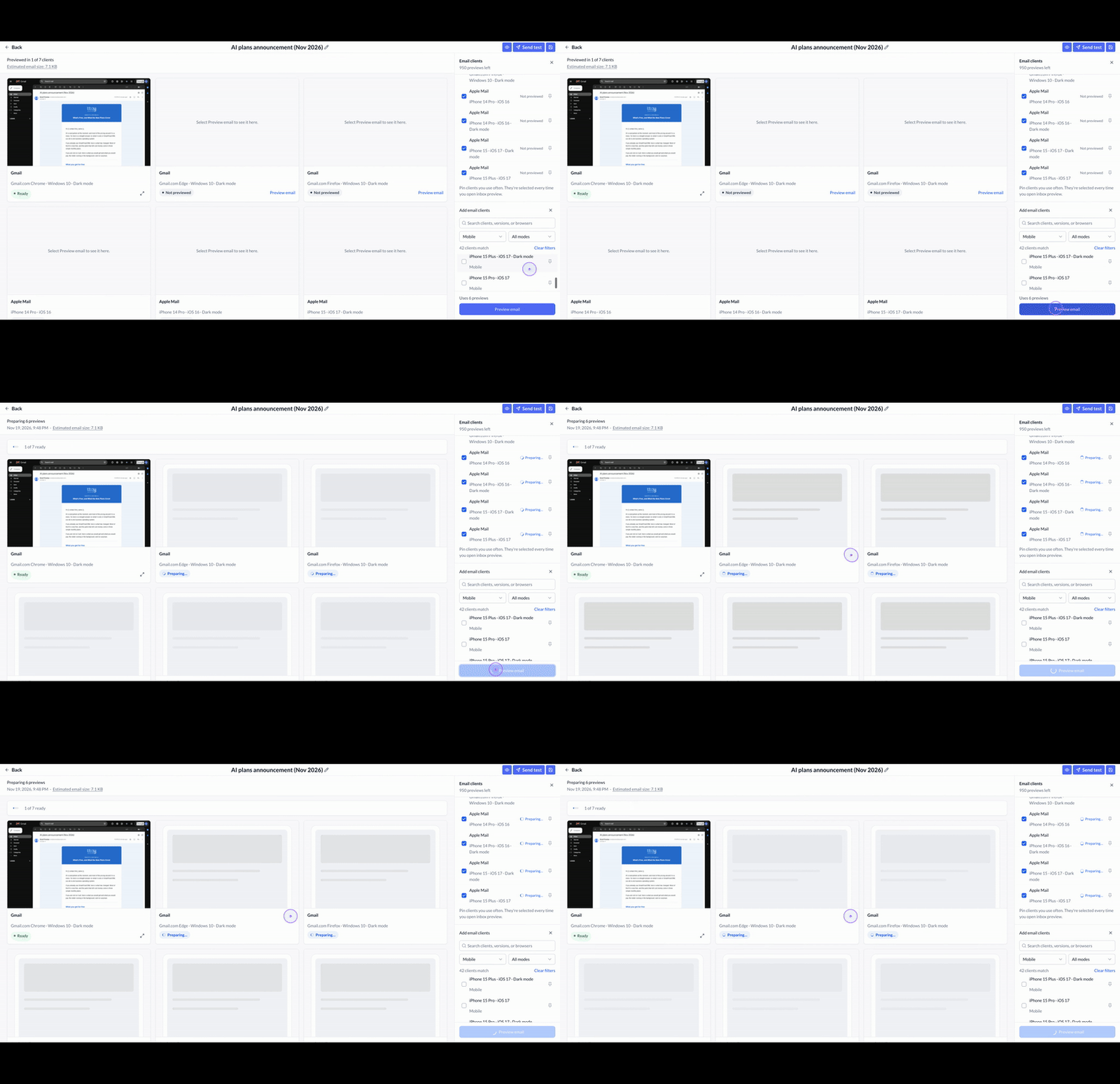
When your client selection is ready, click Preview email at the bottom of the Email clients panel. Wait while SmartFlow prepares the renderings. The progress indicator and client statuses update from Preparing to Ready as results become available.
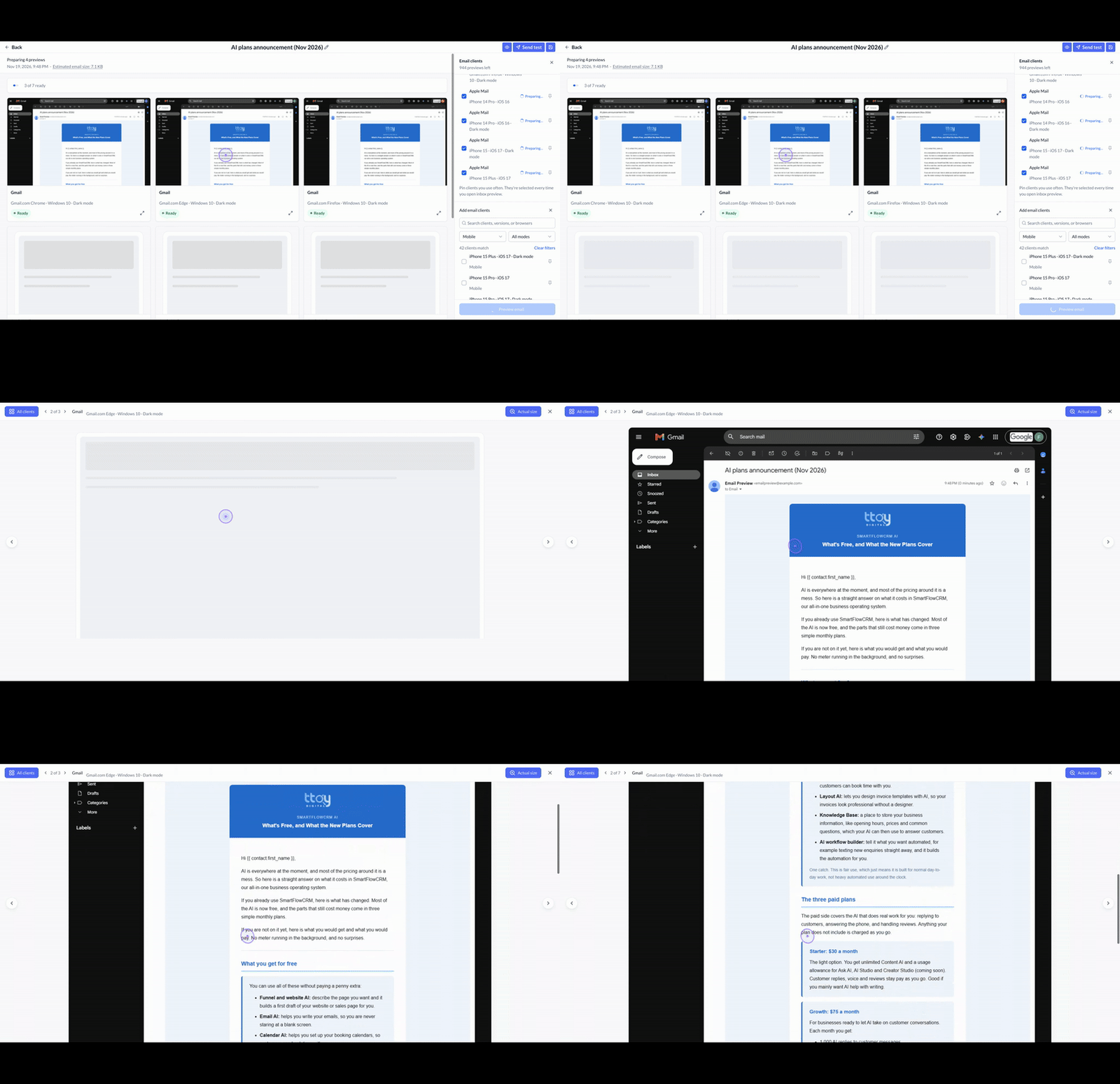
Once a Gmail preview is ready, click its thumbnail to open an enlarged, actual-size rendering. Scroll through the message to check the header, body copy, lists, and other layout details, or use the navigation arrows to move between clients.
Close the desktop preview with the X, then click a ready Apple Mail phone thumbnail. Review the enlarged mobile rendering for text wrapping, content width, dark-mode appearance, and spacing.
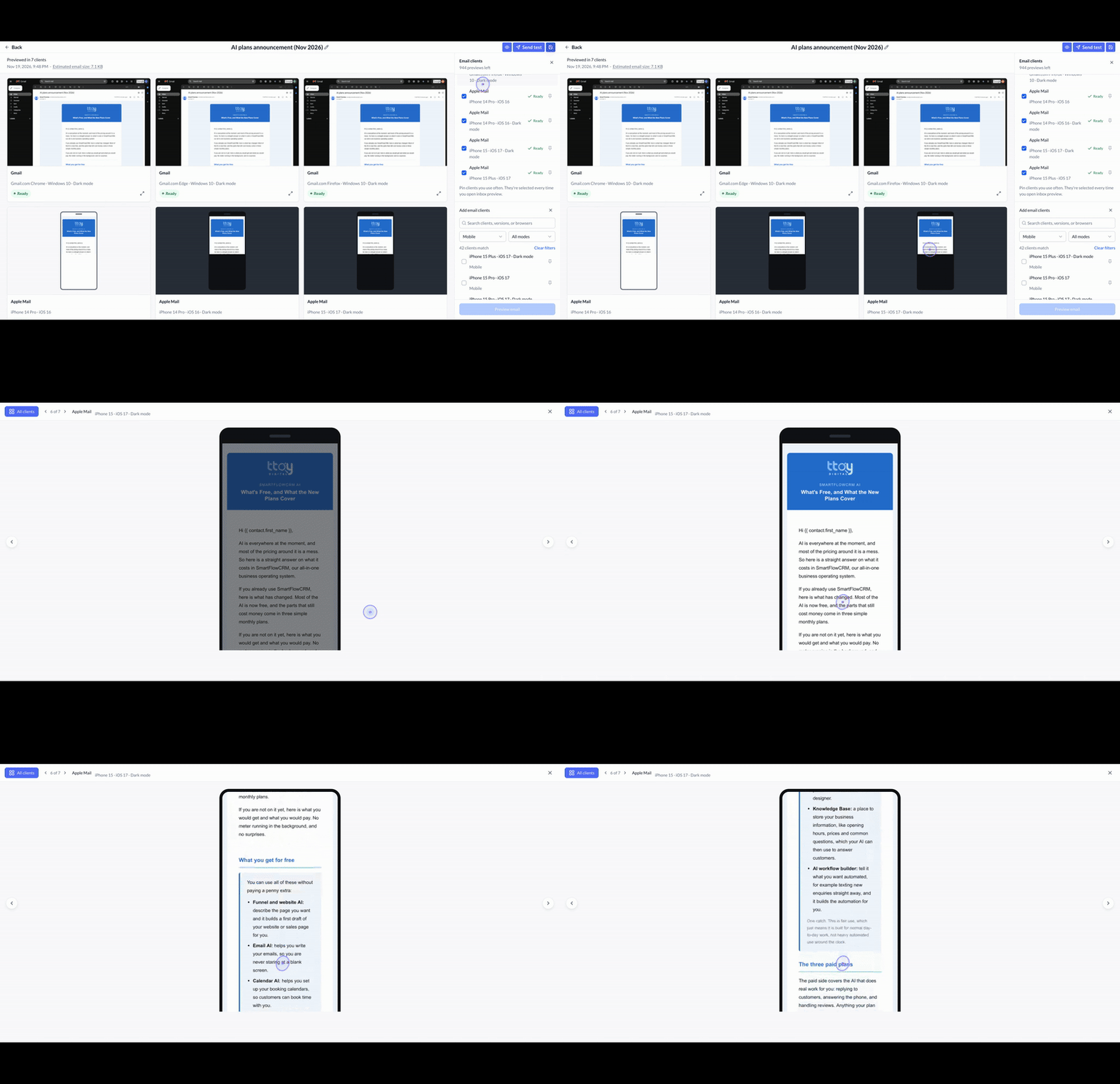
Click the X in the upper-right corner to close the mobile preview and return to the all-client grid. From there, review the remaining ready previews or select All clients while navigating.