You can now set service level warnings on conversations, so you and your team can be alerted if you’ve not responded by a time you’ve set.
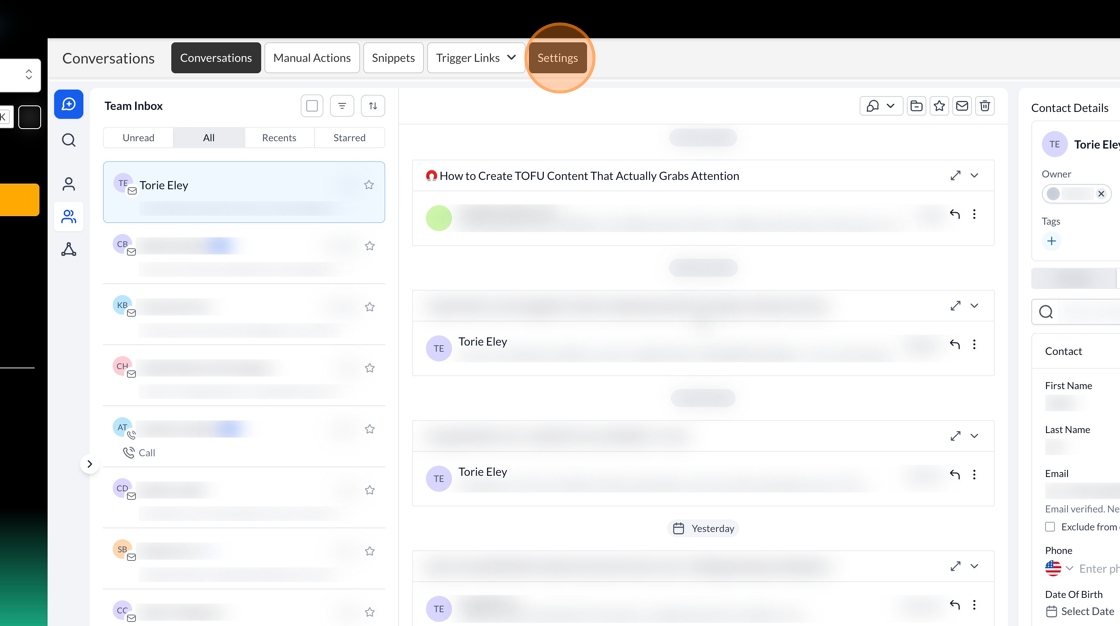
In order to use SLA’s in conversations you’ll need to set your time limits and when to apply your SLA’s. To start click the settings button in the conversation dashboard.
Before you can set your response time warnings you have to enable SLA’s by using the toggle button. This will then allow you to decide on your warnings and when conversation should show when a conversation is overdue.
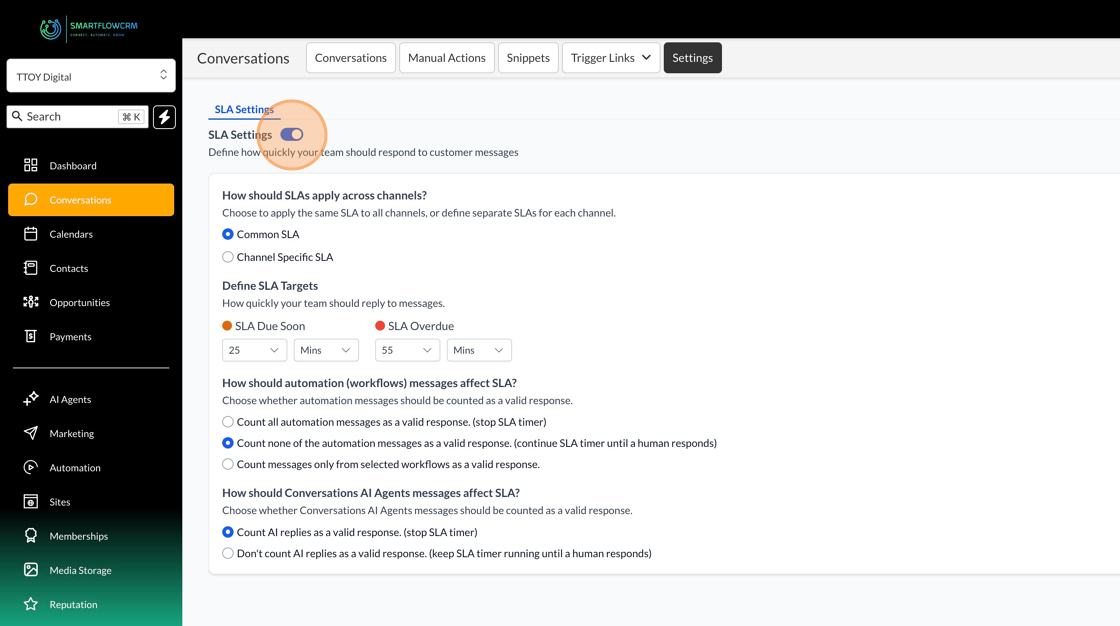
You can set SLA’s either across all conversations or by channel type, Common applies to all and selecting channel will allow you to set SLA’s depending on whether its an email, WhatsApp or text message.
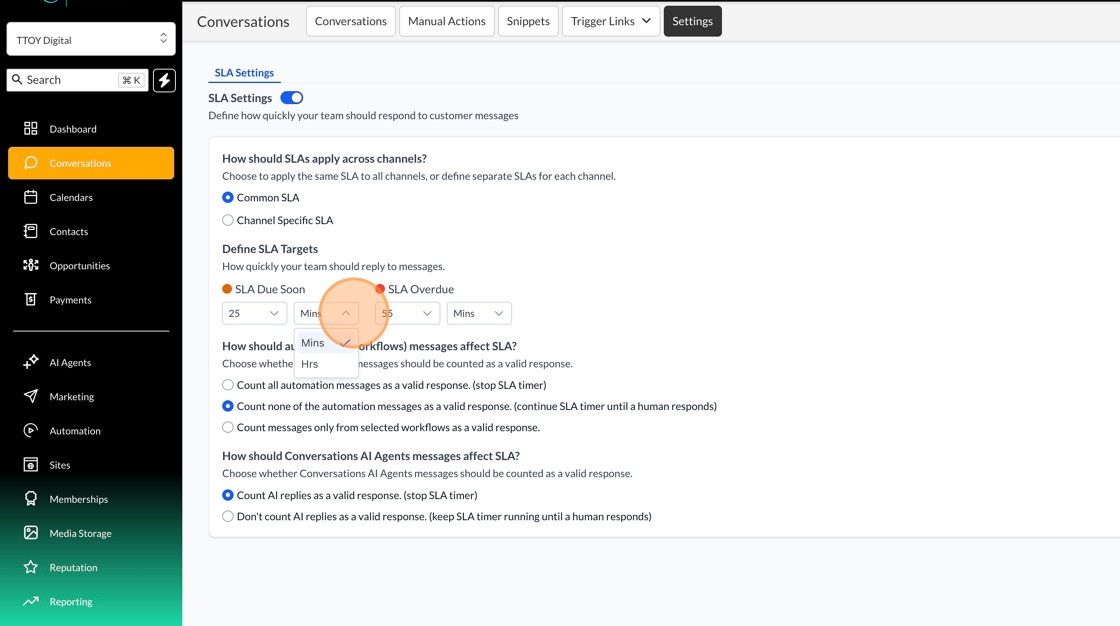
SLA’s are time defined, based on a warning alert (due soon) or overdue. In order to set time based notification choose the relevant time based on number of mins/hours from the drop downs.
You have three options to pause the workflow when a customer replies to a message sent from a workflow.
All Automation messages - this will count all response via ai or human as a response and stop the timer
No Automation - only stop the timer when a human responds. Conversations via AI will still happen but if a human hasn’t replied within the designated time the message will become due or overdue
Workflow Only - if you want to stop conversations by certain workflows you can slect which workflows you want the SLA’s to apply to.
The two options here are set when you use SmartFlows Conversation AI to respond to chats. you can either count all responses as a valid response or non at all.
To learn more about conversation see our conversation inbox article.
Conversations Inbox — How to Manage Messages
Use one shared inbox for SMS, email and connected social channels to reply faster and never miss a lead.