If you do not want to use our nameservers for your site, your site's SSL certificates must be provisioned and applied manually. If you are on one of our maintenance plans, we will do this automatically for you.
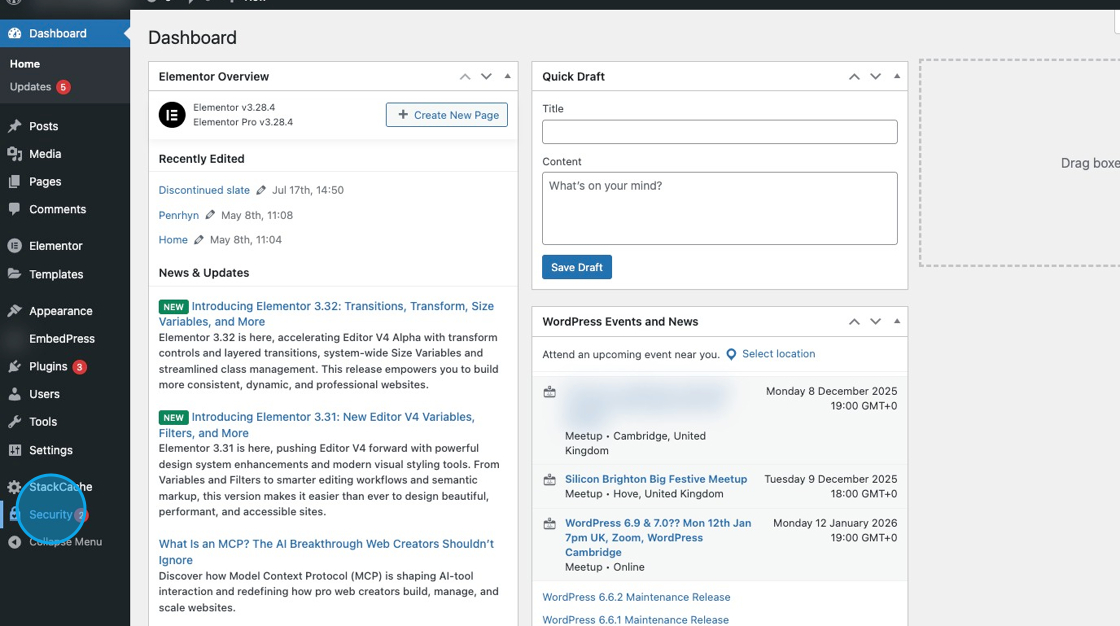
To make the process as easy as possible, we will install the Really Simple Security plugin in WordPress. This will generate a certificate for you from Let's Encrypt. These certificates need to be renewed every 3 months. You’ll need to log in to your WordPress dashboard, then click Security.
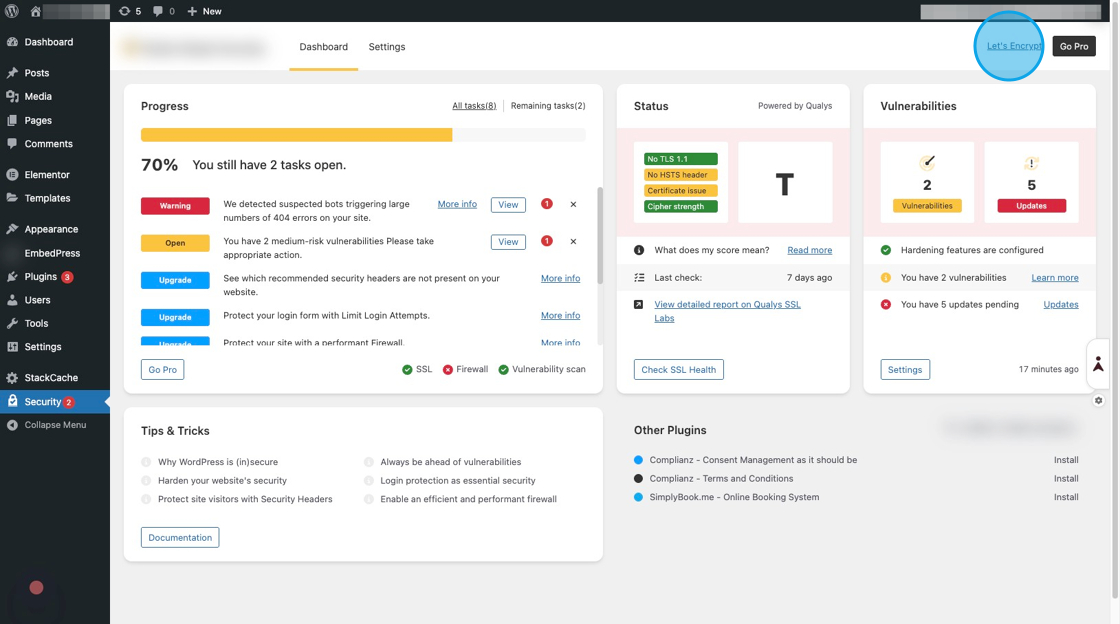
When you're in the security dashboard, click Let's Encrypt in the top-right corner.
You’ll then be guided through a setup wizard that will generate the certificates for you.
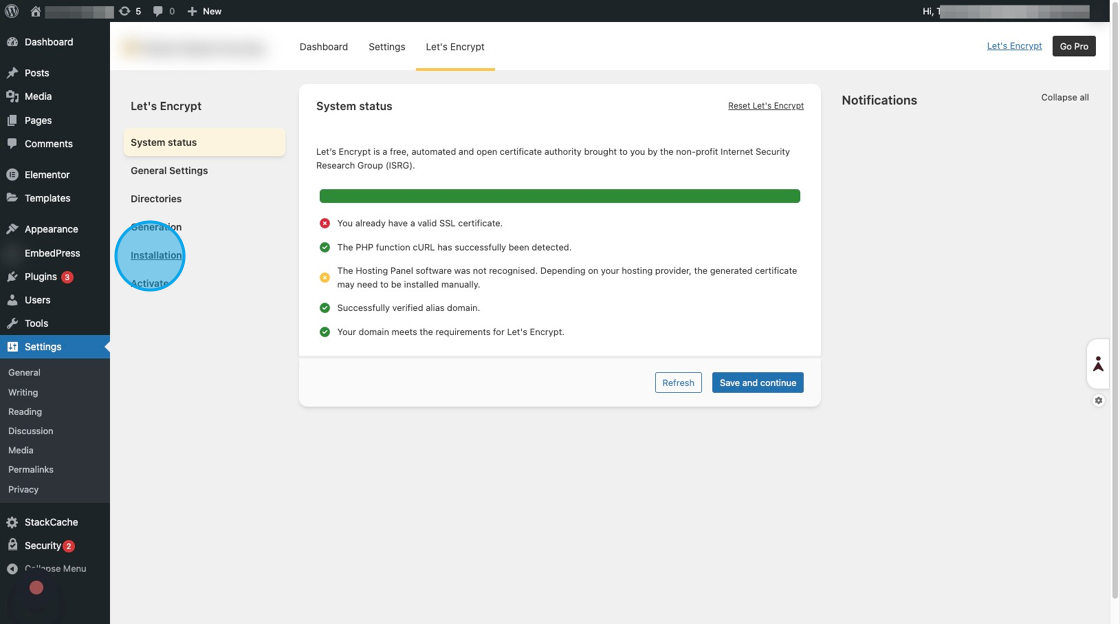
You can go through each step by clicking the save and continue button. Once you've completed the steps and generated the certificates, you’ll be taken to the installation tab and presented with the parts of the certificate to add to your hosting control panel which you can ither download the certificate files or copy and past them.
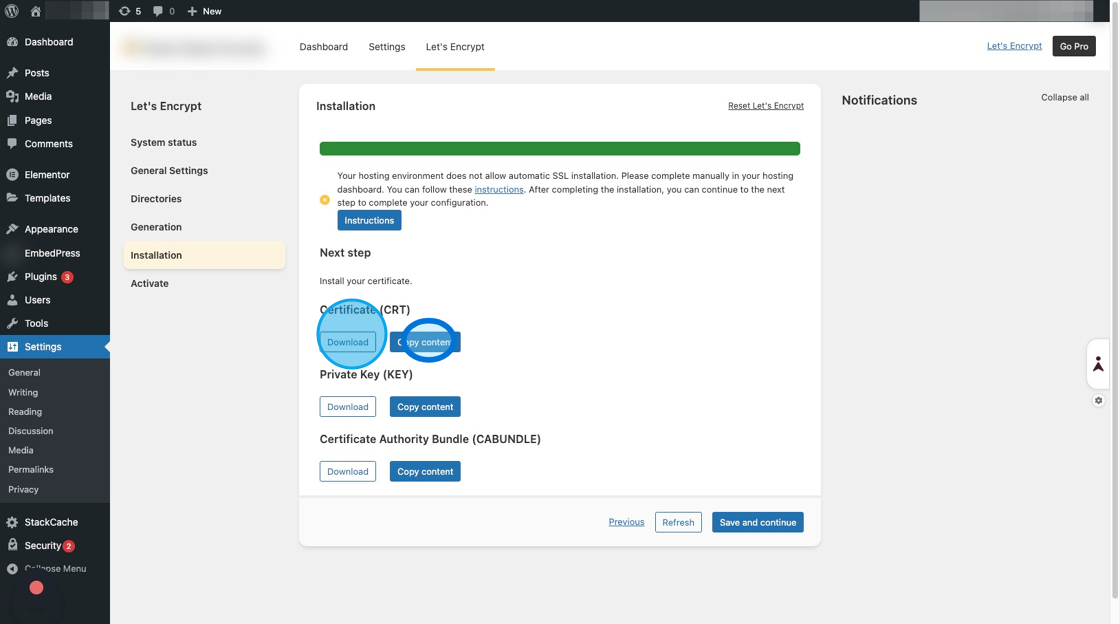
Once the certificates have been generated, you’ll need to add the files to the SSL certificate section in your hosting control panel, which can be accessed by visiting https://cp.ttoydigital.agency
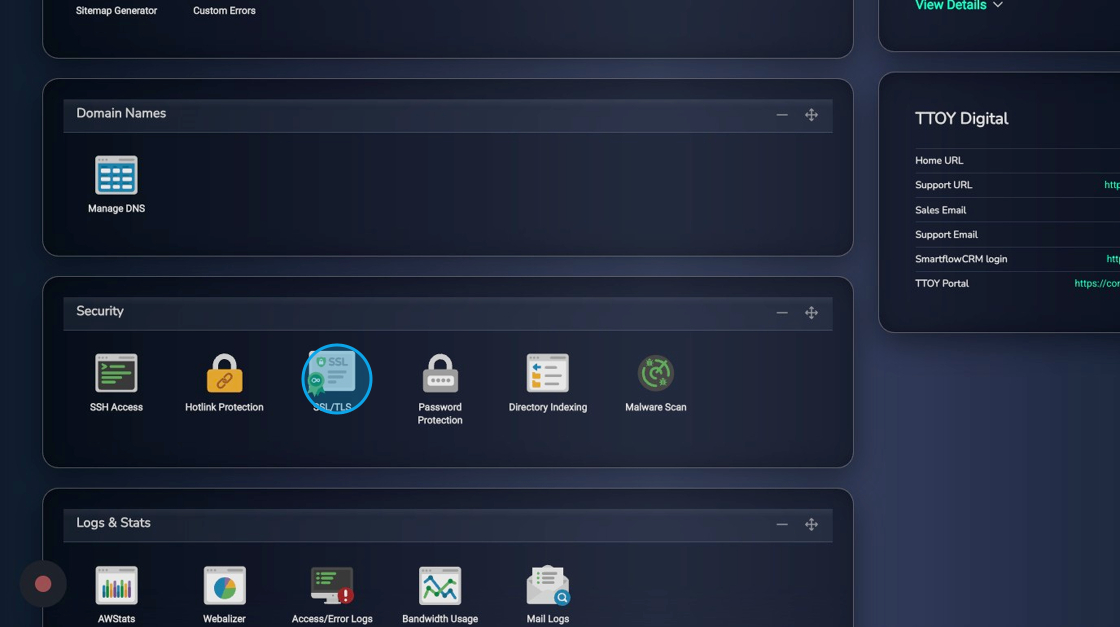
Once you’ve logged in, scroll down to the security sections and click the SSL/TLS button
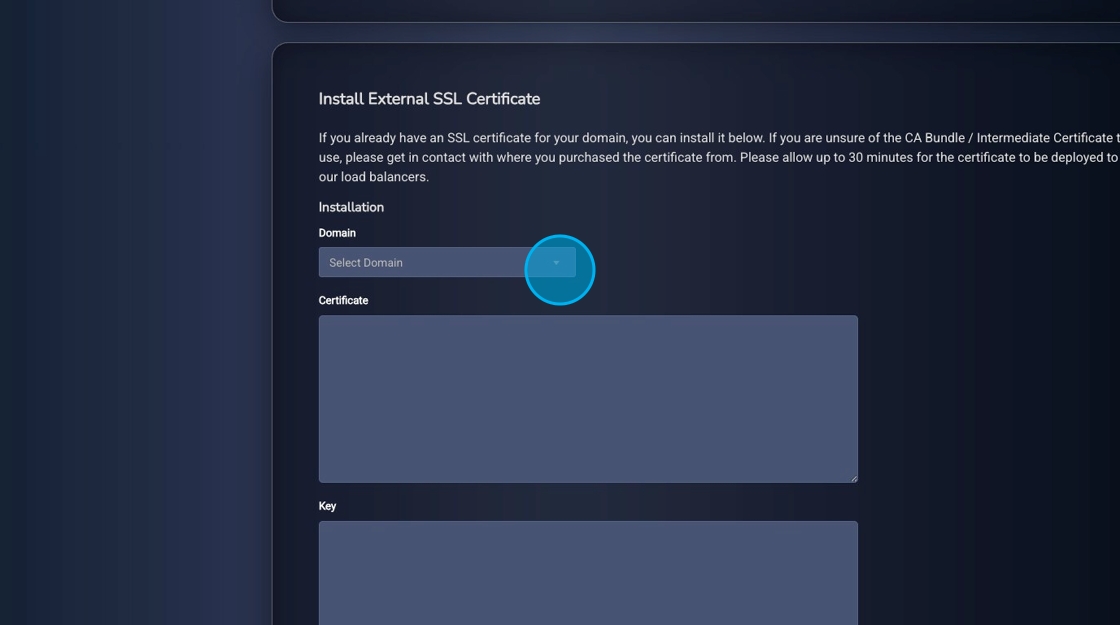
You’ll then need to select your domain from the drop-down
If you’ve downloaded each certificate part individually, open them from where you saved them and copy the content, or use the copy button from your WordPress dashboard (recommended)
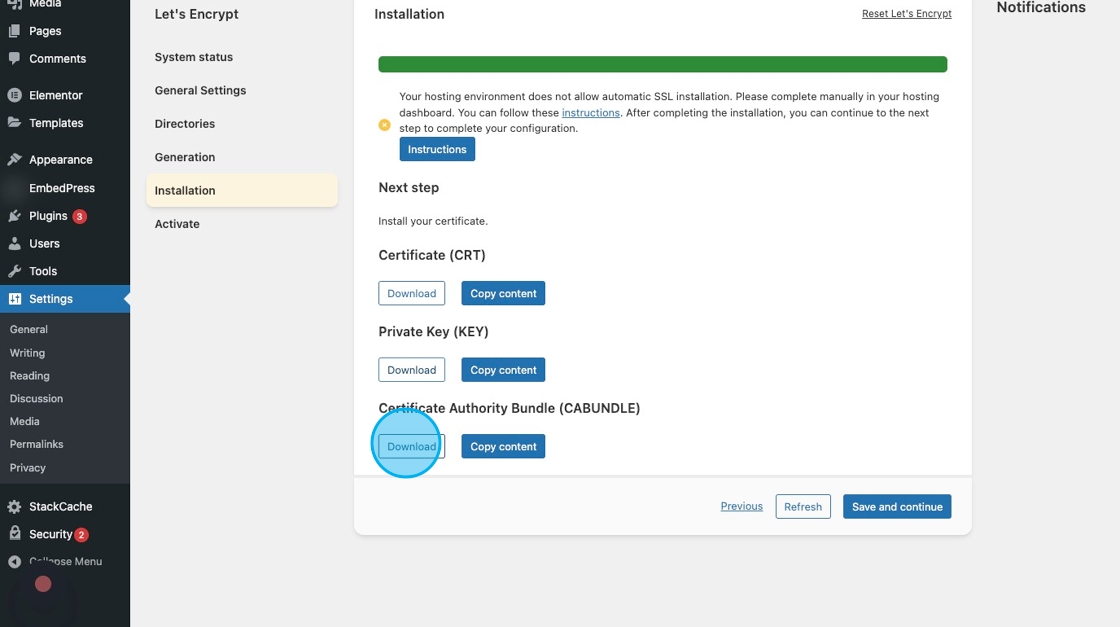
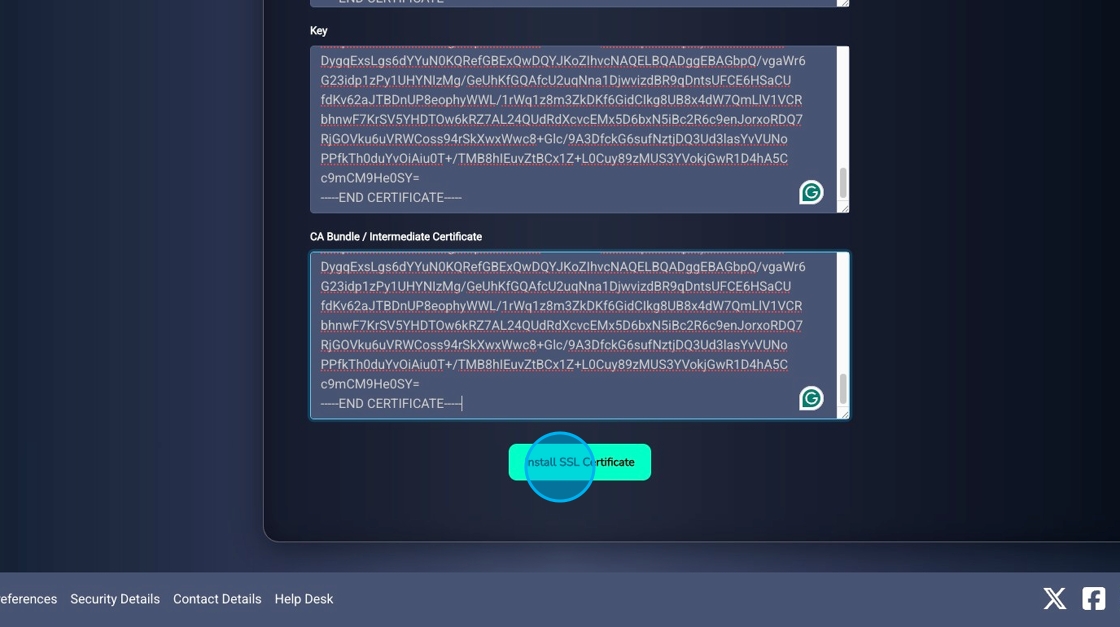
Once you’ve copied the content of the file or clicked the copy button, you’ll be able to paste each step into the boxes in your hosting control panel. Remember, the data held in each step is different, so you’ll need to open each file or copy and paste each step separately, and we recommend doing each one in turn so you don't accidentally copy the wrong text in the wrong section.
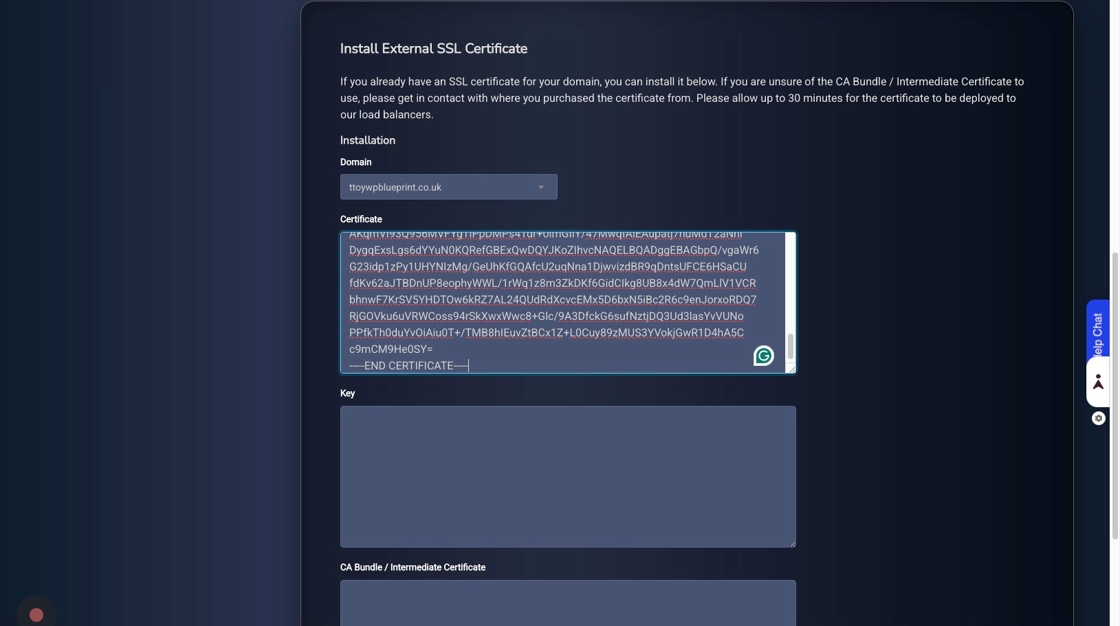
Once the certificates are done, repeat the same process for the Key and CA bundle sections.
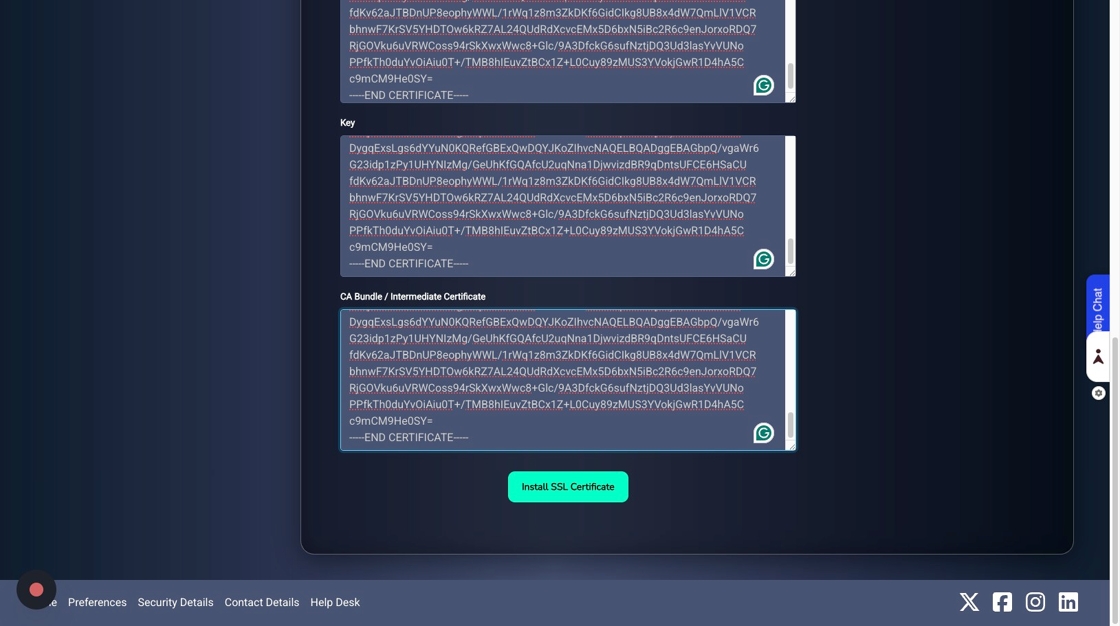
Once each section is completed, click the Install SSL Certificate button to install the new certificate on your website. You’ll need to wait 30 minutes, however, to ensure that the certificates have been correctly installed across our network.