SmartFlowCRM lets you book appointments automatically via workflows, have your customers self-serve via a link, or book them manually yourself, either on a customer’s behalf or to block dates out.
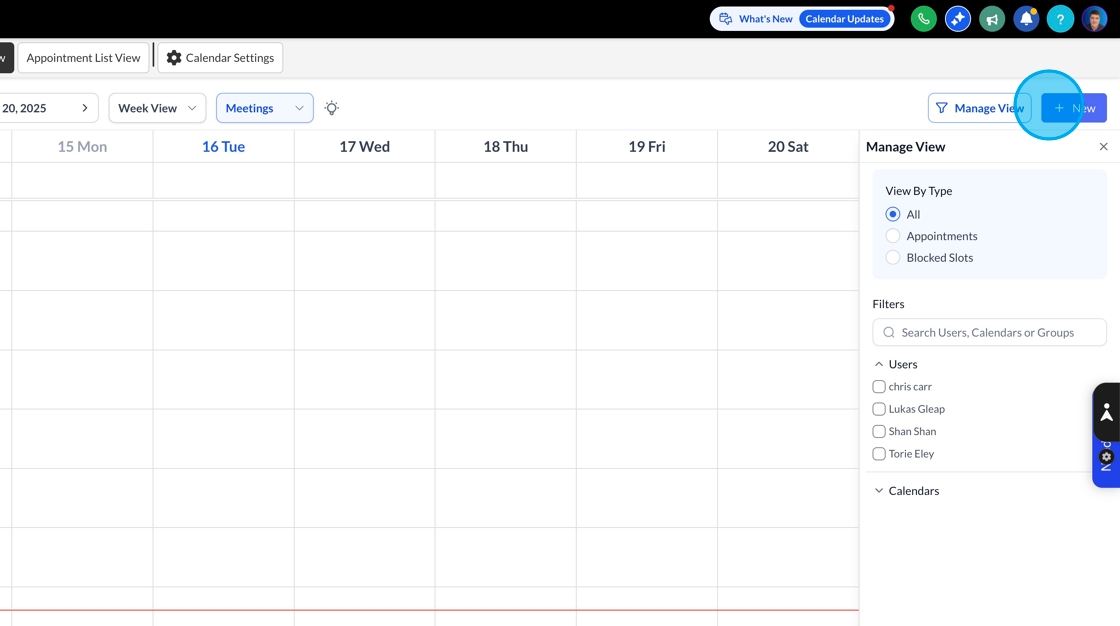
To manually book an appointment, click the calendar button to view your calendar, then click "New’ to open the booking screen
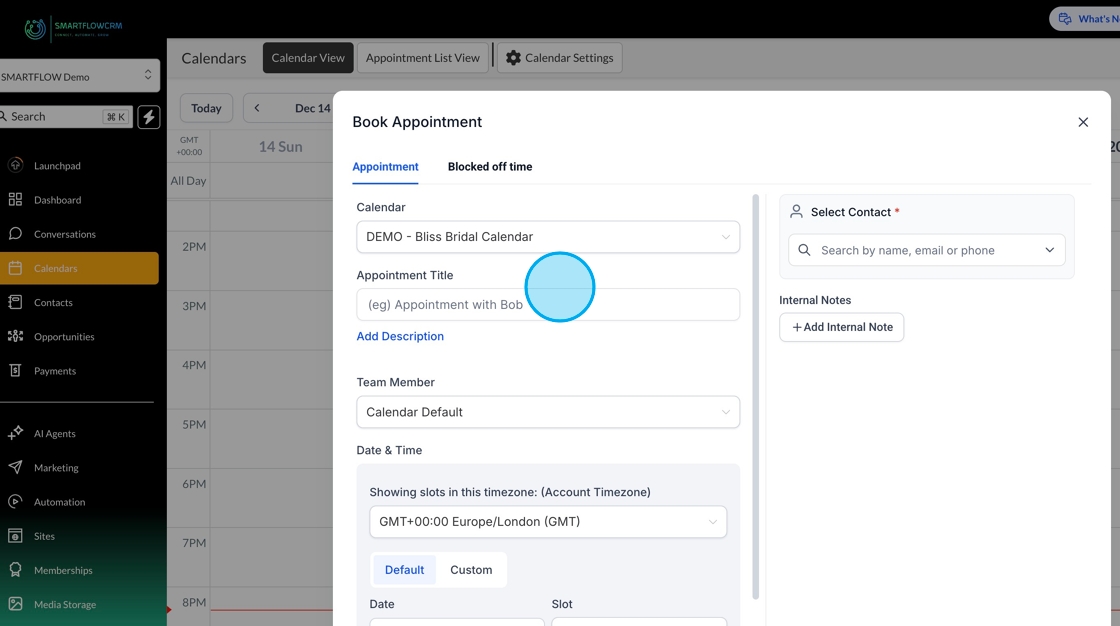
Once the booking screen opens, you’ll be able to add the specifics of the appointment, starting by selecting the calendar you want to book from the drop-down.
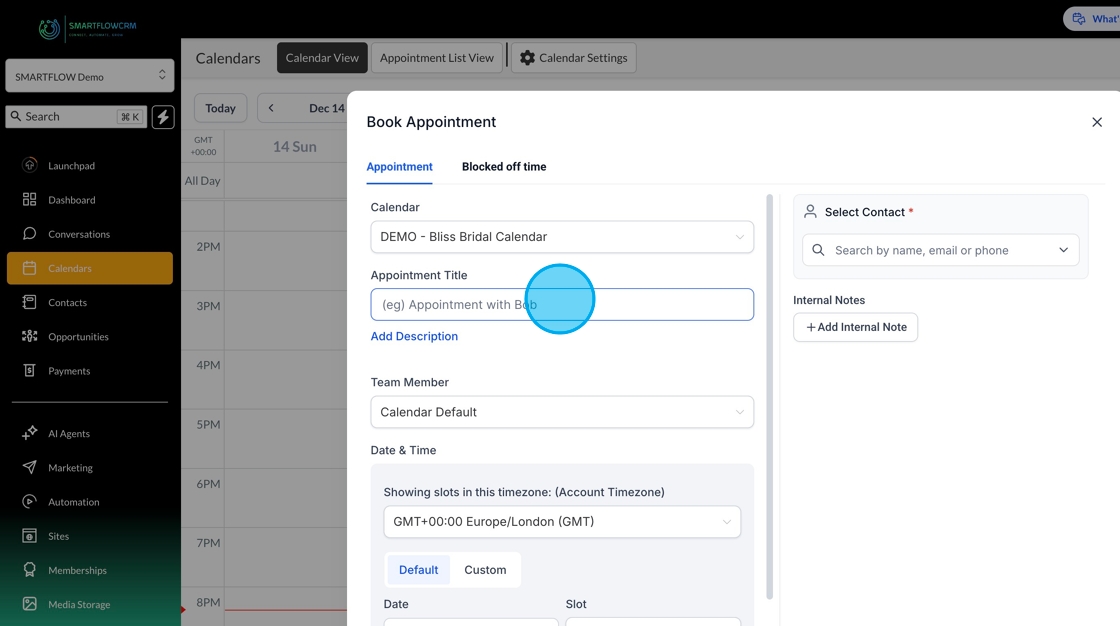
You’ll then need to give the appointment a name (which will be displayed in the calendar) and the appointment time.
Once the time has been set, you’ll need to add a customer to the appointment using the select contact drop-down. If this is a new contact, you’ll be able to add a new contact here too.
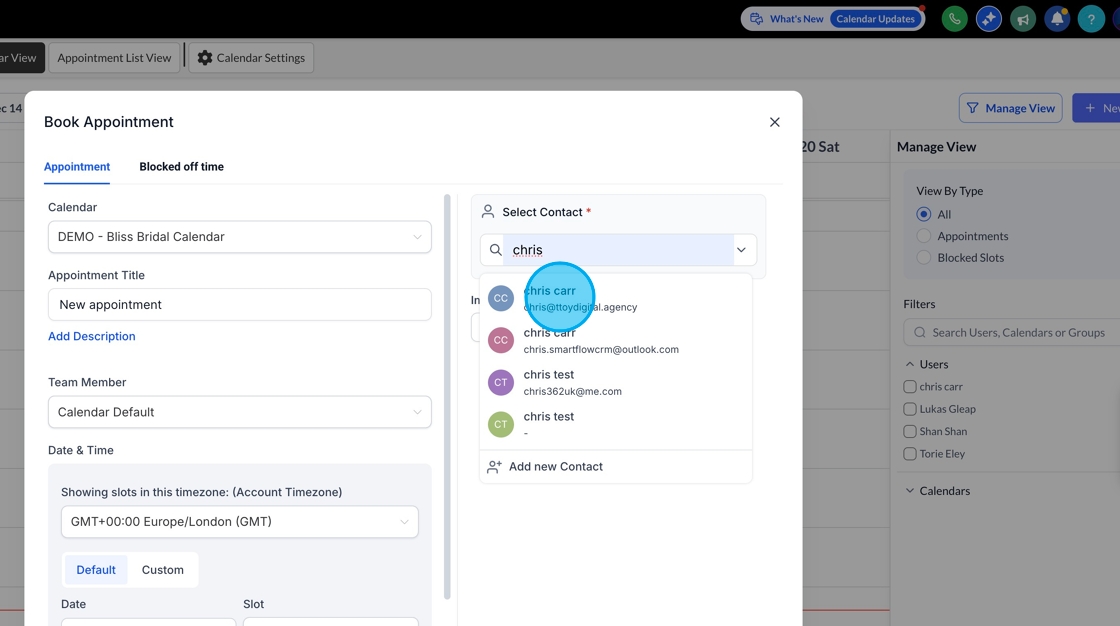
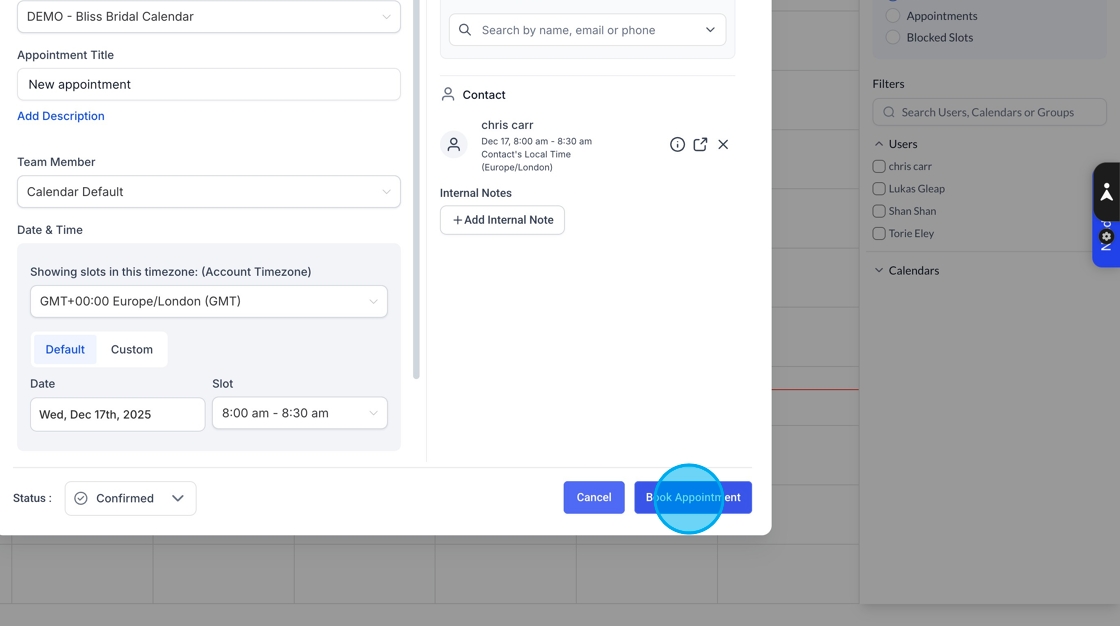
Once a contact has either been selected from the drop-down or created, you can click Book Appointment.
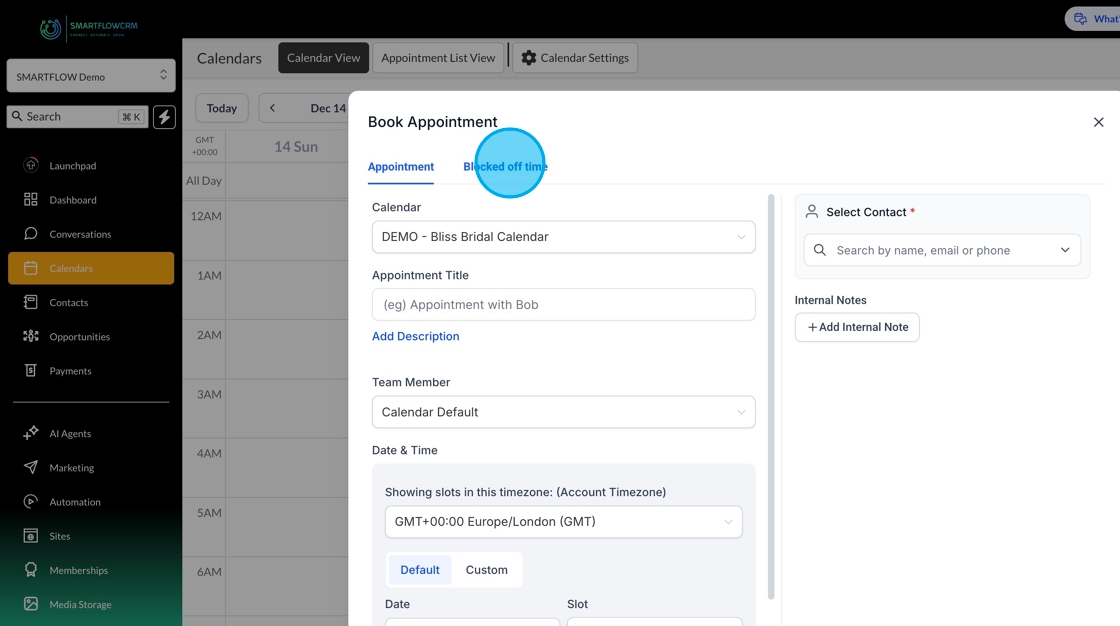
Blocked-off time is an appointment in the calendar that prevents a booking from taking place automatically, preventing a customer from booking an appointment for that time. Ideal for when you book annual leave, for example.
To block off time use in the appointment booking screen, click the ‘blocked off time’ tab
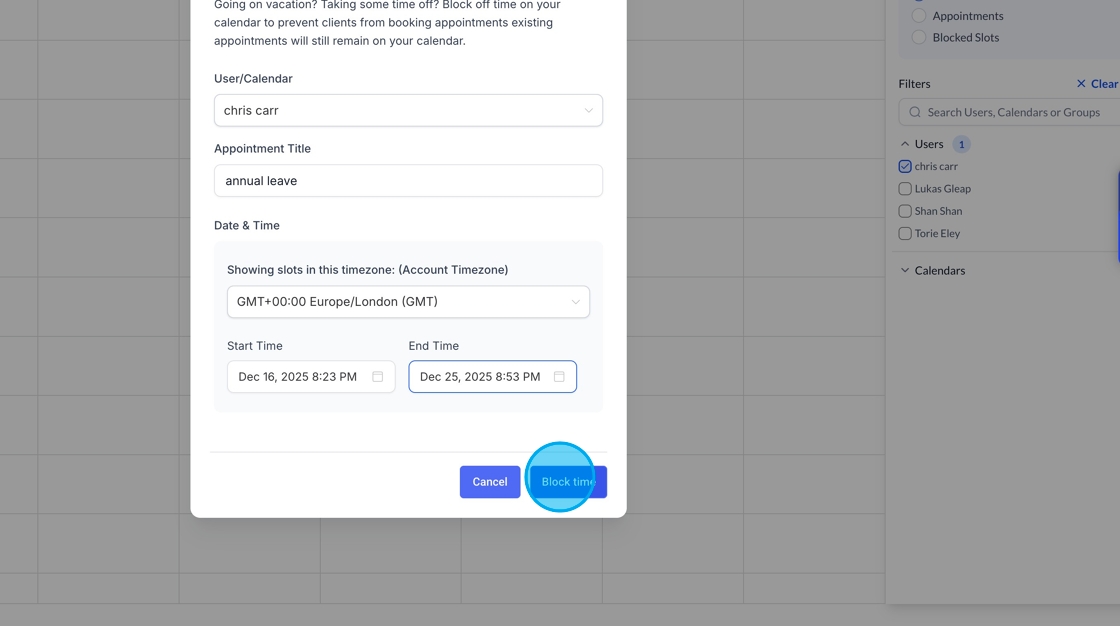
You’ll then need to complete all the details and give the appointment a title.
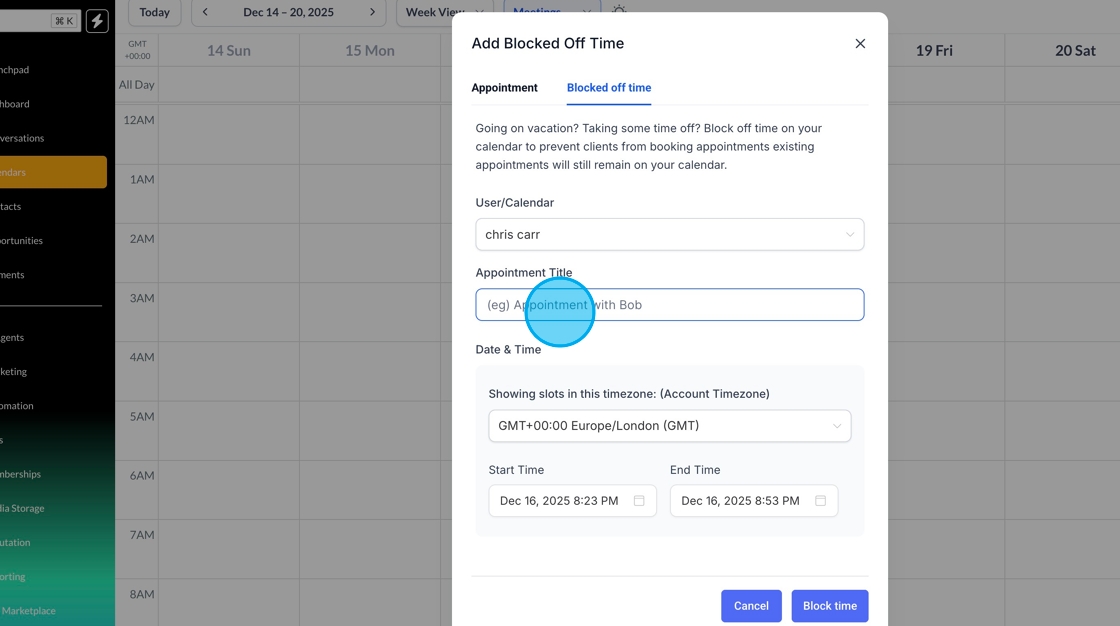
Once completed. Click the block time button to save the blocked time in the calendar.