This tutorial shows you how to delete multiple photos at once using bulk actions in your media library. Before starting, ensure you have access to the media library and the necessary permissions to delete images.
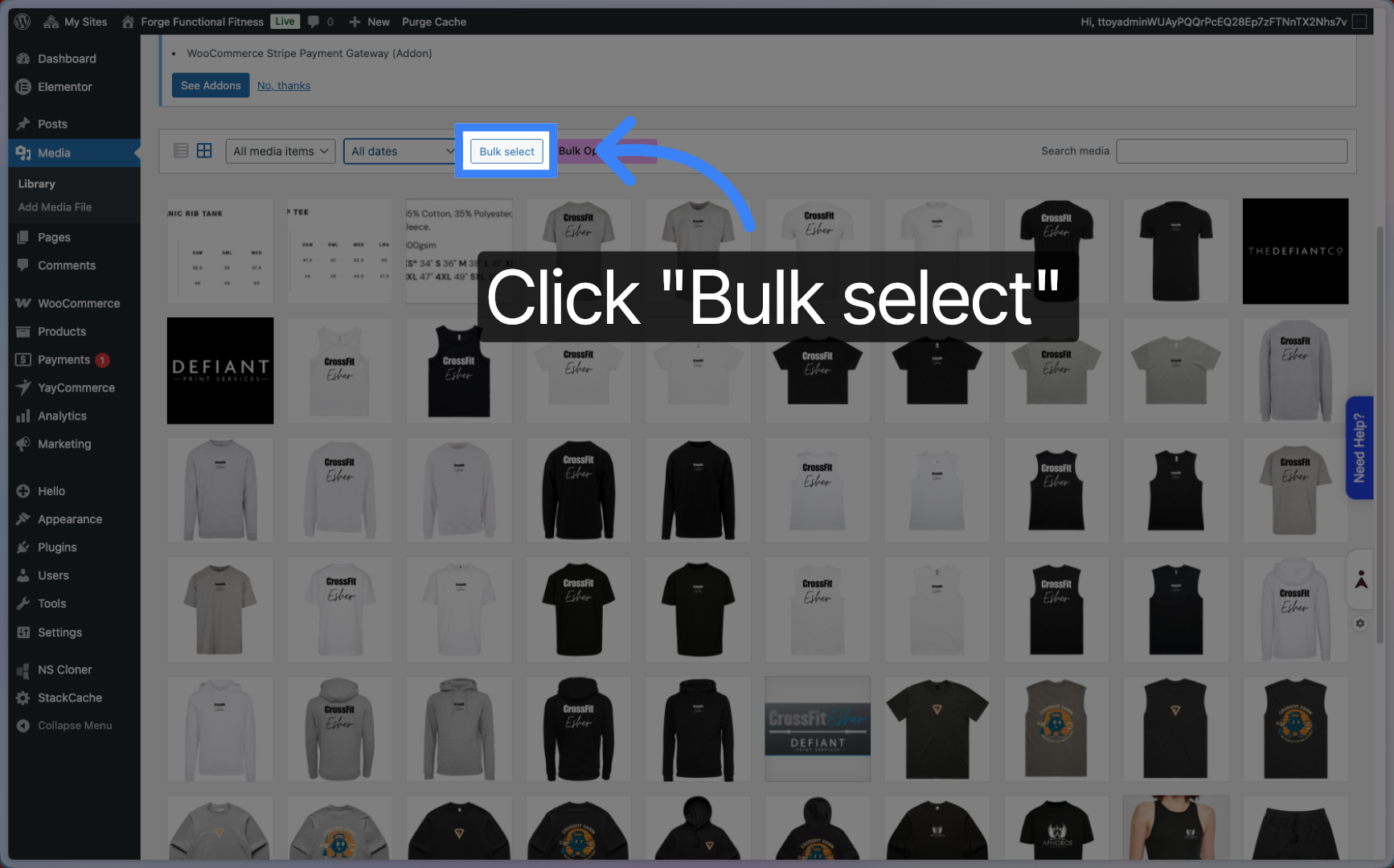
Click the Bulk select option to enable selection of multiple images for deletion.
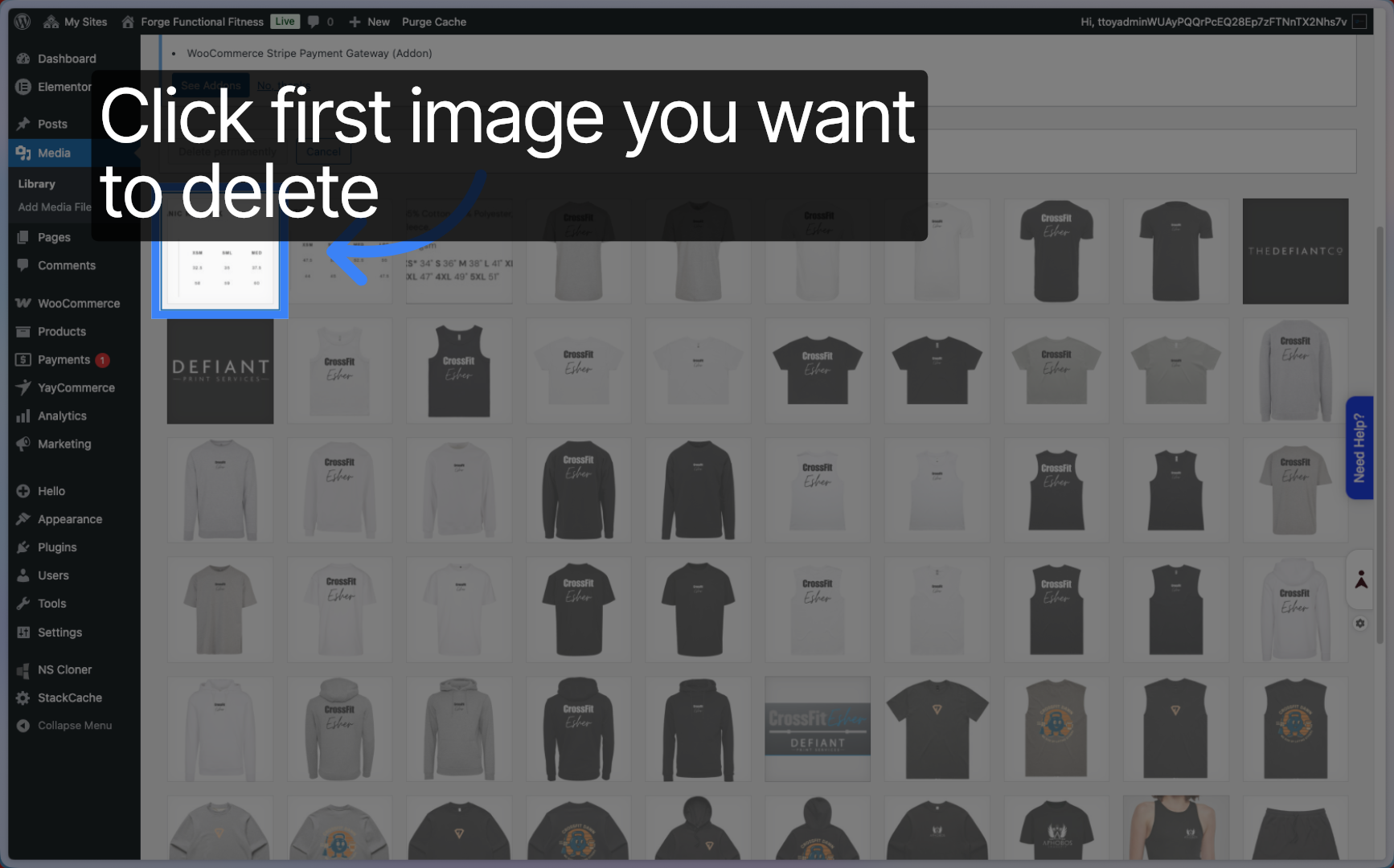
Click to select the first image you want to delete.
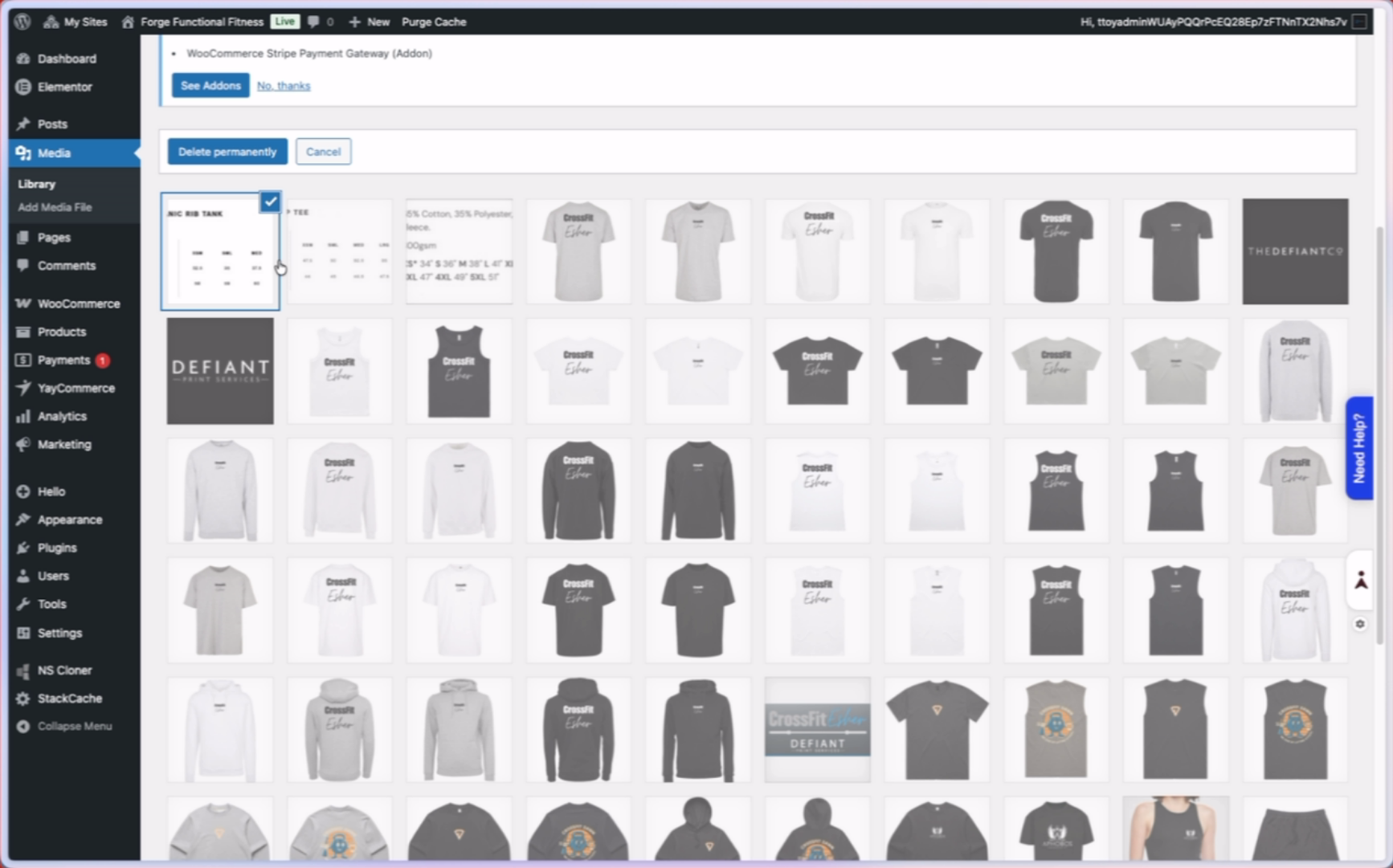
Select all the other images, you can hold the shift key on your keyboard to select multiple at once
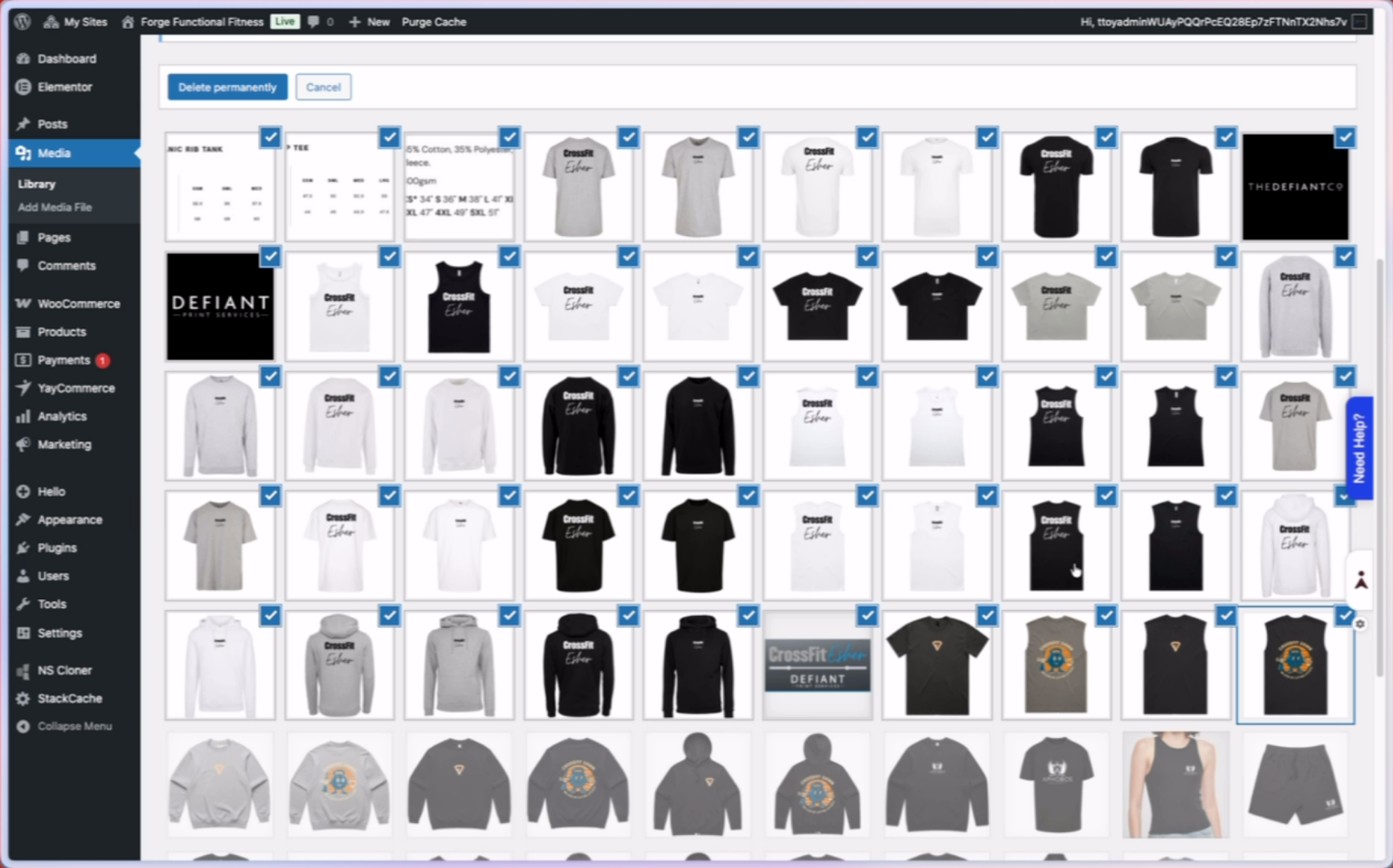
Once all your images are selected, click delete permanently. Okay th following the message, and as you can see, the images are deleted. the library
You have successfully deleted multiple photos in bulk from your media library. To confirm, verify that the selected images no longer appear in your library. For further management, consider organising your remaining media or restoring any mistakenly deleted items if available.