You will learn the step-by-step process to organise customer information using tags effectively.
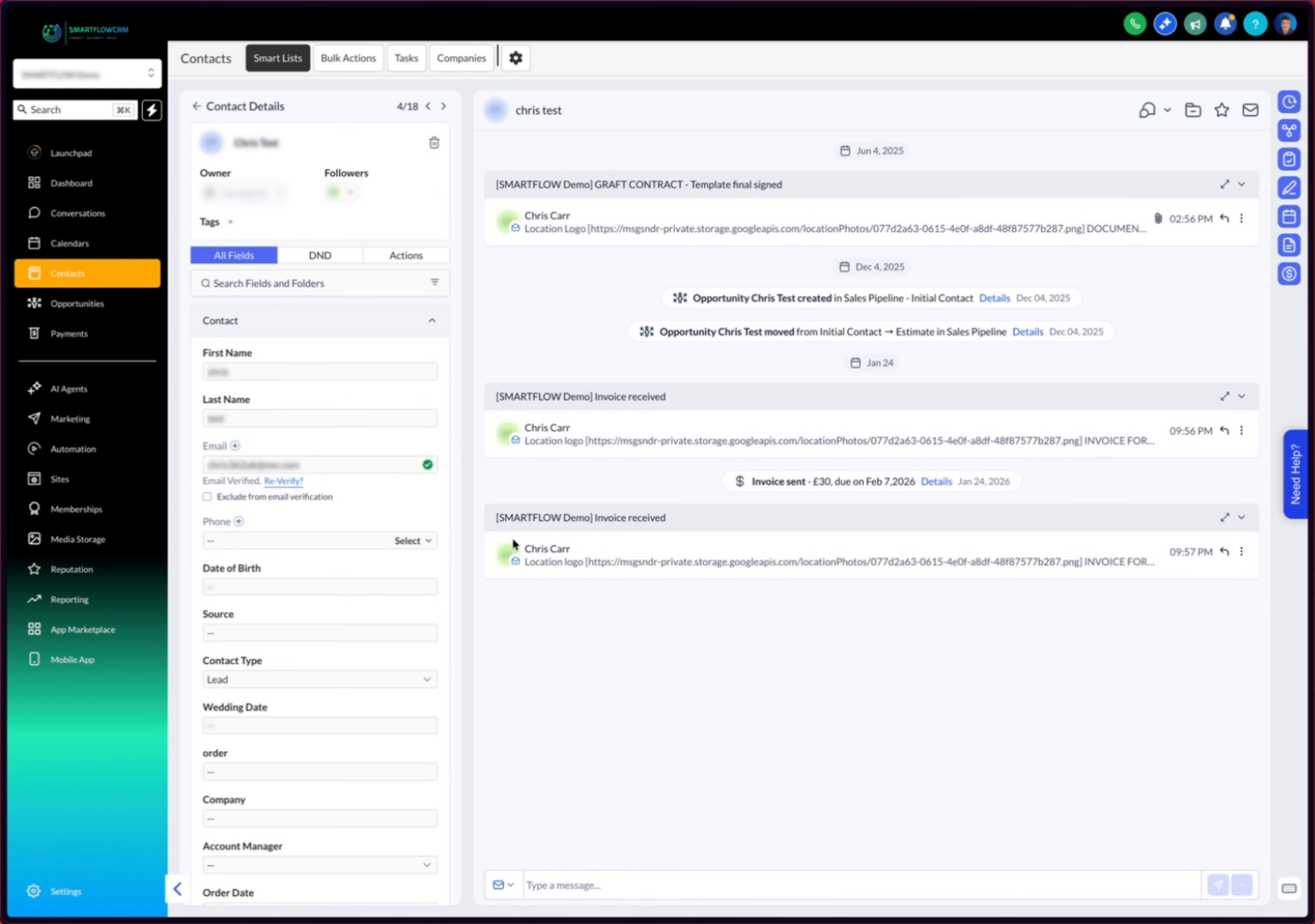
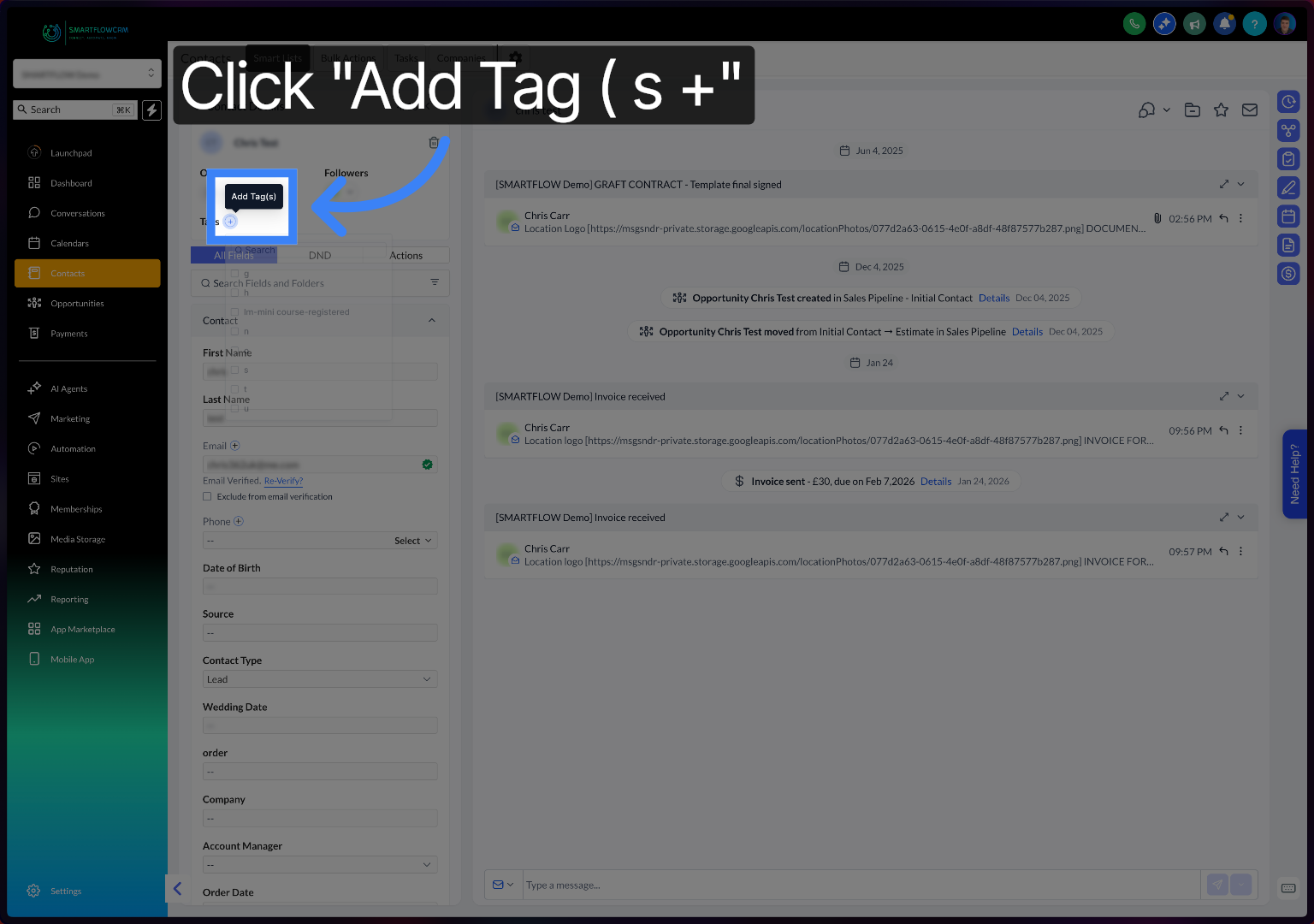
On the Customer Click " + Add Tag" to begin the process of adding a new tag to the customer profile.
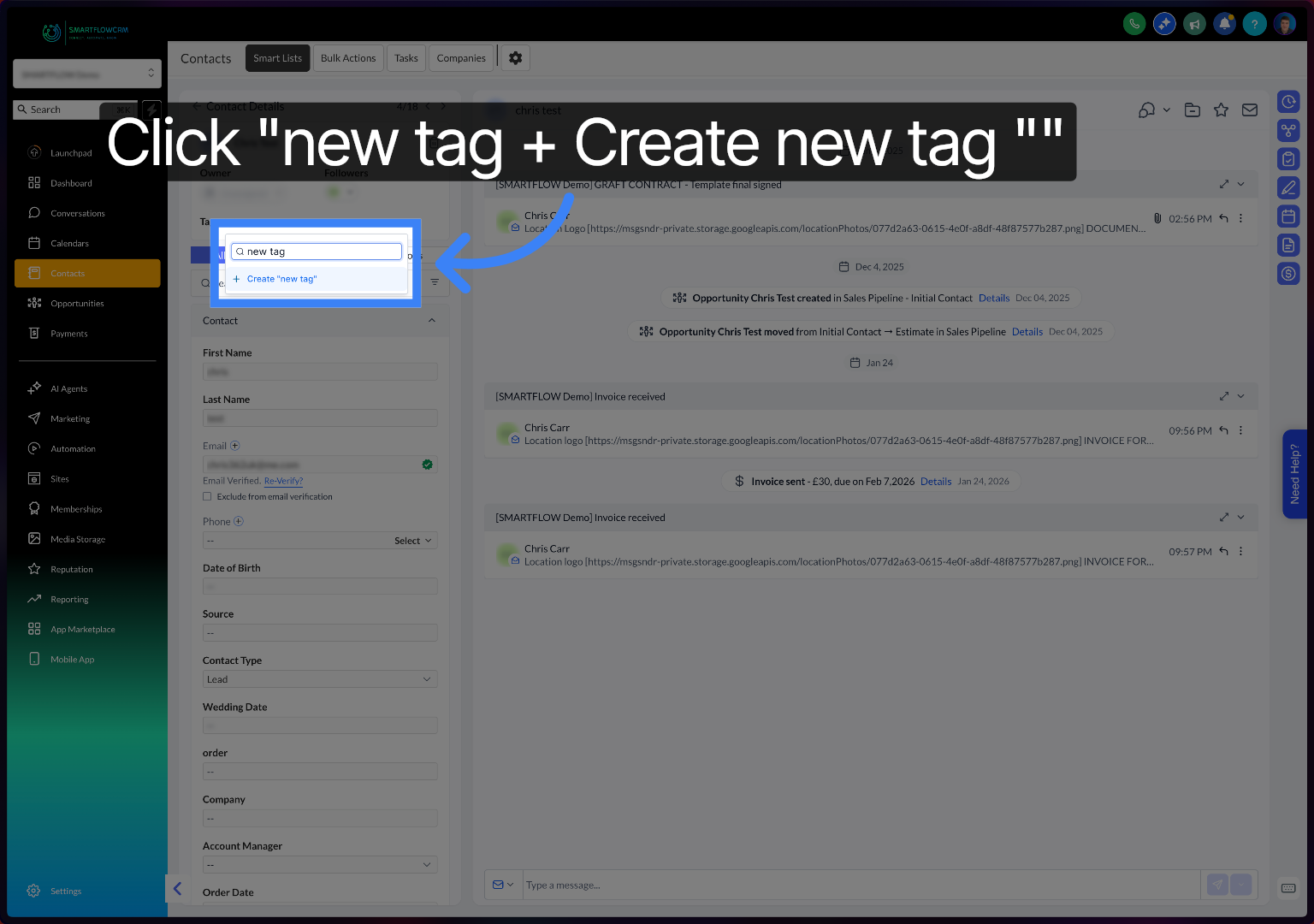
You can search for an existing tag by typing the name of the tag. If none is found, you can create a new one by Clicking "new tag + Create new tag" to start creating a custom tag for the customer.
You can click on the checkboxes to add any other tags you want.
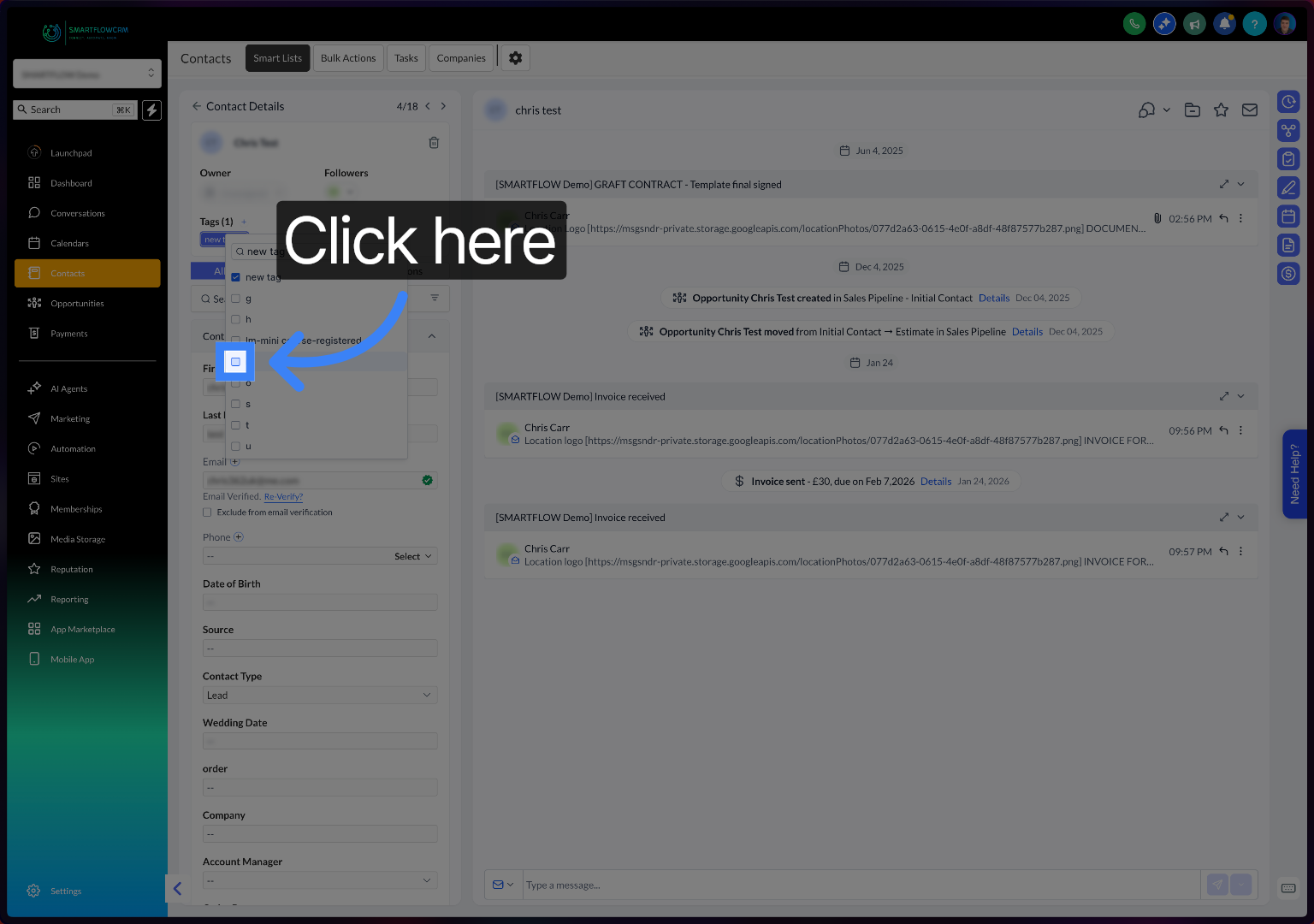
The tag has been added click the arrow to go back to the contacts dasboard.
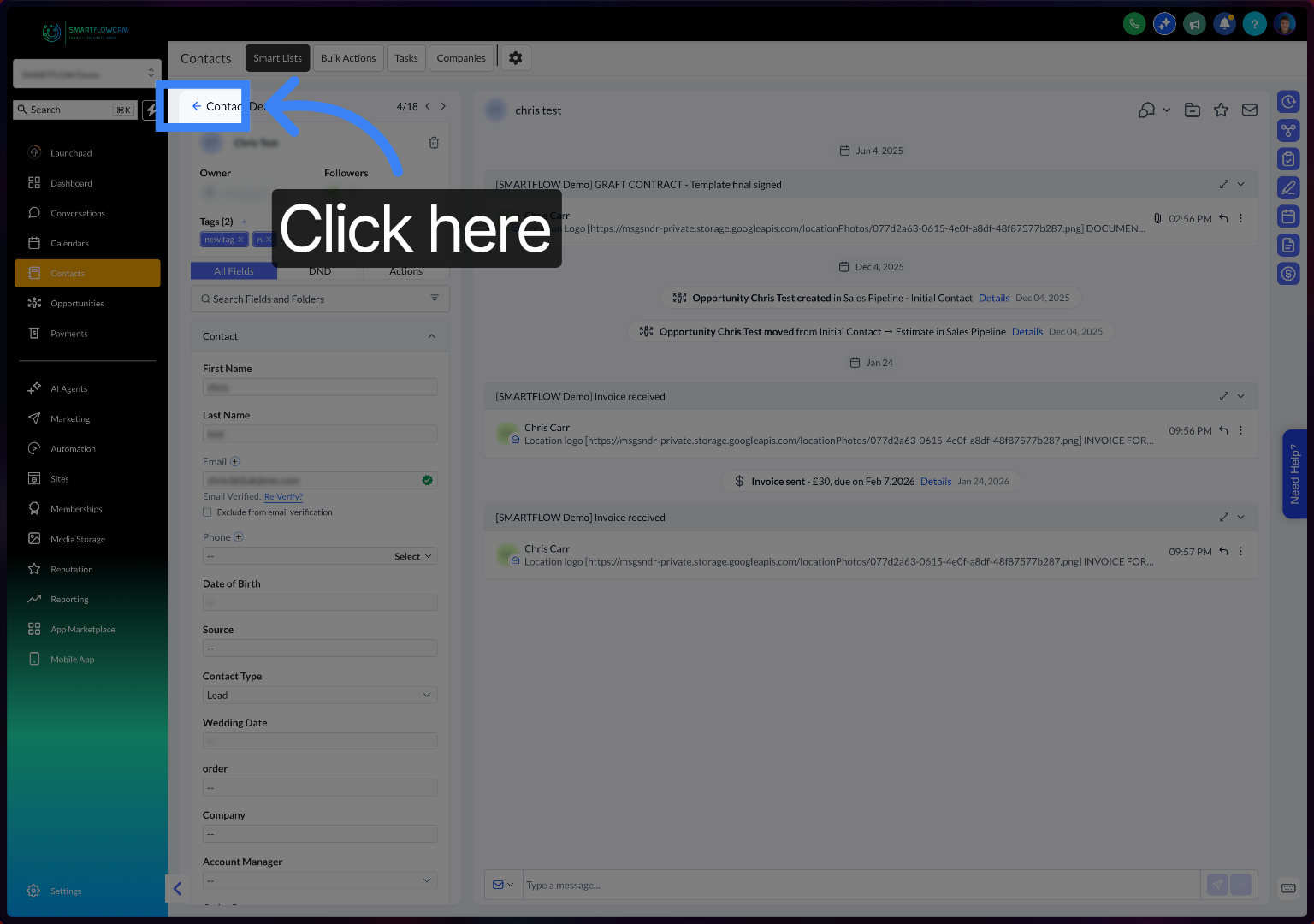
When in the contact window, you can select multiple contacts to add a tag to.
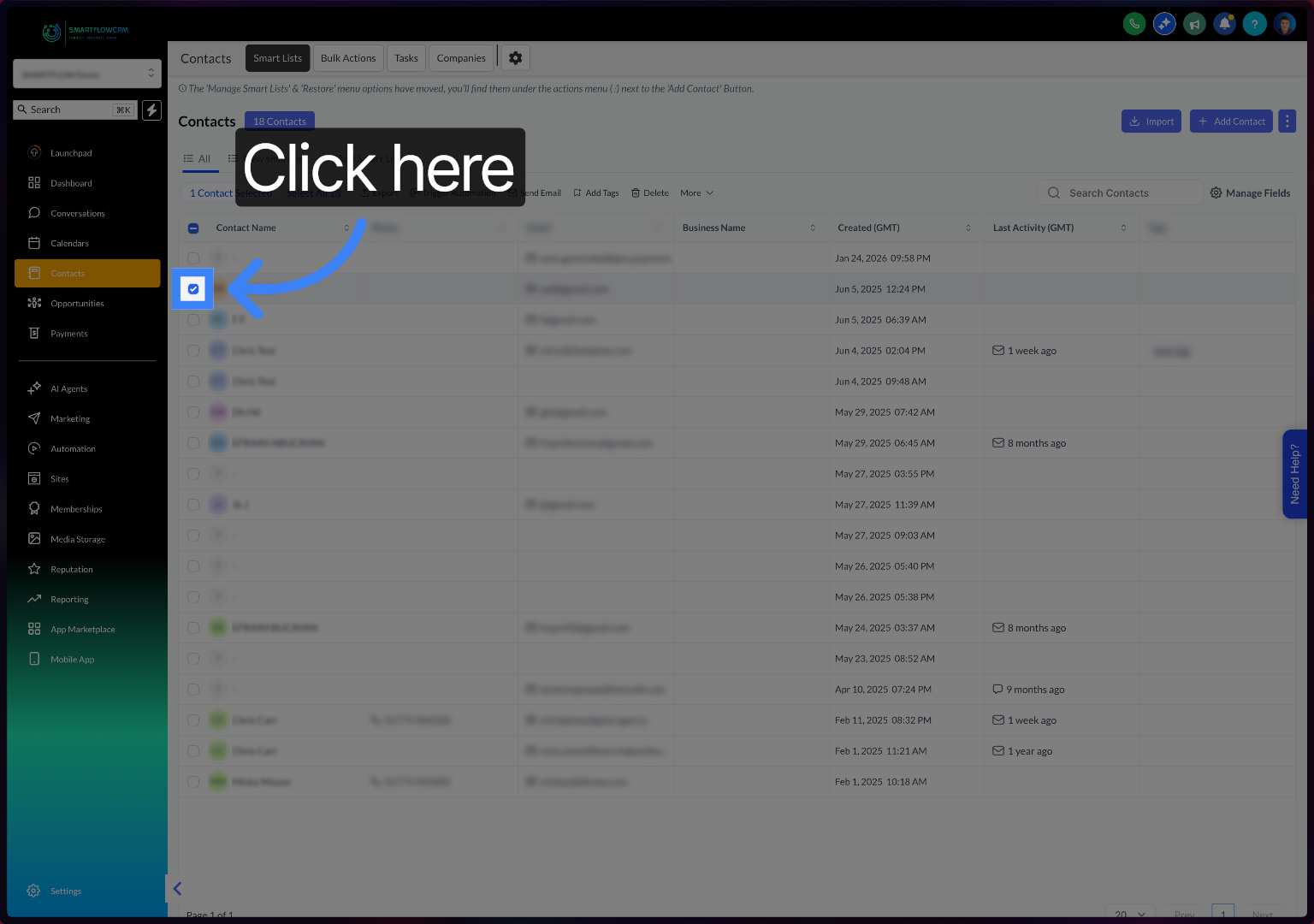
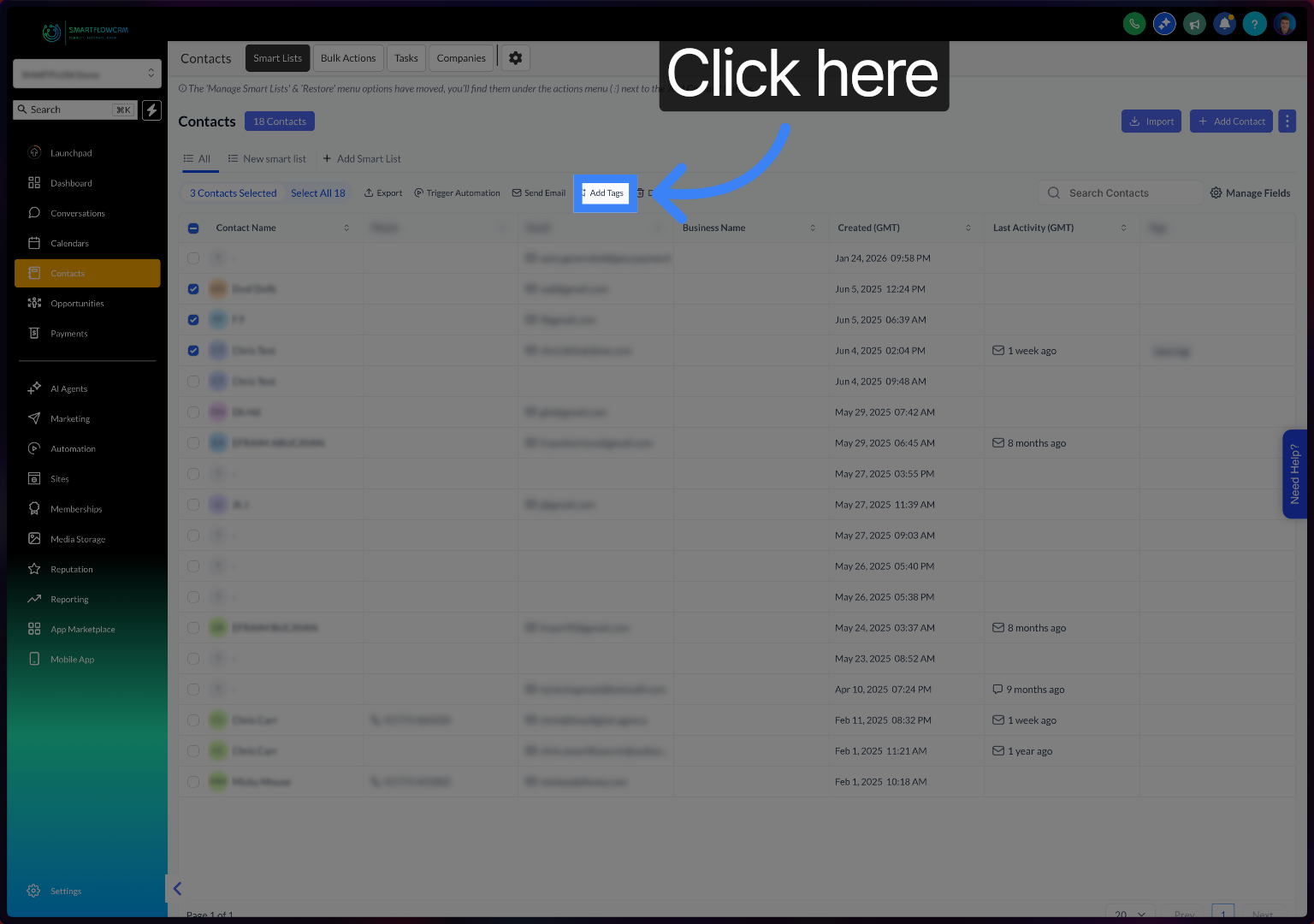
Click the add tag button area to add a tag to the selected contact
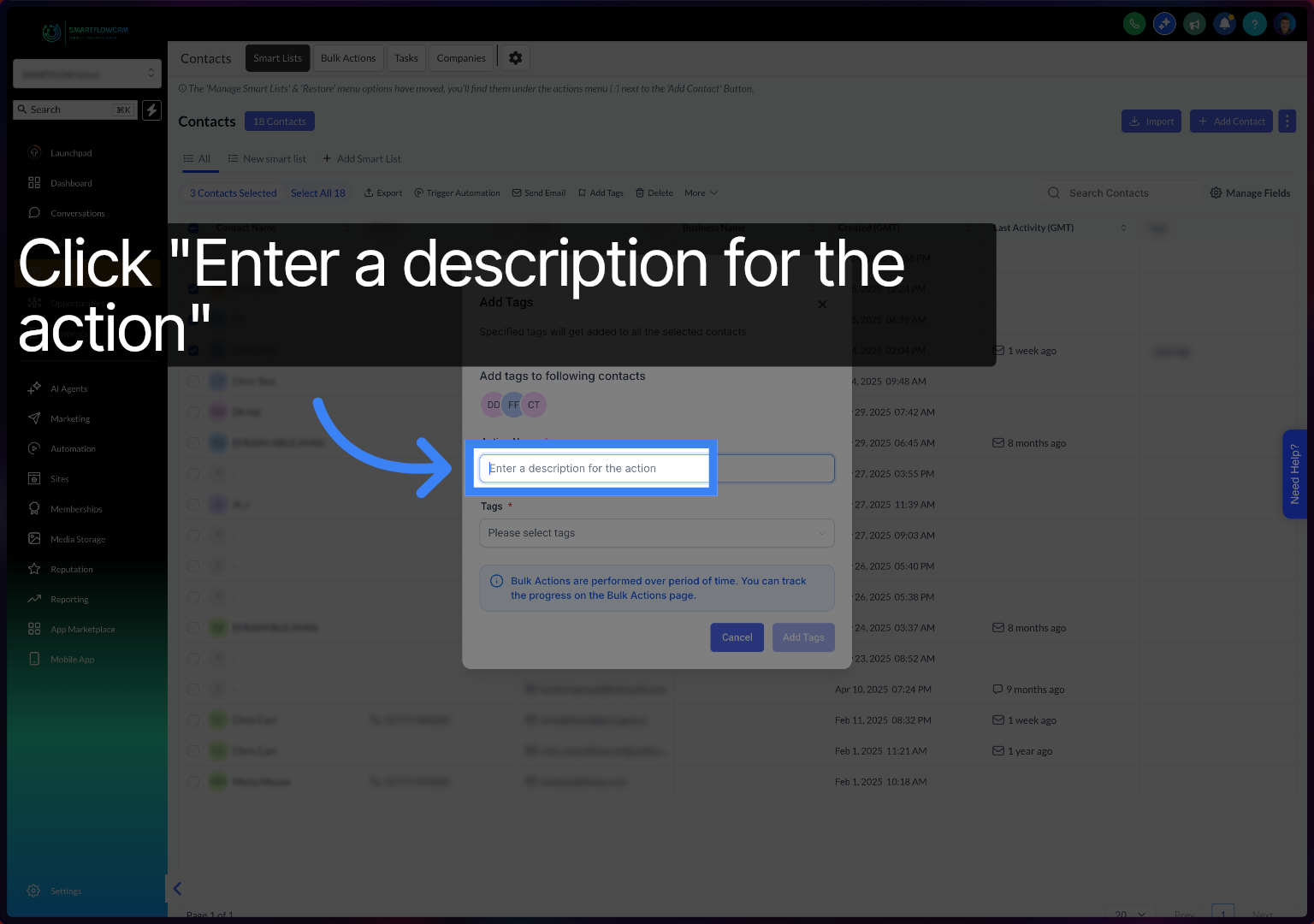
You'll then need to add a title for the bulk actions
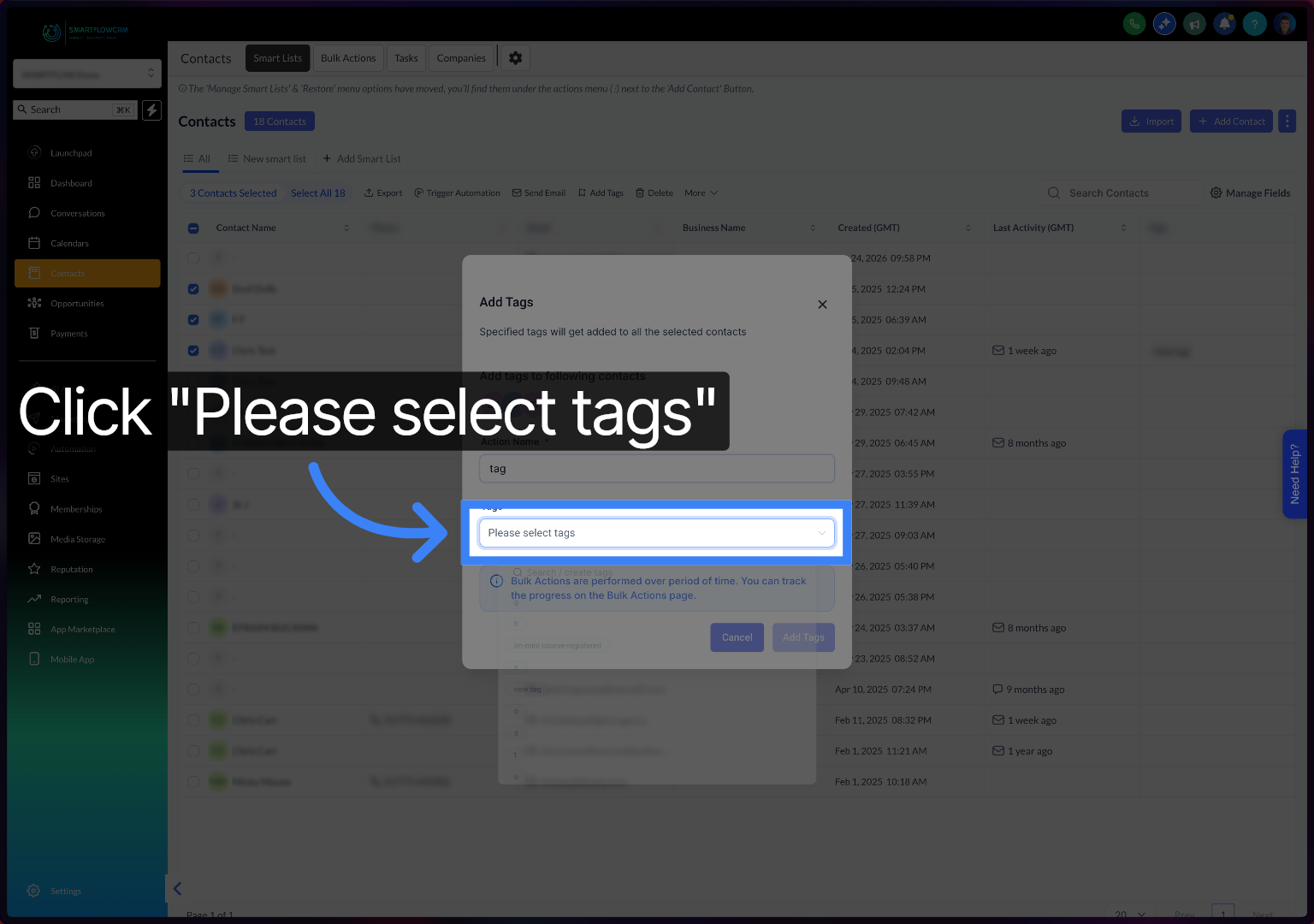
Click "Please select tags" to choose existing tags to associate with the customer.
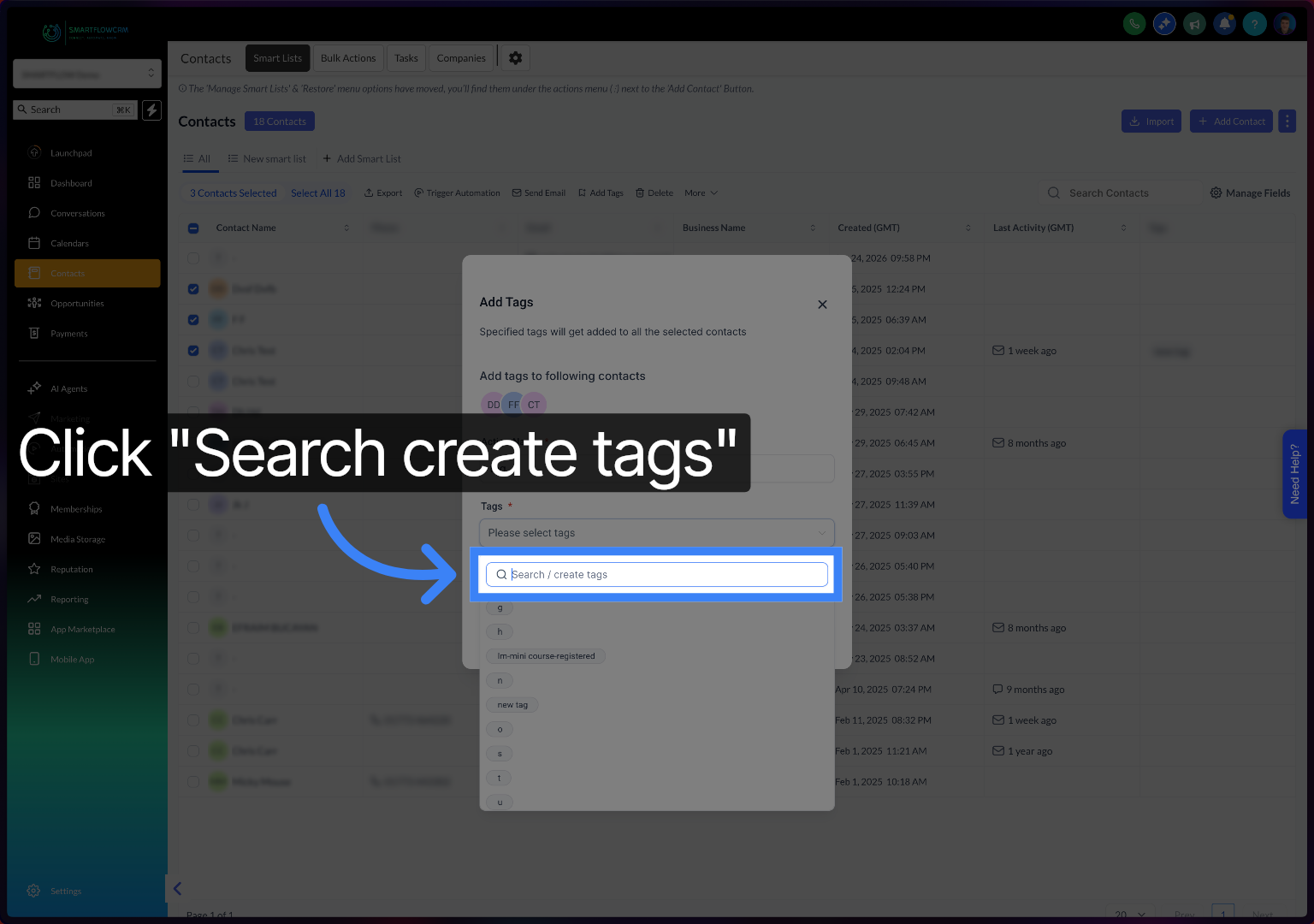
Click "Search create tags" to find existing tags or create new ones for the customer.
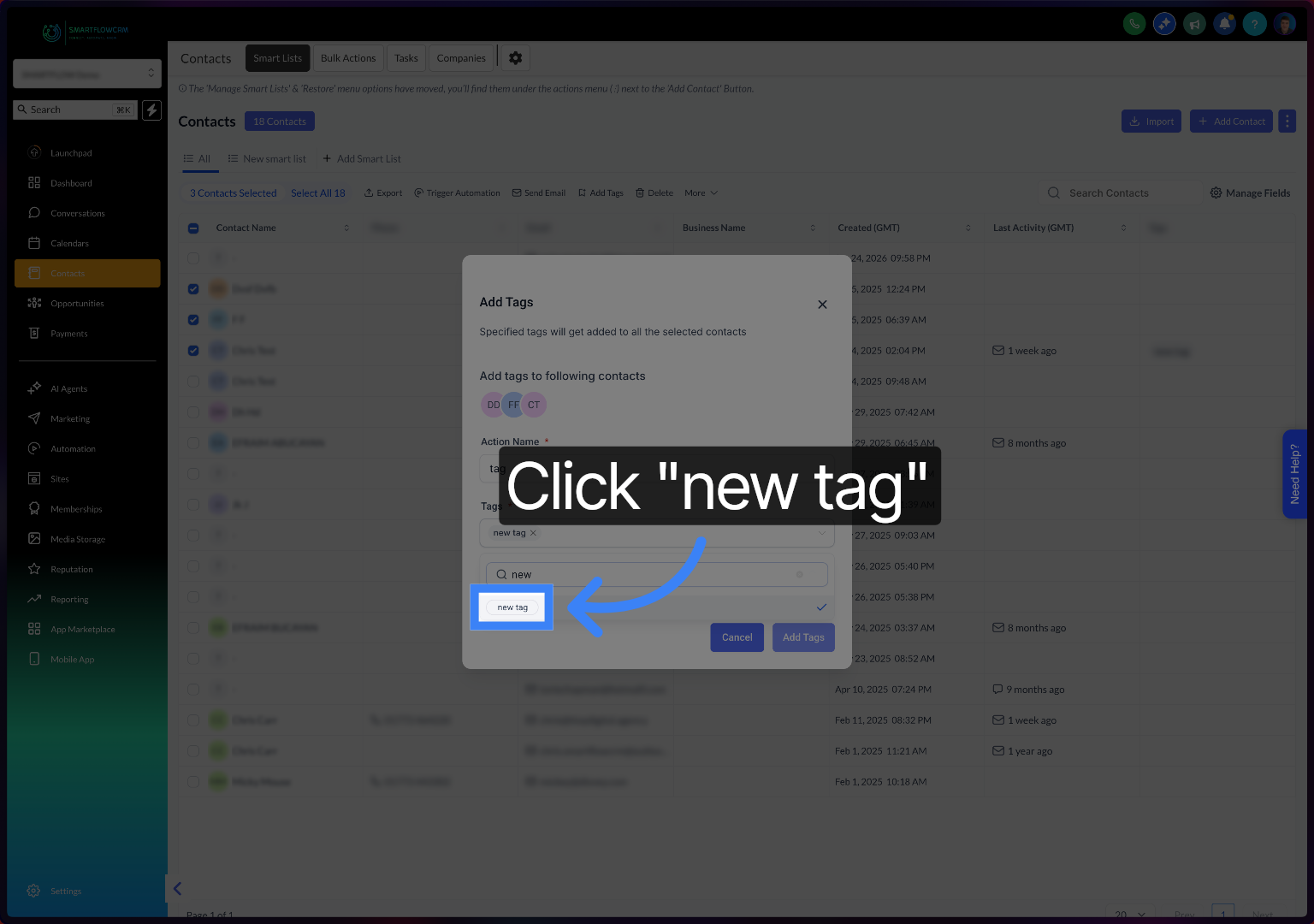
Click "new tag" to add a newly created tag to the customer's profile.
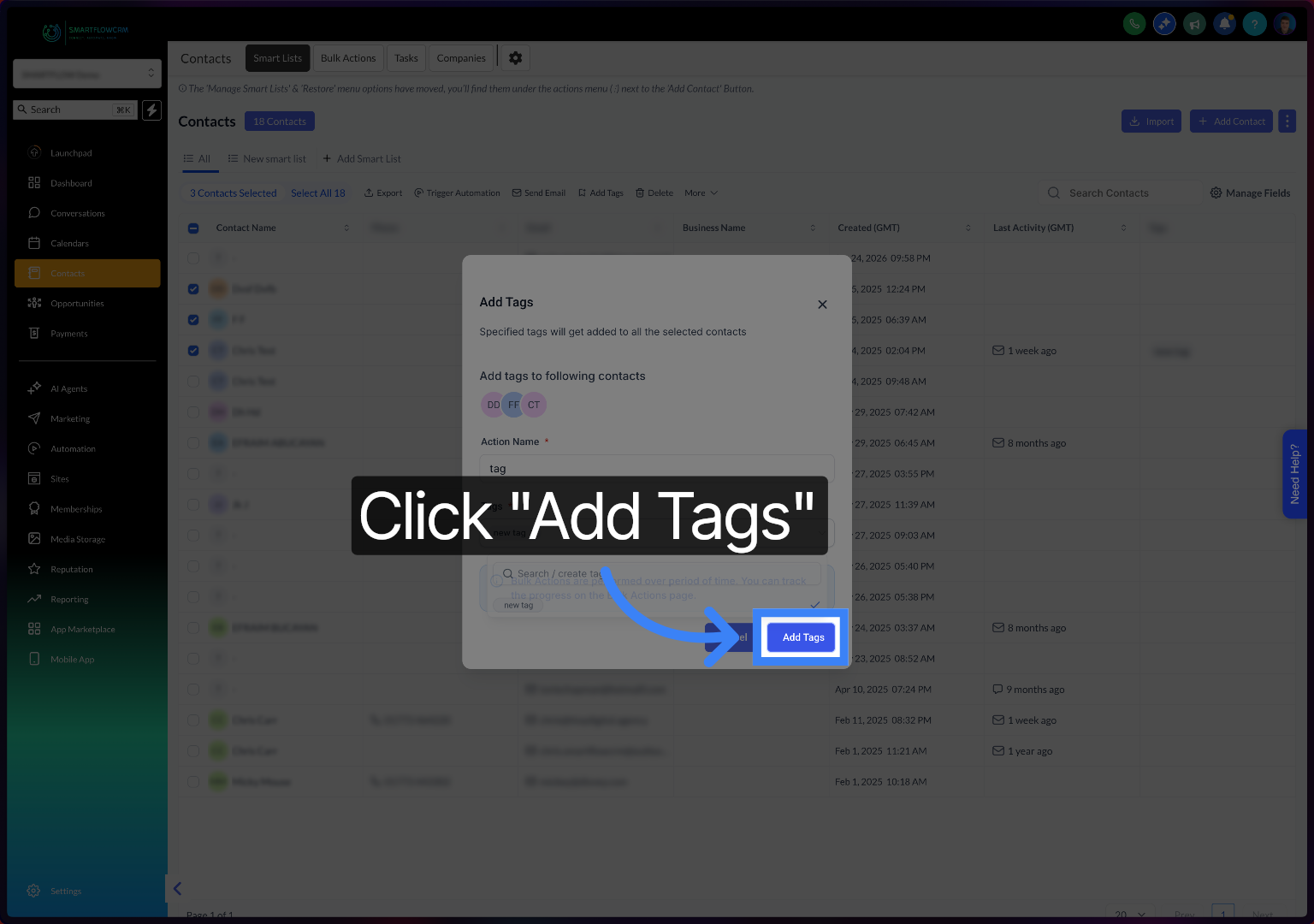
Click "Add Tags" to finalise adding the selected tags to the customer record.
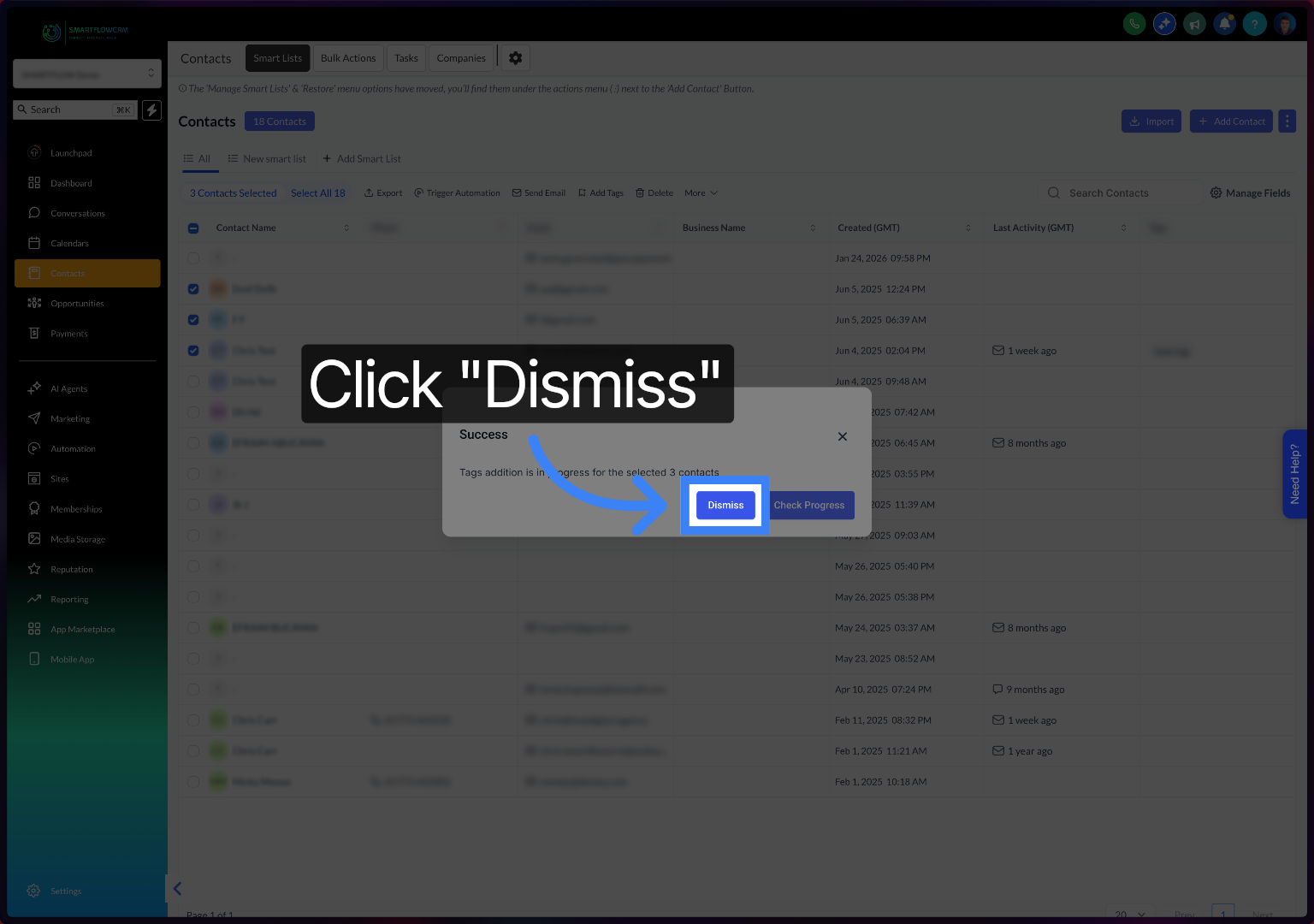
Click "Dismiss" to close the tag addition window after completing the process.
This article has shown how to add and manage tags for customers in Smarflowcrm, helping you organise customer data efficiently. For more information, see related articles on customer management and tagging best practices.