If you use Canva for designing your brand assets, you can link Canva to your media library so that you can use your Canva assets without having to manually download them and upload them to SmartFlow.
To connect canva you’ll need to add it via your media storage.
You will learn the step-by-step process to establish this integration.
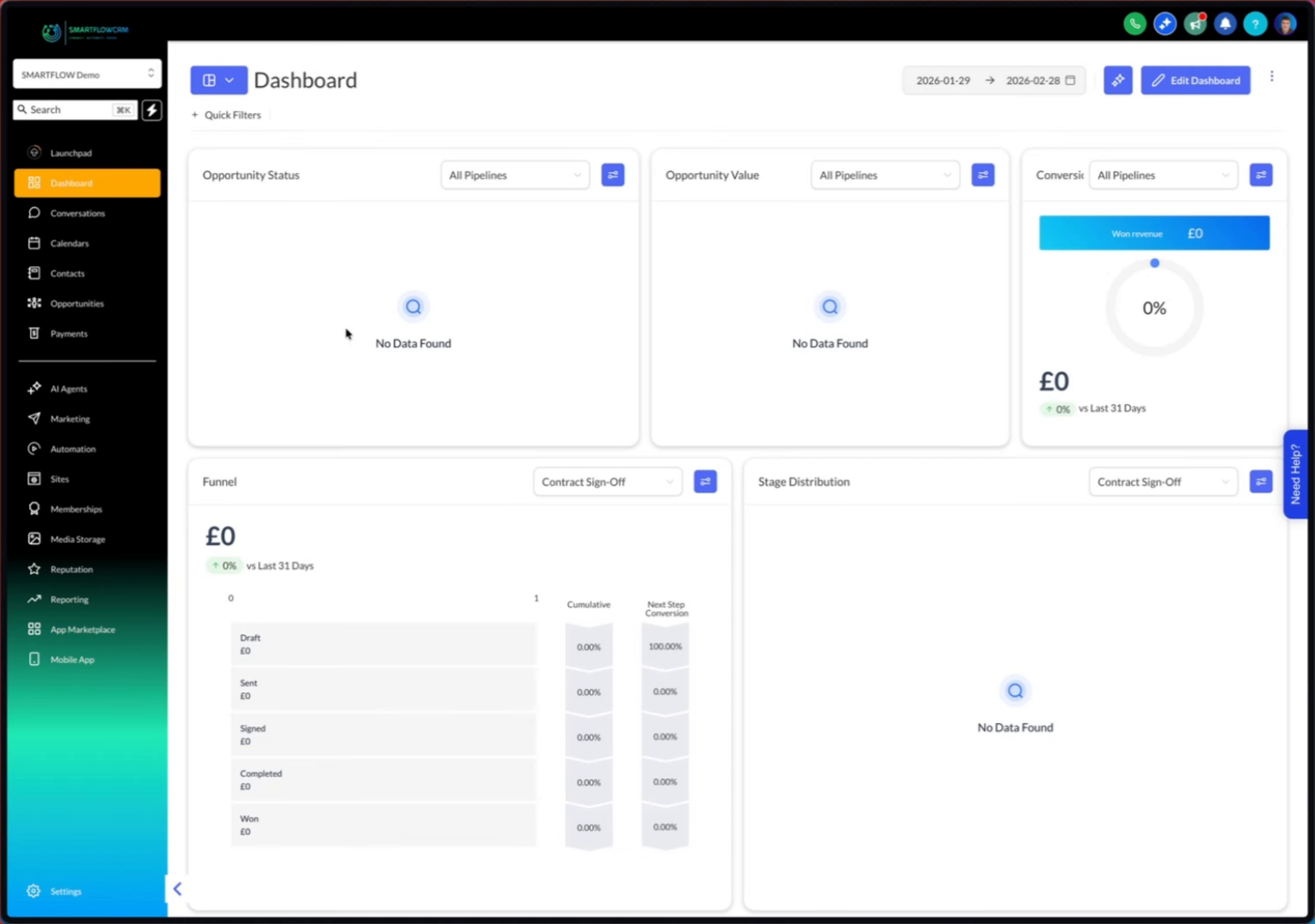
Click "Media Storage" to open the your media library.
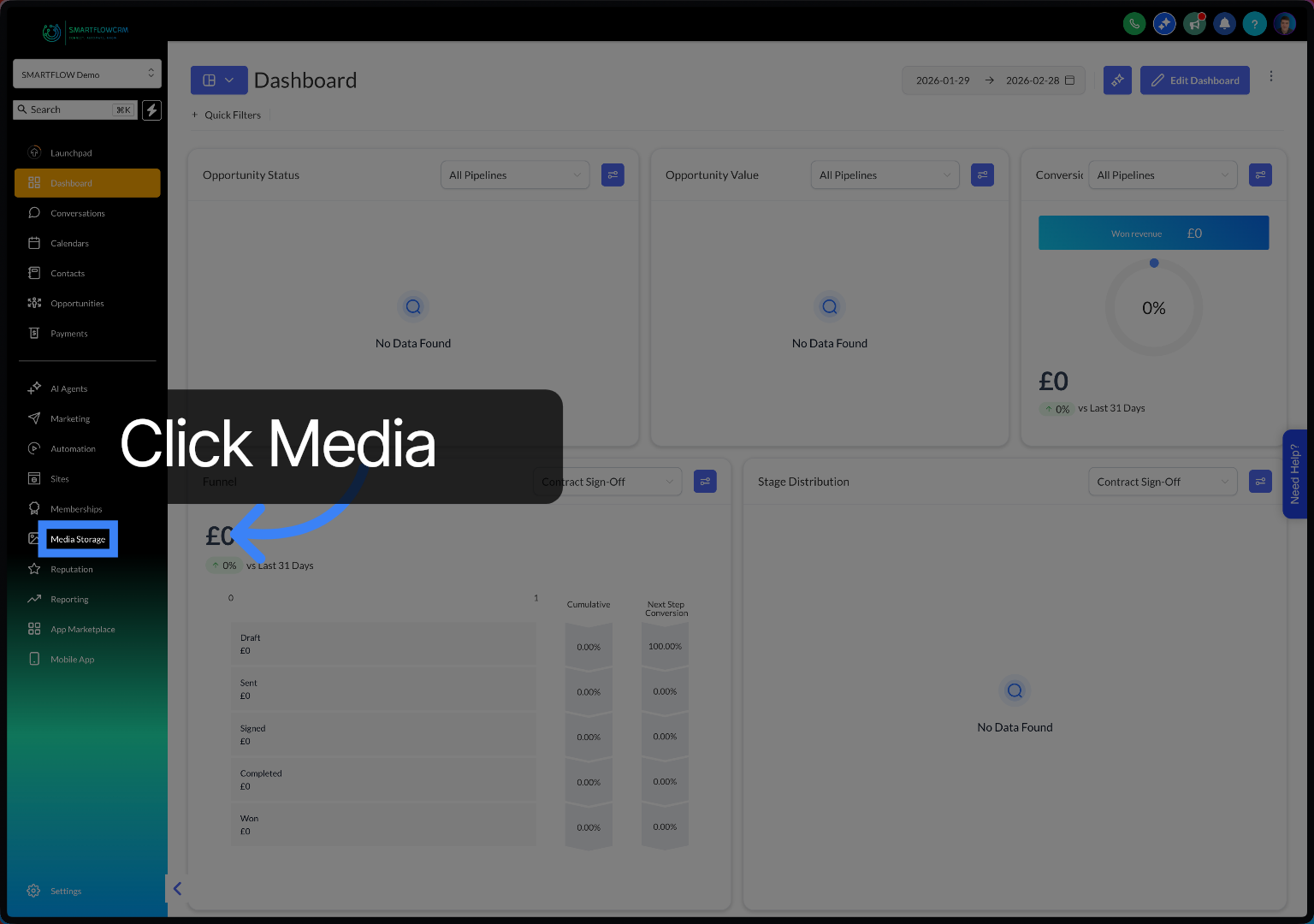
Click "Connect Canva" to begin connecting your Canva account to Smarflow.
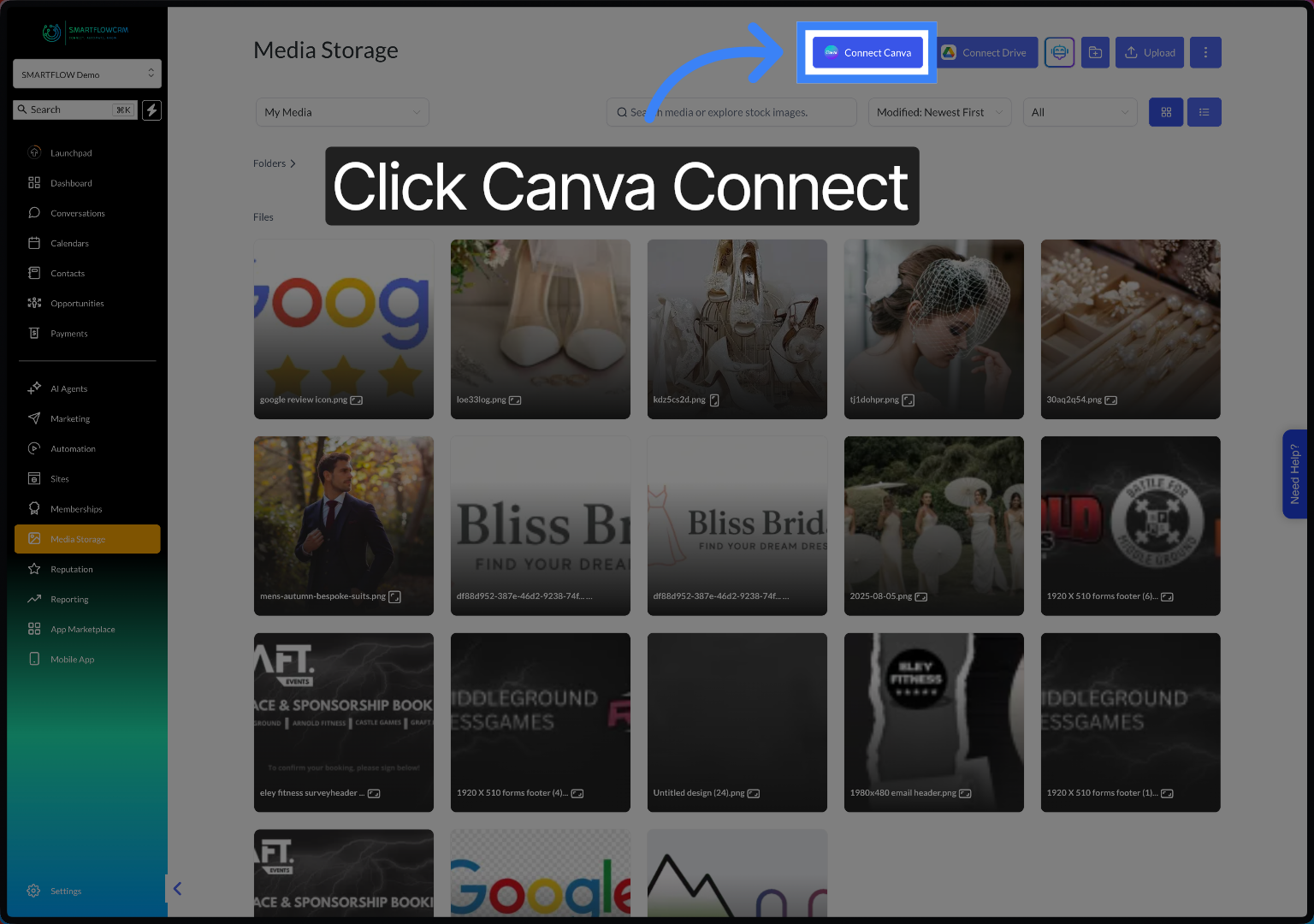
Click "Continue with email" to proceed with email authentication or choose another option if you log in differently.
Click "Allow" to authorise Smarflow crm to access your Canva account and media.
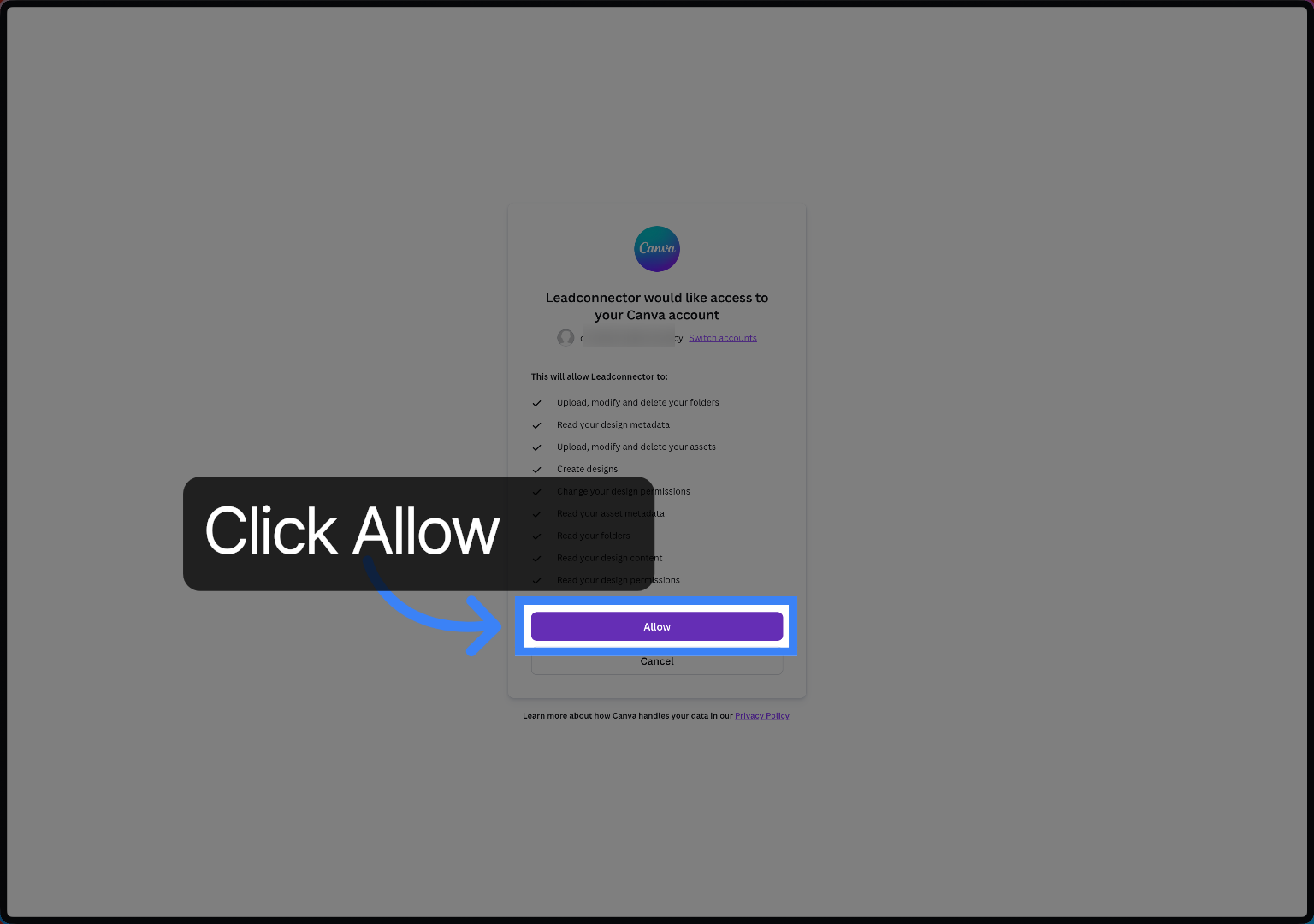
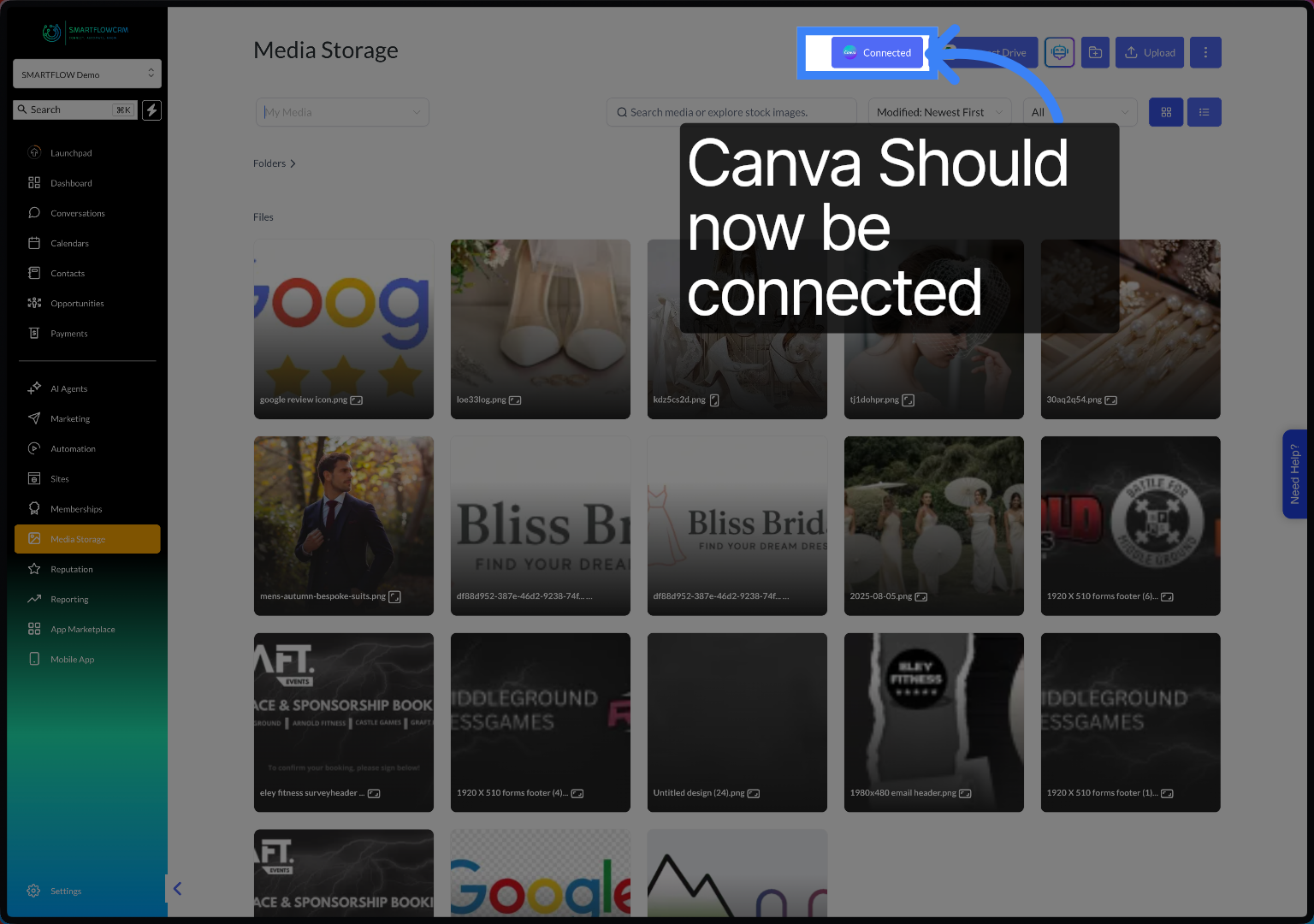
If Canva is successfully connected, it should update the button
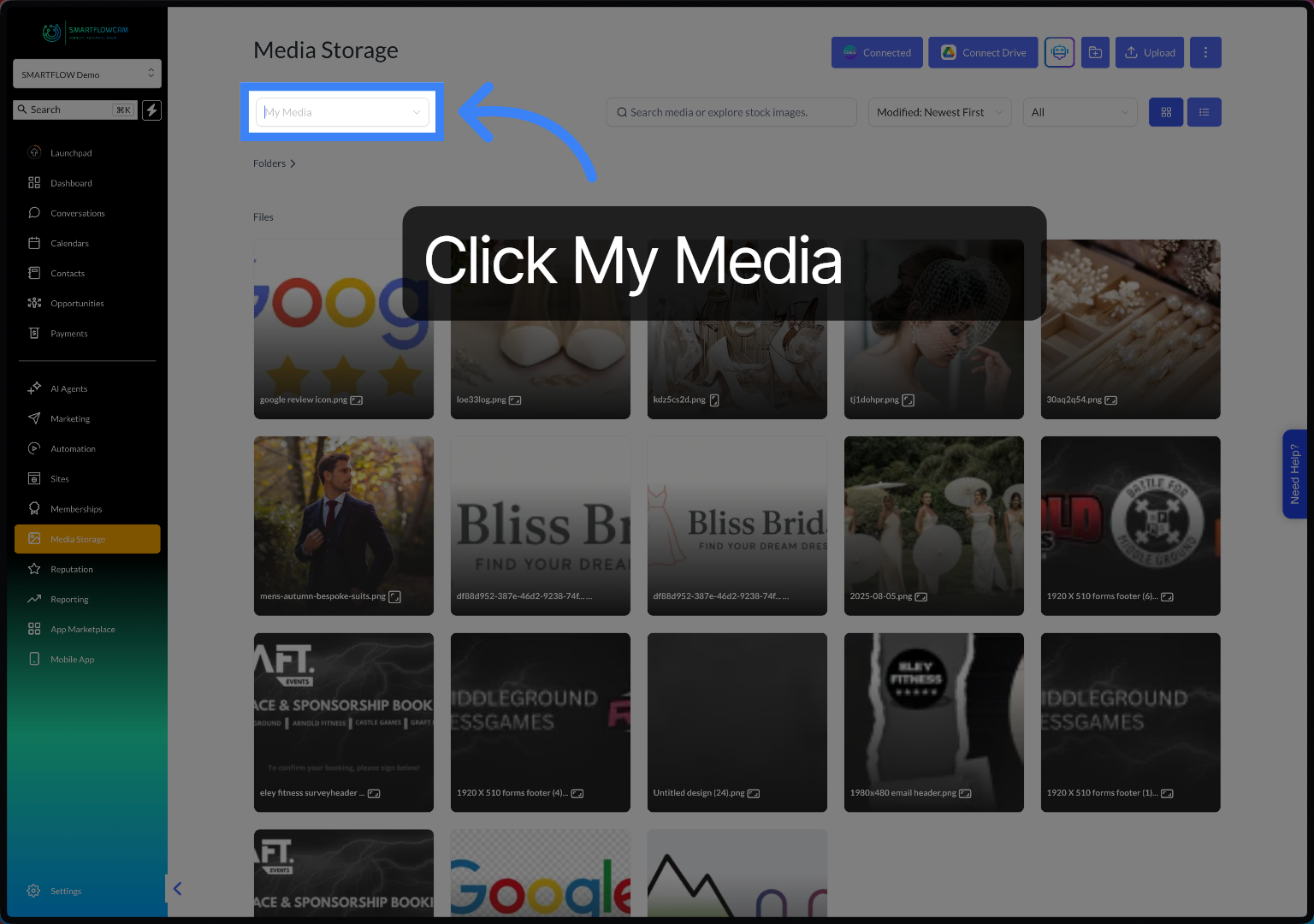
Click "My Media" to select and view your connected Canva media
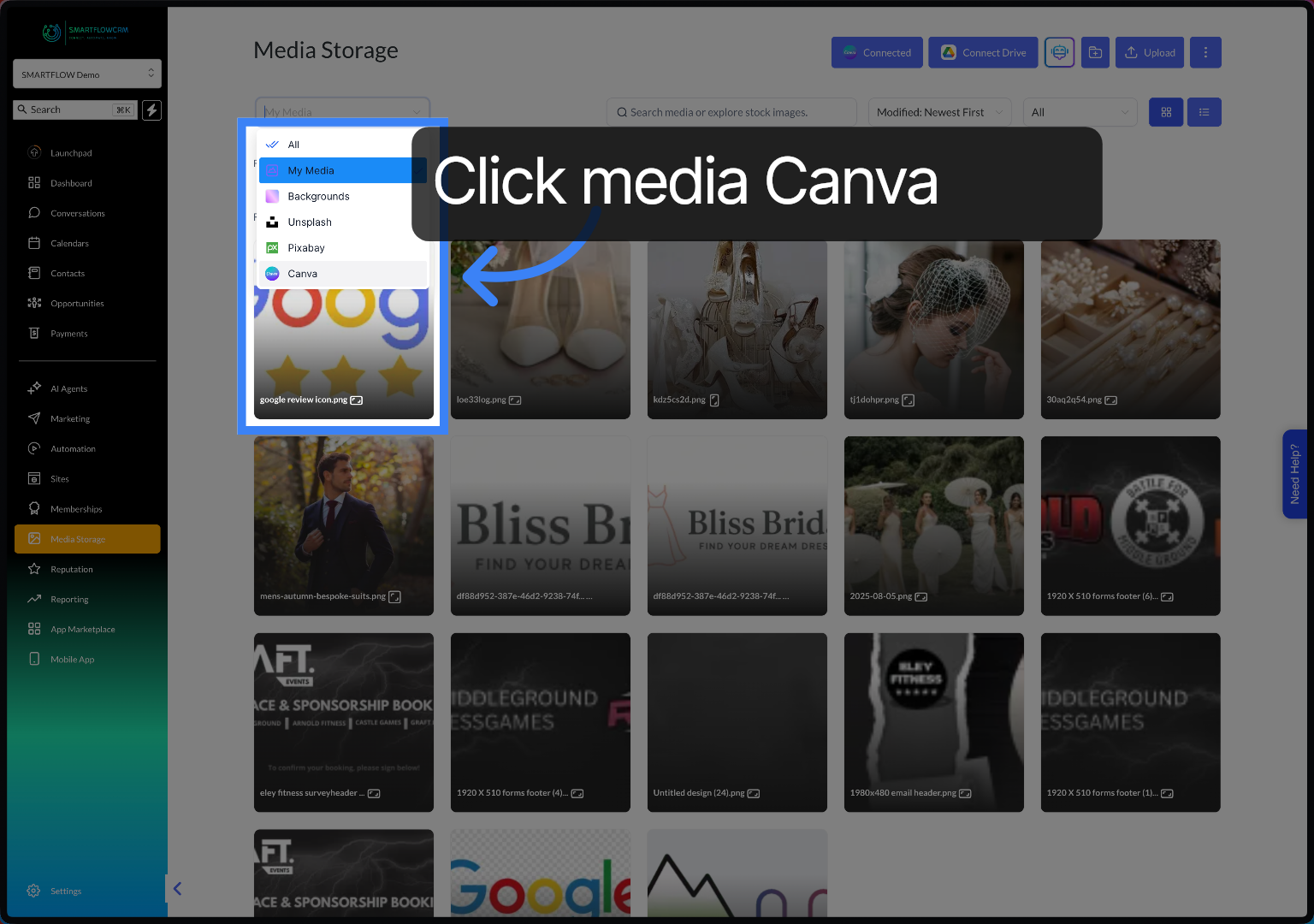
Click the Canva to open your Canva library.
You have successfully connected your Canva account to Smarflow CRM, enabling seamless access to and management of media. For more information, refer to related articles on media integrations and account settings within the knowledge base.