Control the order in which products appear in your store by setting display priorities. Follow these steps to organize your product catalog:
Click on your store name in the stores list to open the store editor.
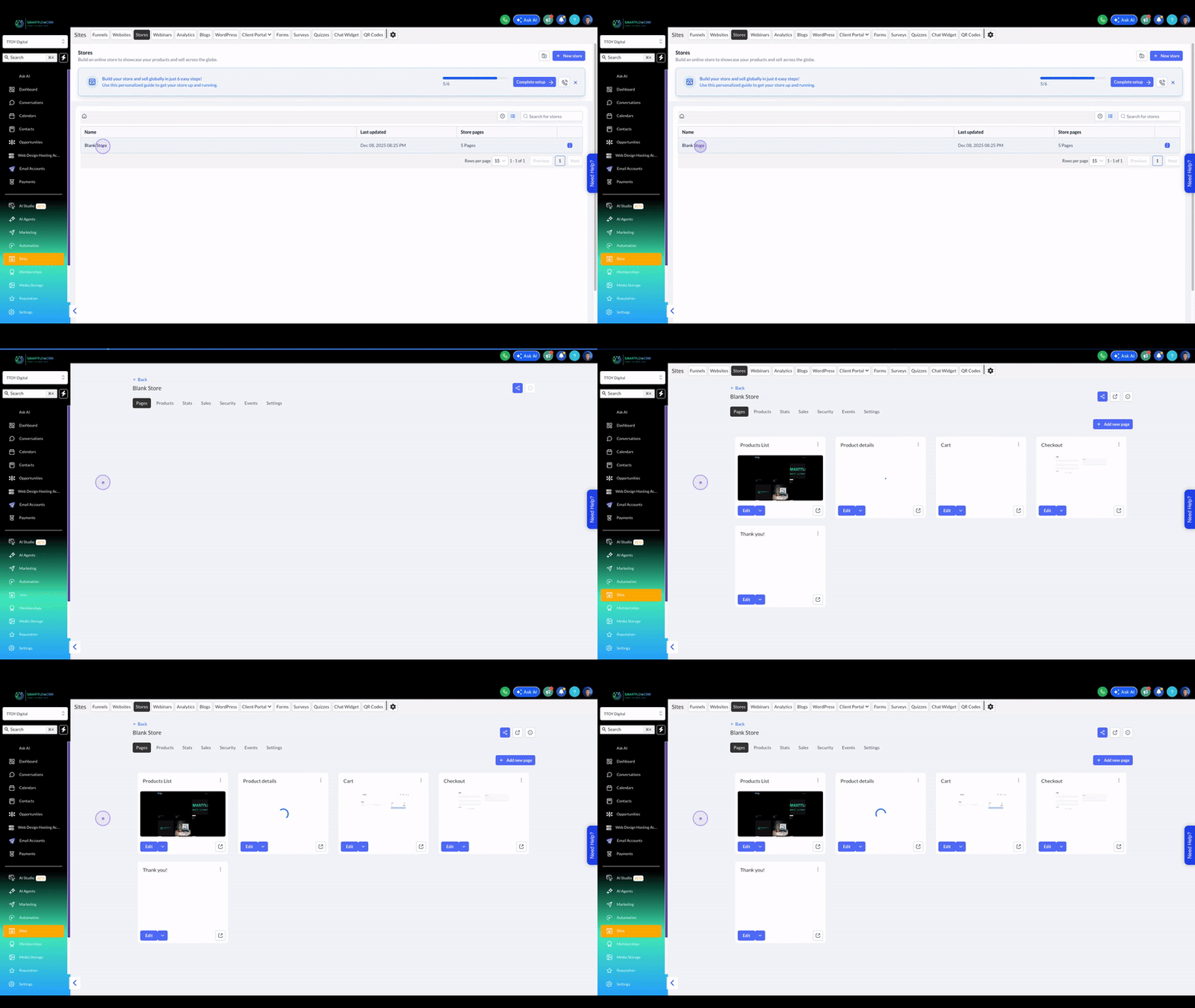
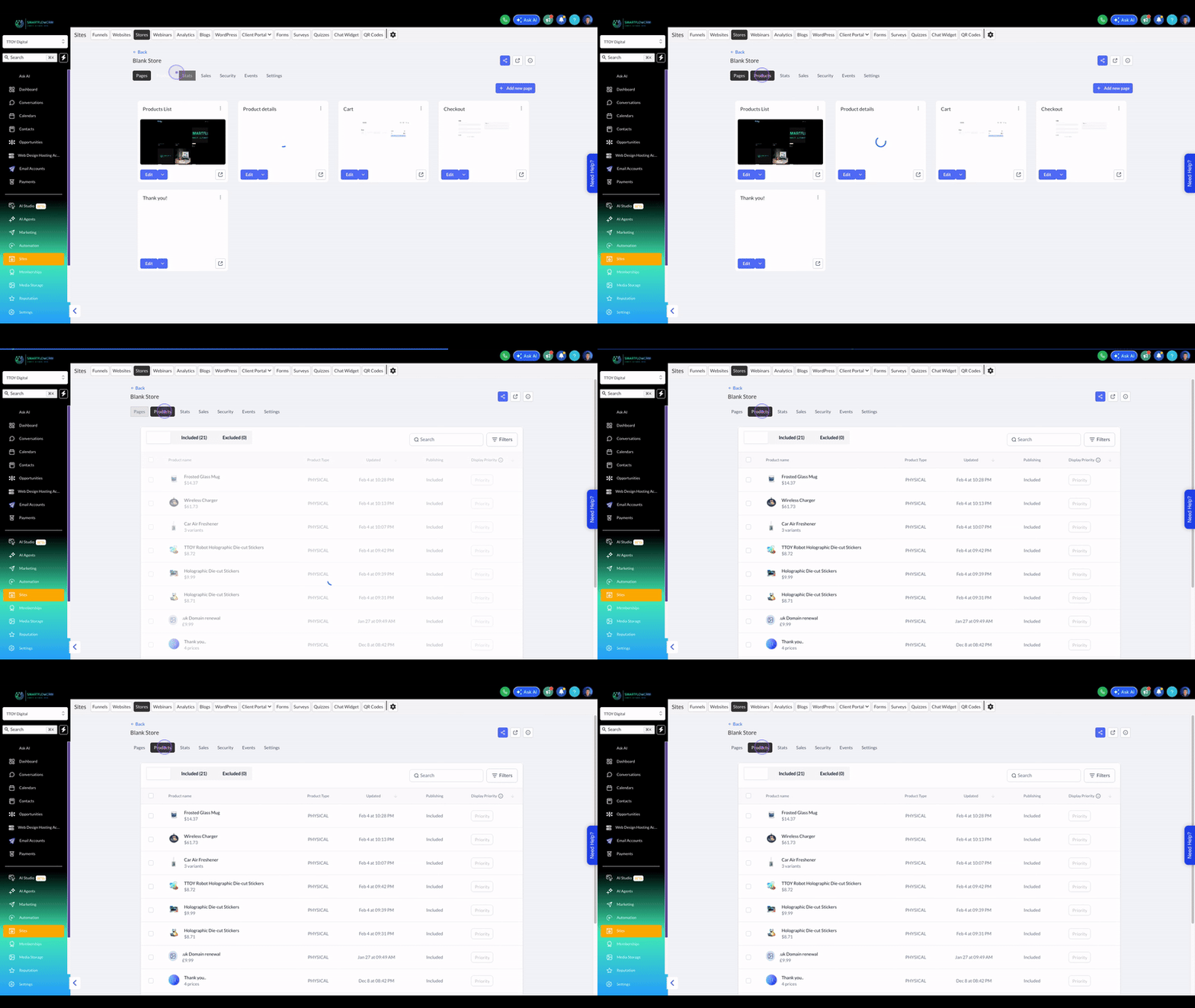
Click on the Products tab to view your product catalog and access priority settings.
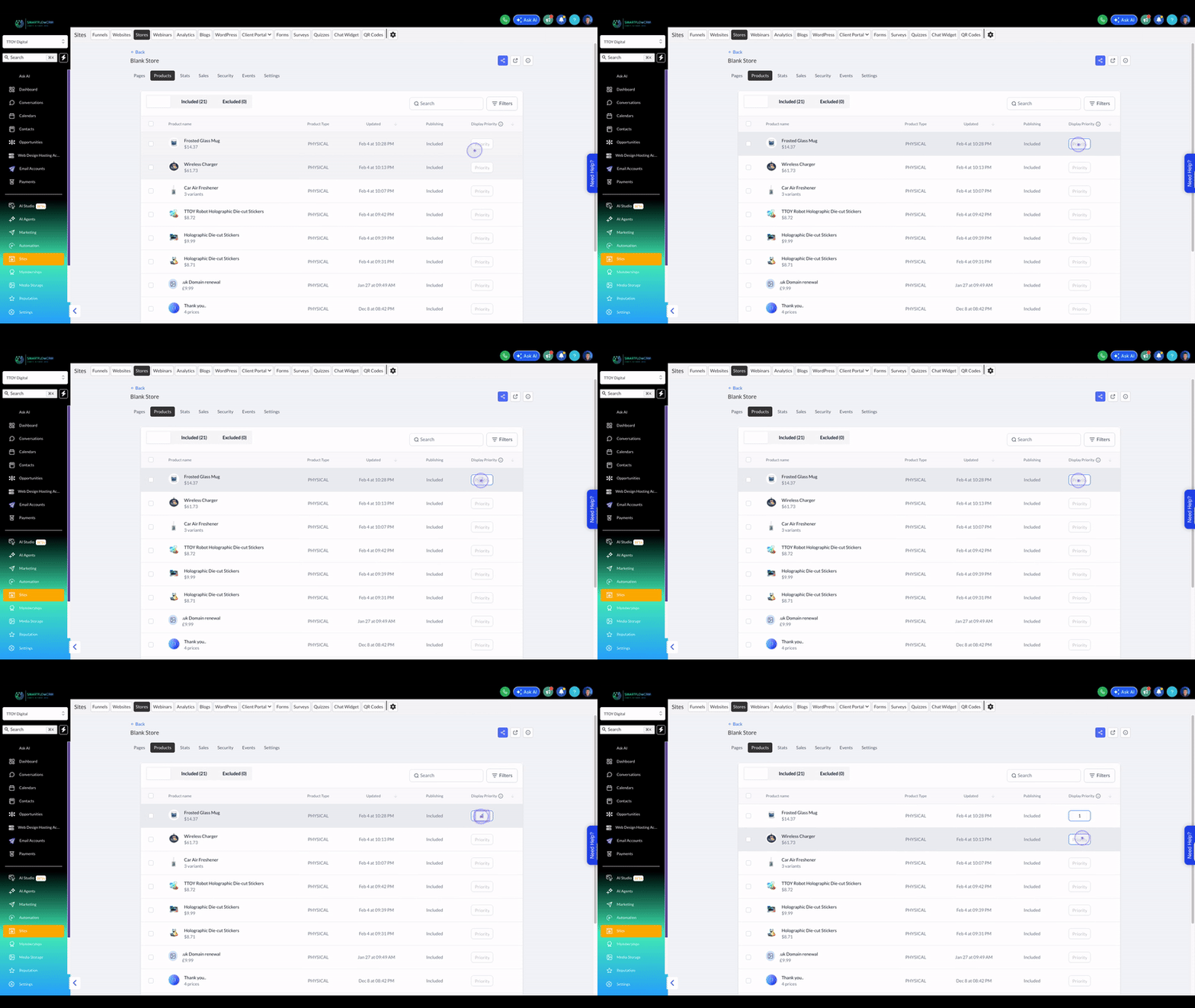
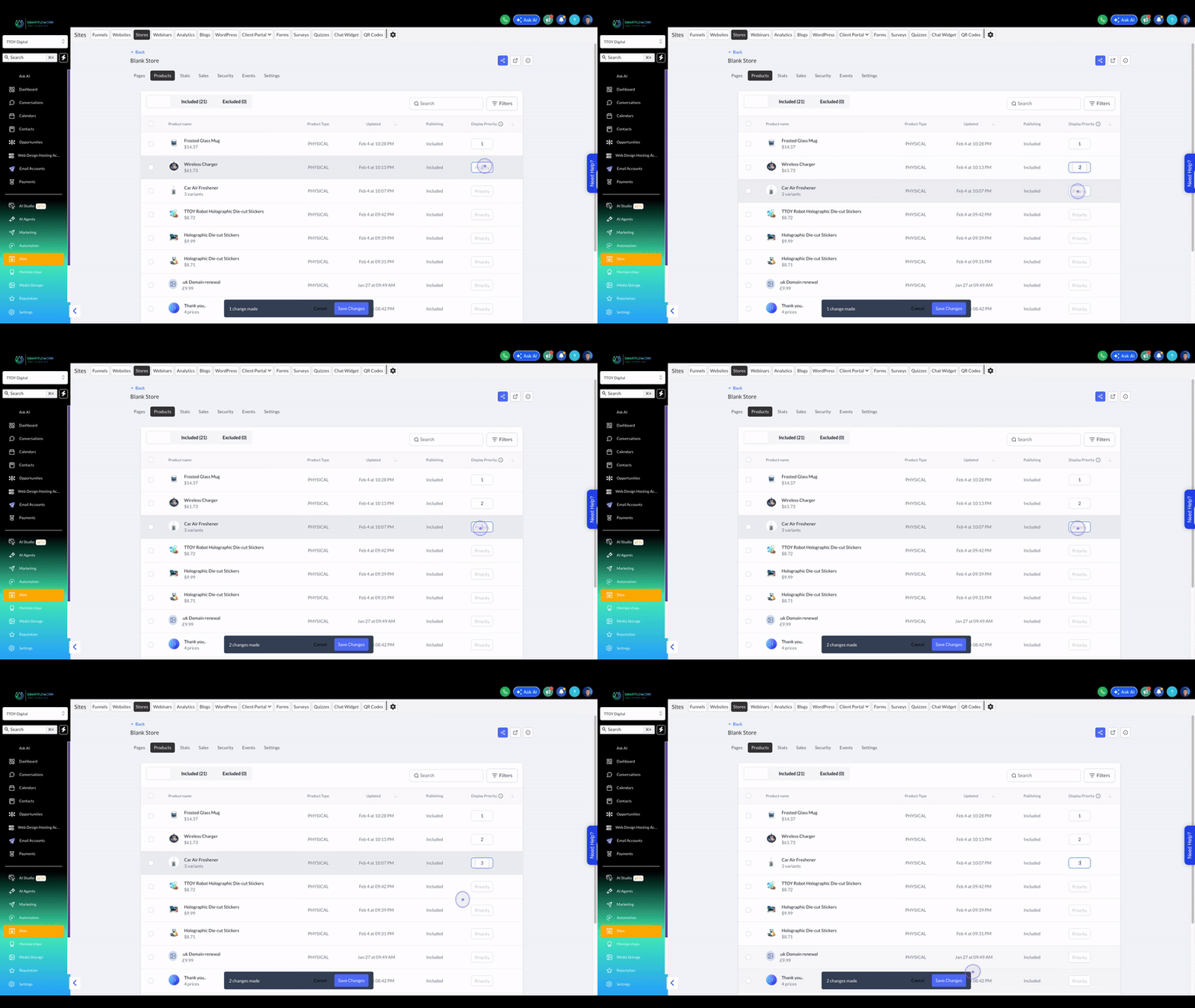
Click the Display Priority input field for the first product and enter a priority number (e.g., '1').
Click the Display Priority input field for the second product and enter its priority number (e.g., '2').
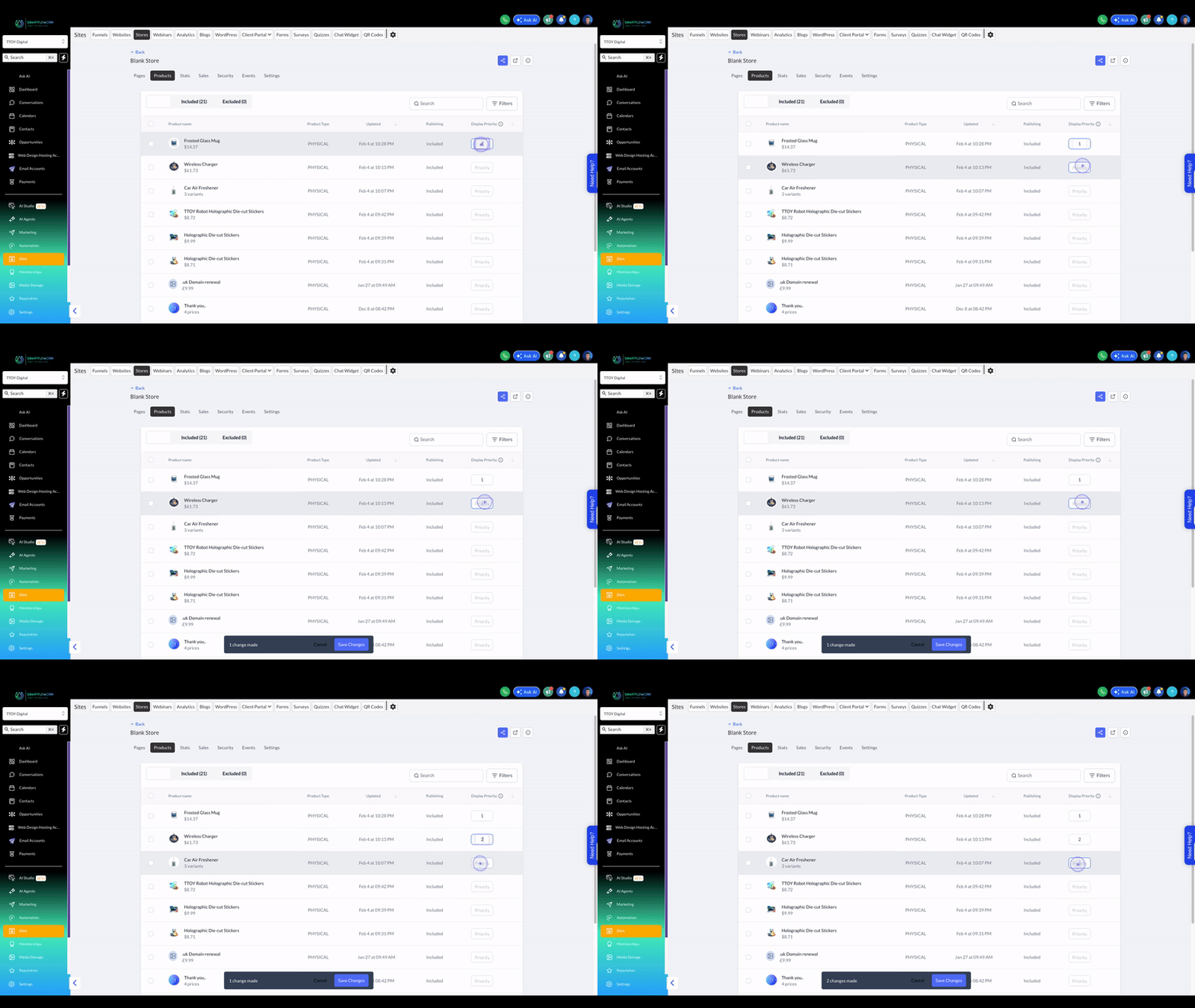
Continue clicking Display Priority fields and entering values for any remaining products you want to prioritize.
Click the Save Changes button at the bottom of the screen to apply your priority updates.
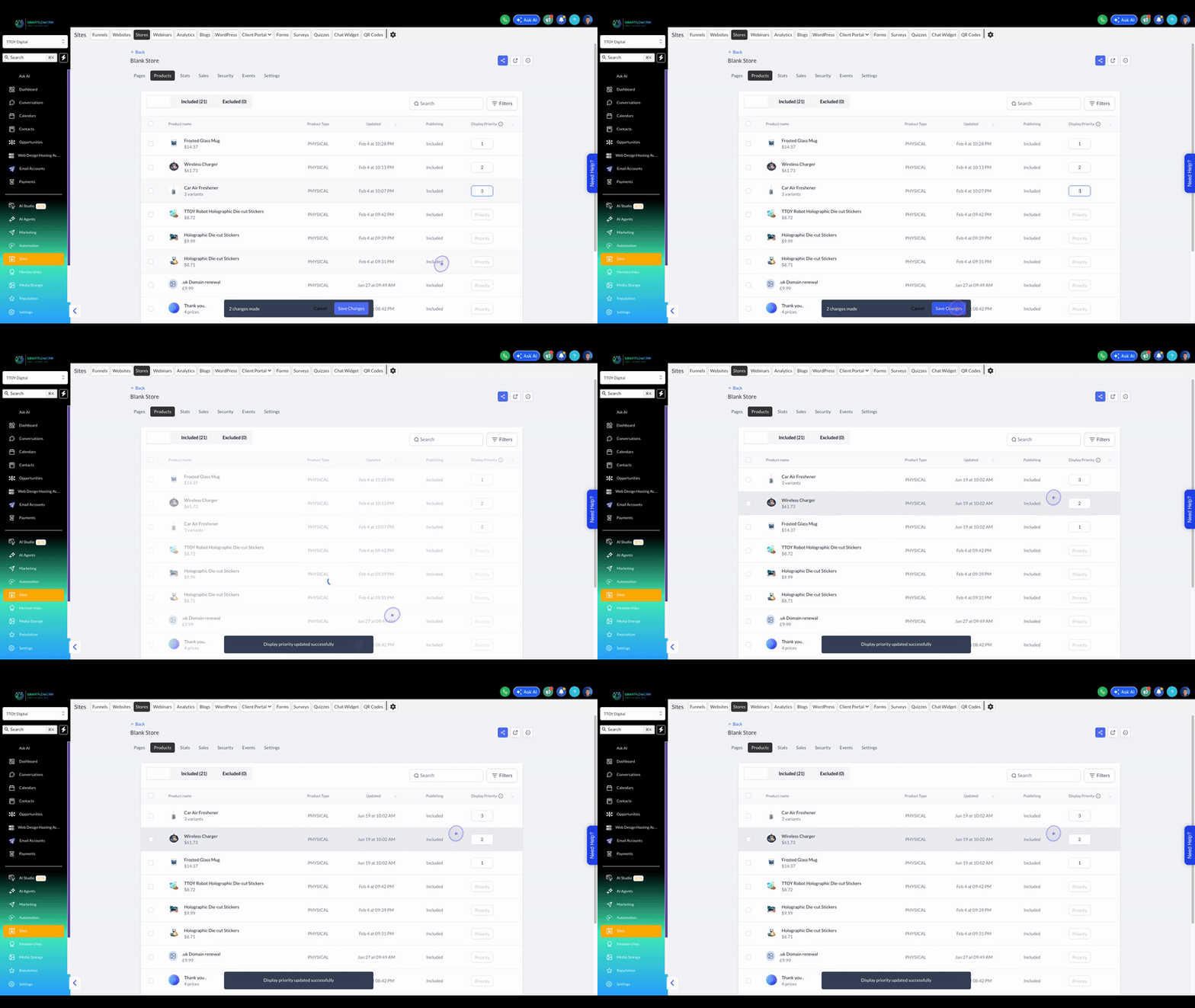
Note: After saving, your products will be reordered on the storefront based on the priority values you've assigned.