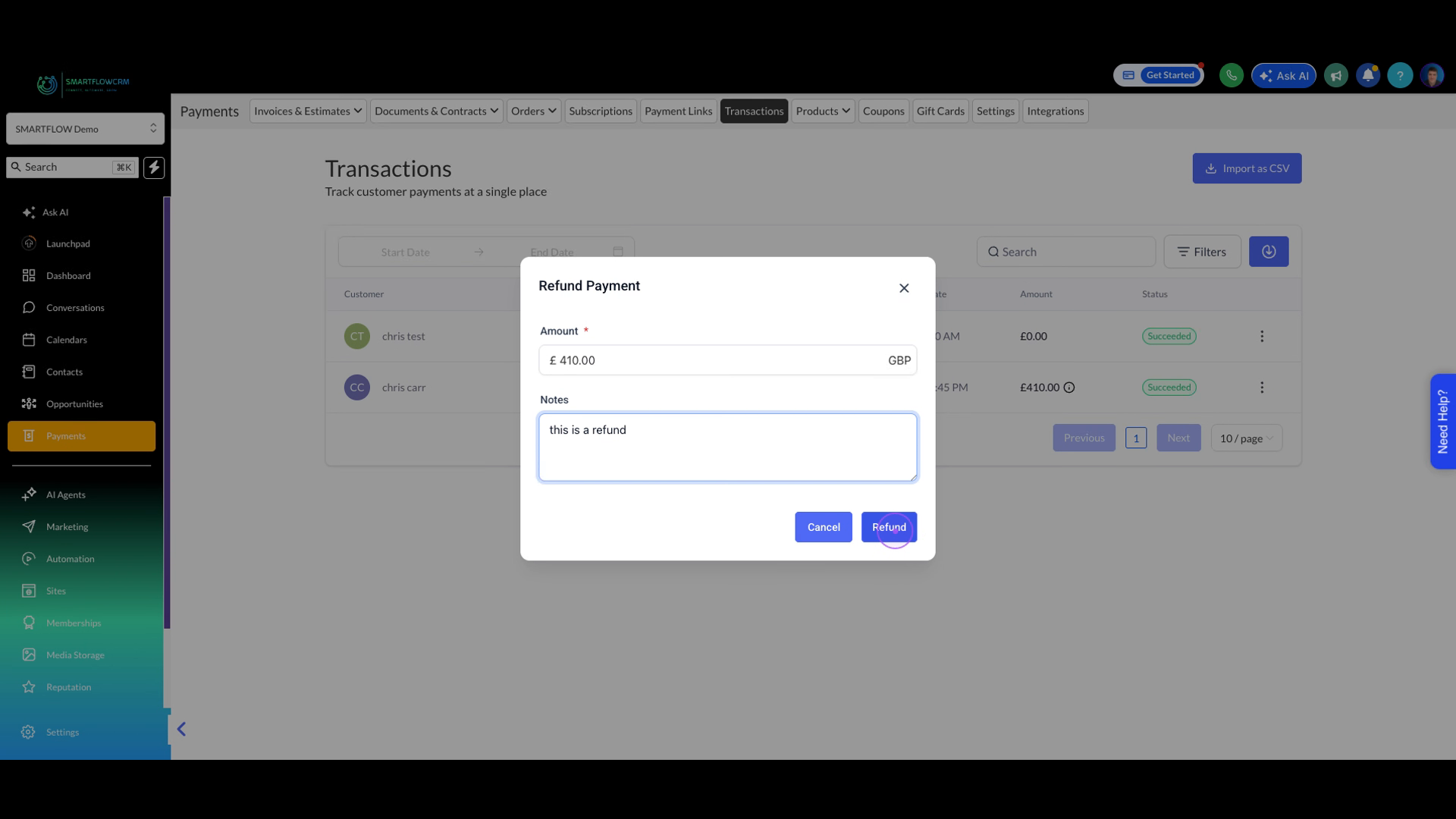
Learn how to issue a refund to a customer by navigating to the Transactions page and completing the refund workflow.
Click on Payments in the left sidebar menu to access the payments management area.
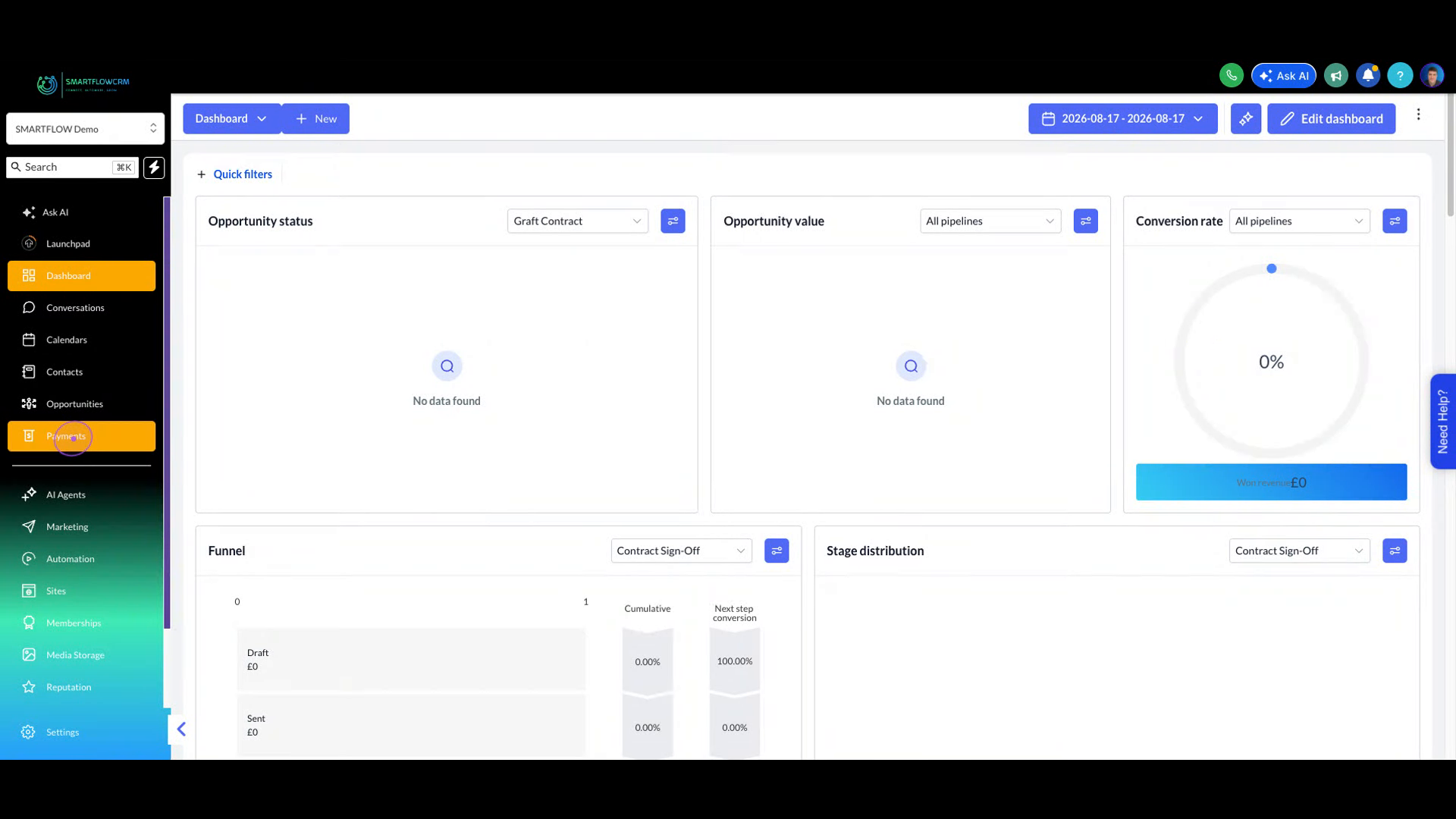
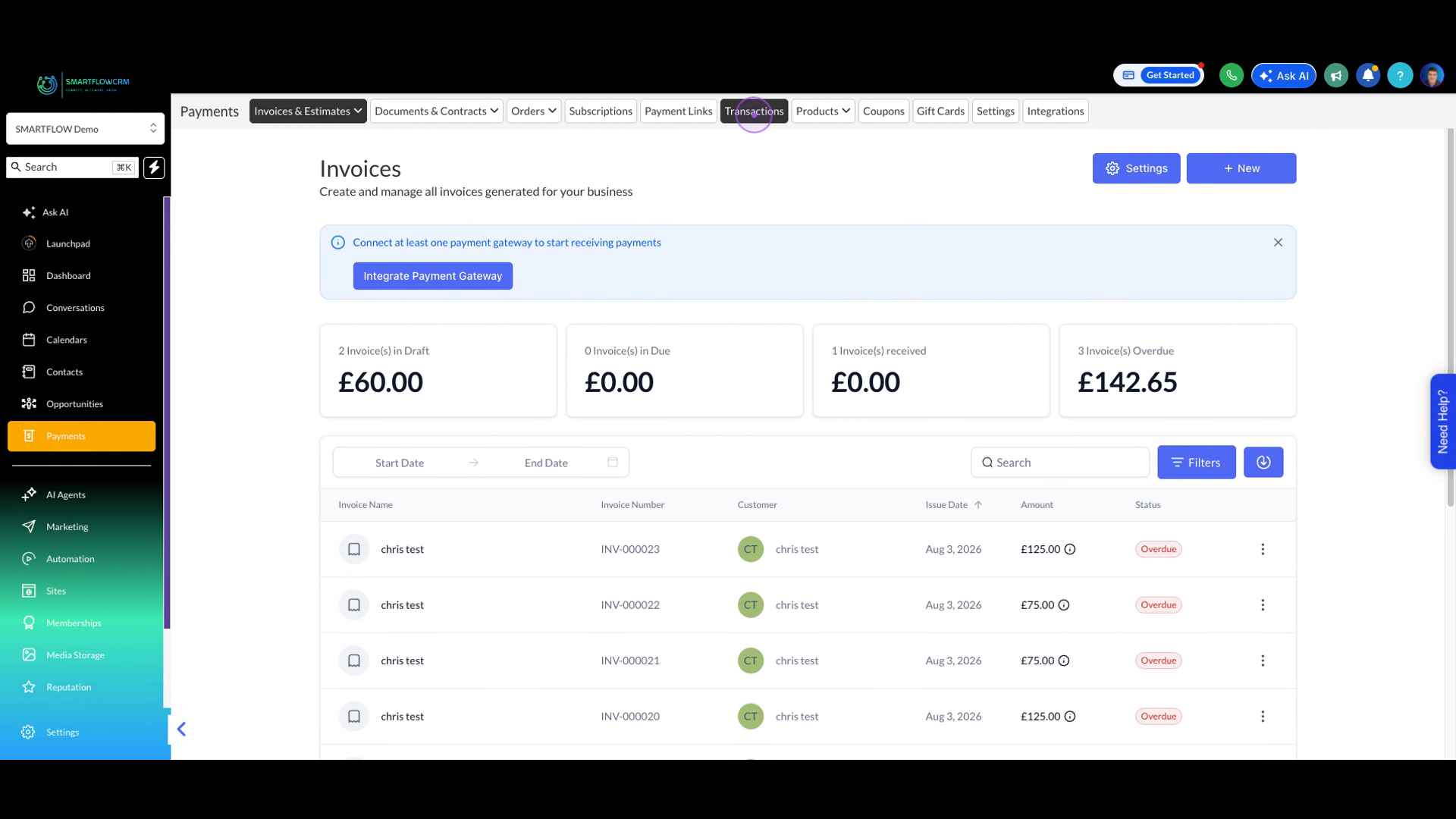
Once you are in the payments area, click on the Transactions tab in the top navigation bar to view all payment transactions.
Locate the specific transaction you want to refund and click the three-dot menu icon (⋮) on the right side of the transaction row.
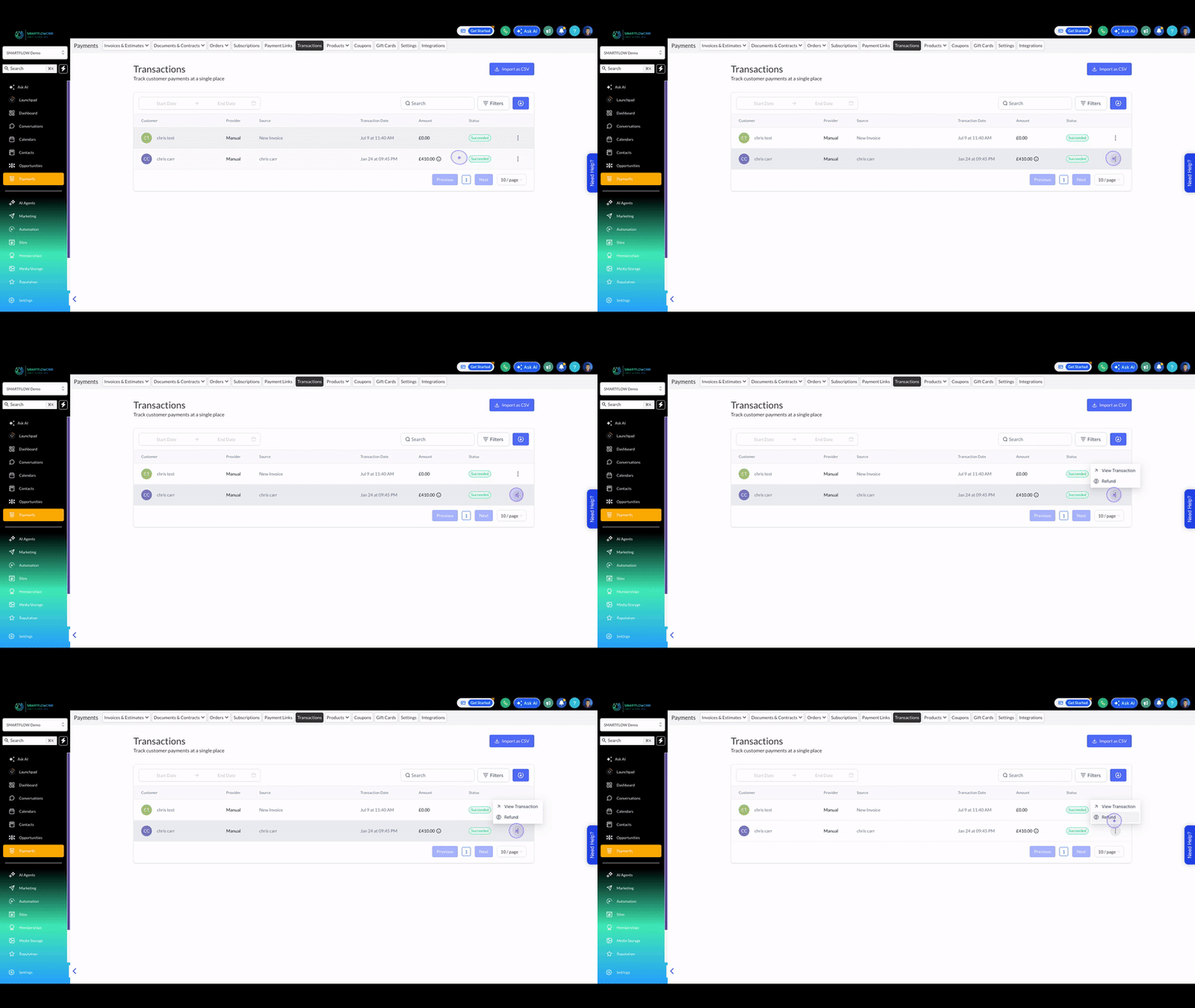
From the dropdown menu that appears, click Refund to open the refund payment dialog.
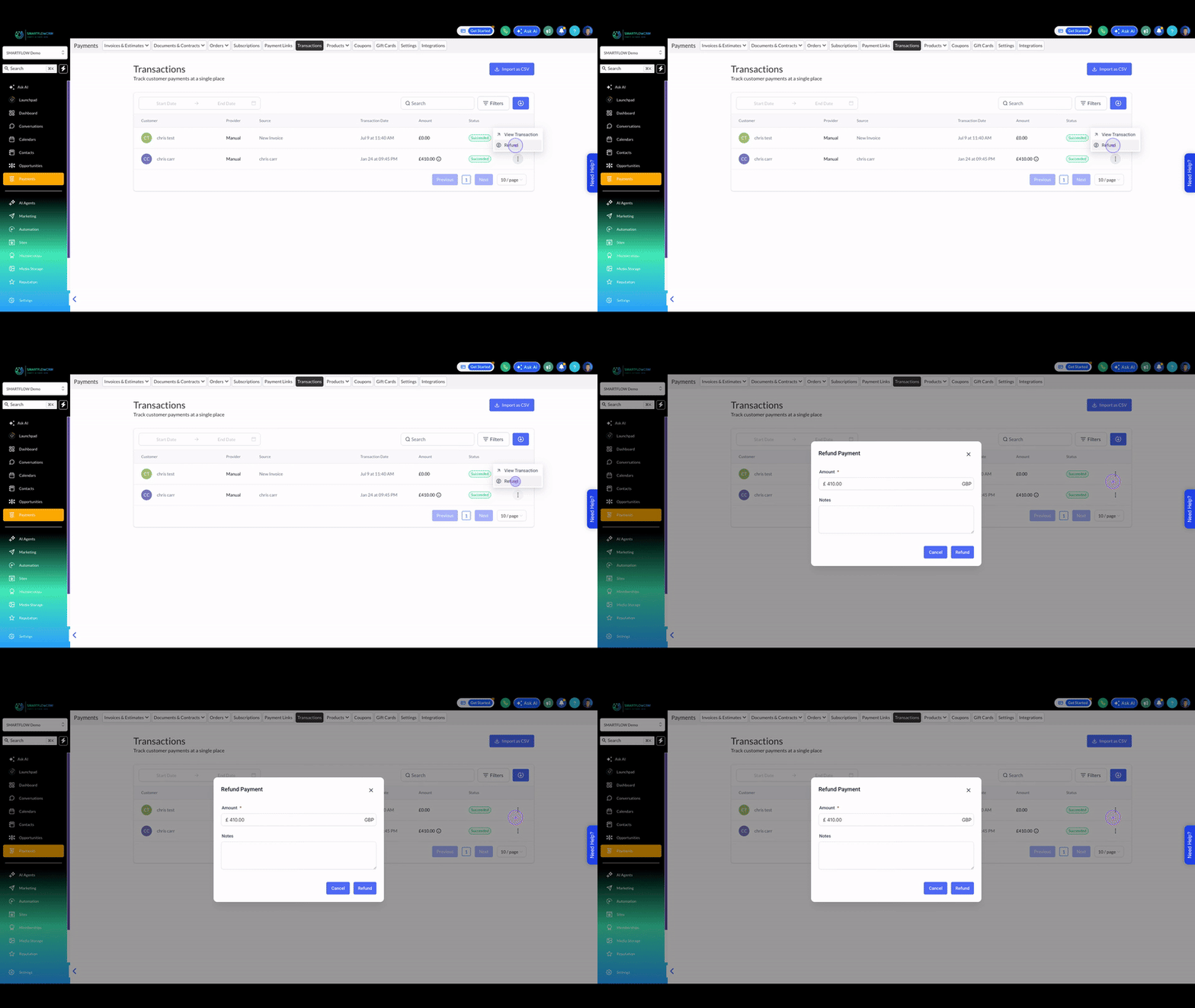
Click in the Notes textarea and type a reason for the refund. Note that the refund amount will be pre-populated with the original transaction amount; you may adjust this if you are issuing a partial refund.
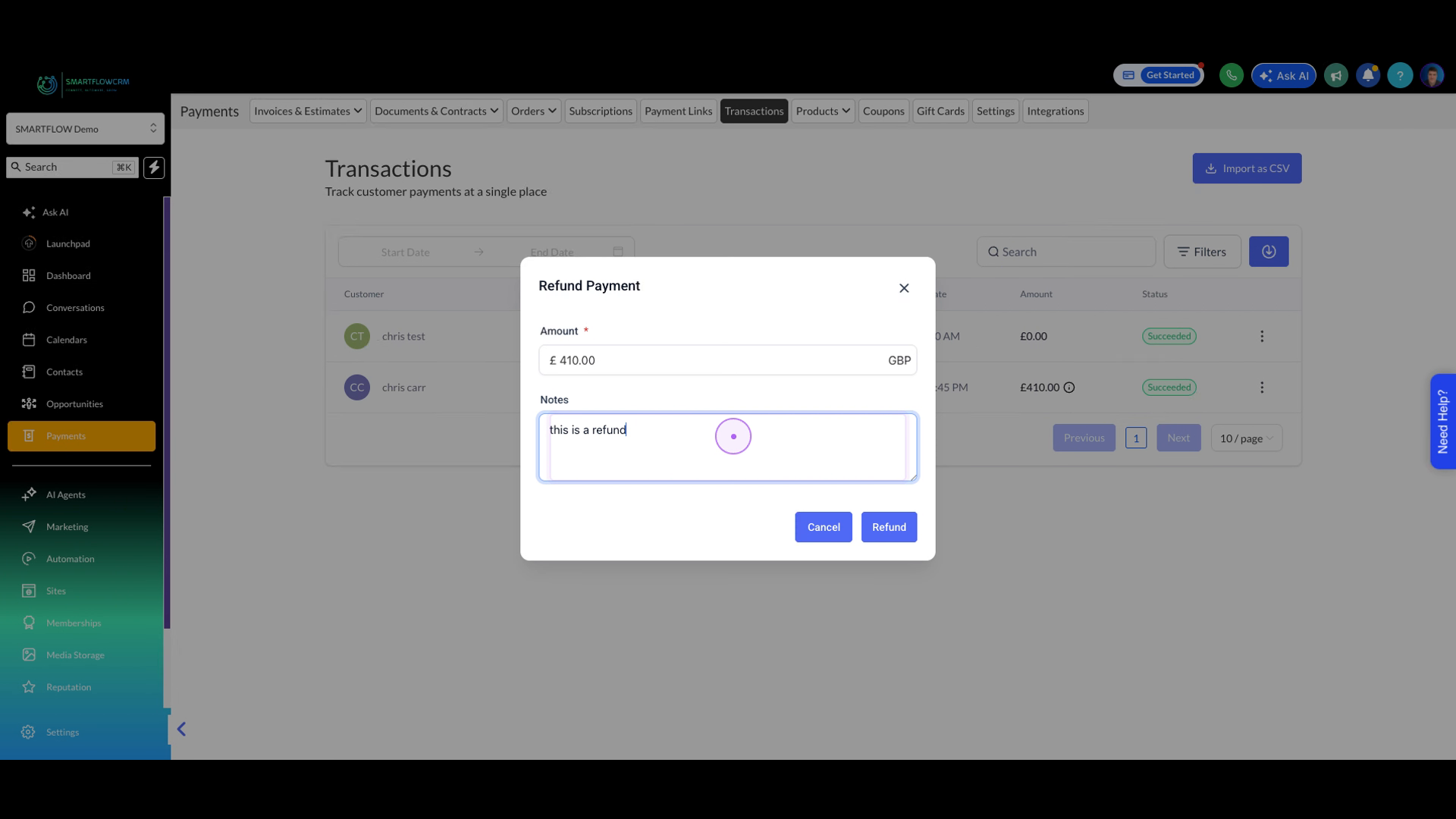
Finally, click the blue Refund button to confirm and process the refund request. A success message will appear, and the transaction status will update to 'Refunded'.