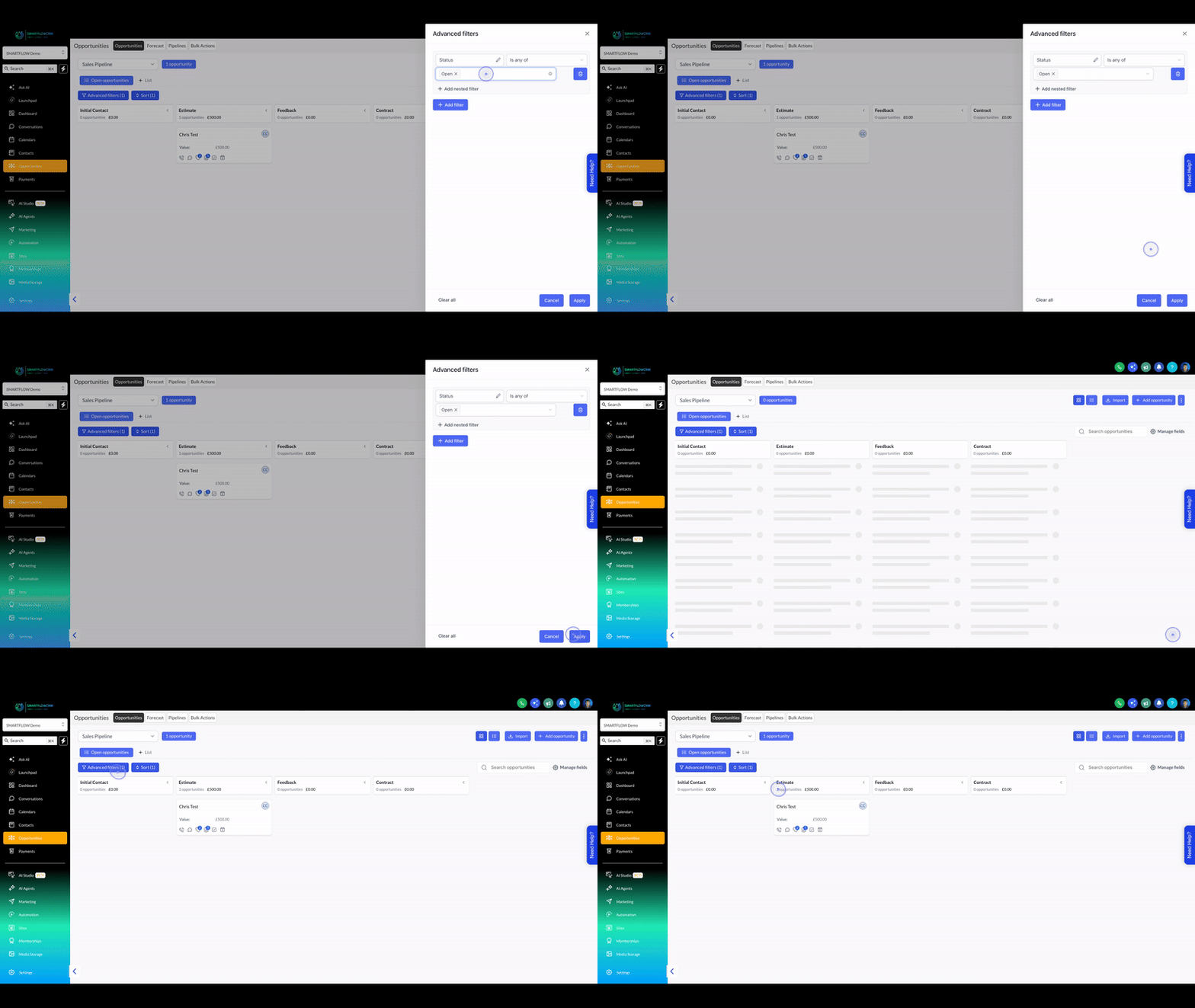
Click the Advanced filters button above the pipeline board. A filter panel slides in from the right, and the number in parentheses shows how many filter rules are currently active.
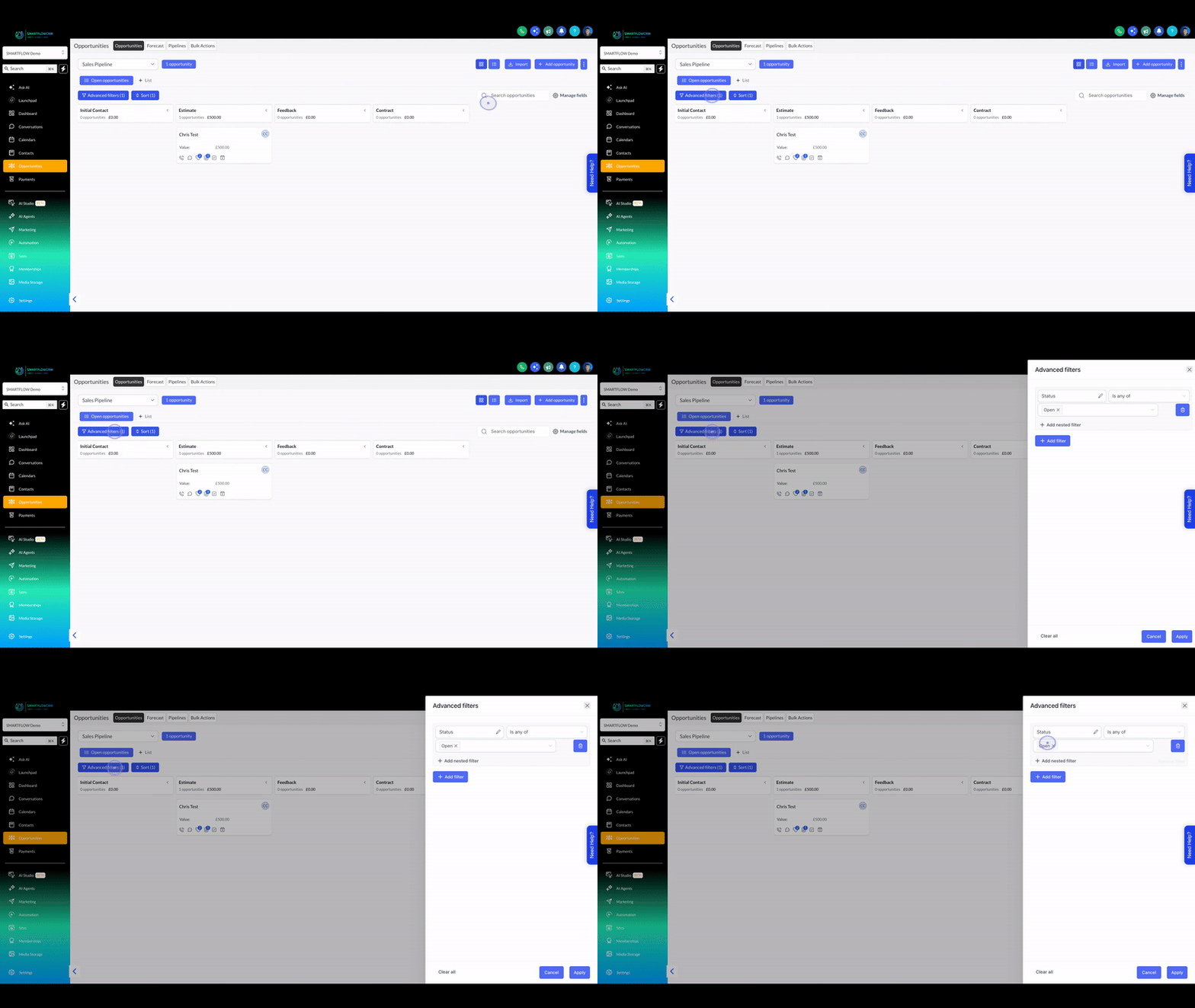
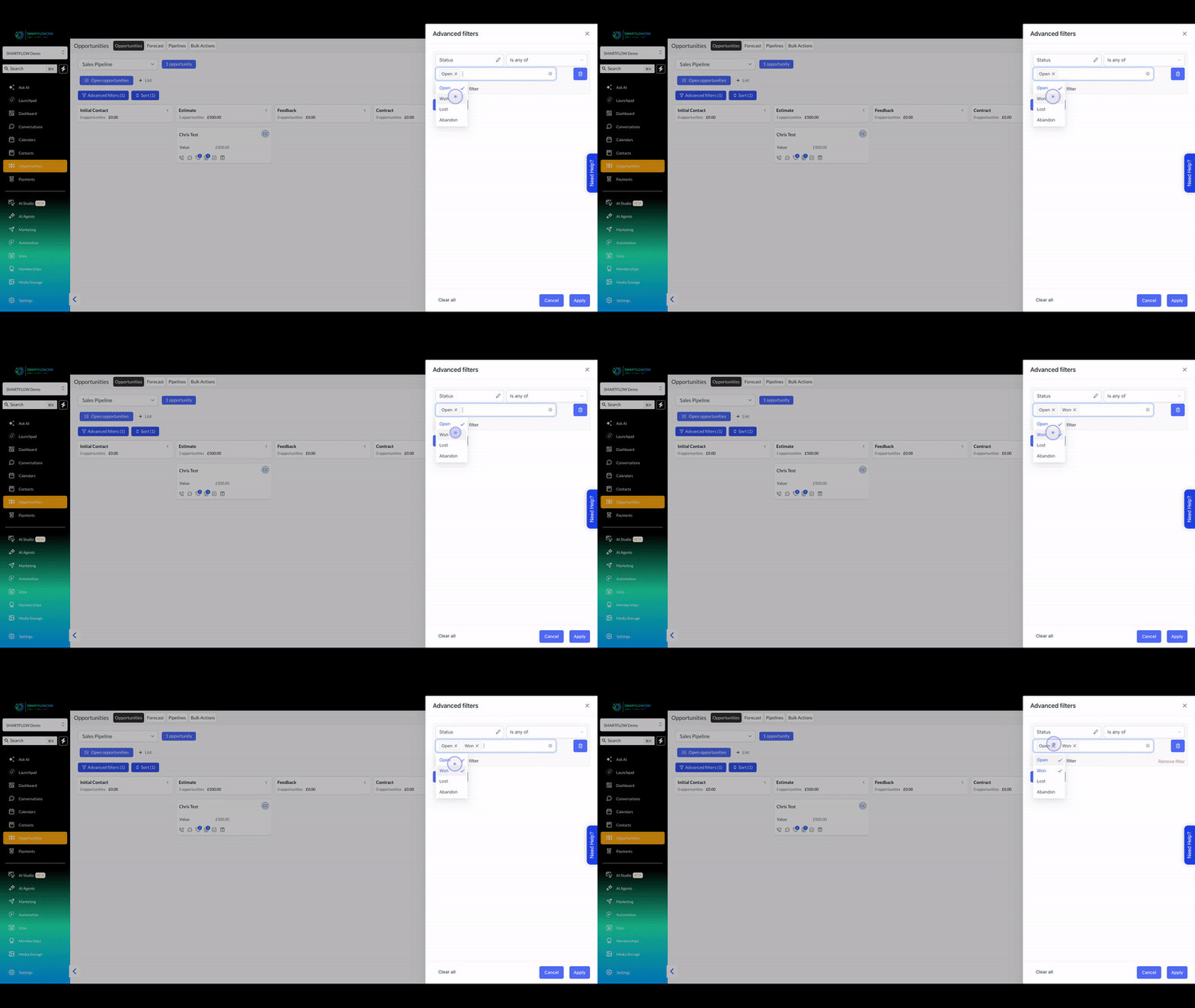
In the Status row, click the value dropdown and select a status such as Won. The operator defaults to 'Is any of', which matches opportunities in any of the chosen statuses.
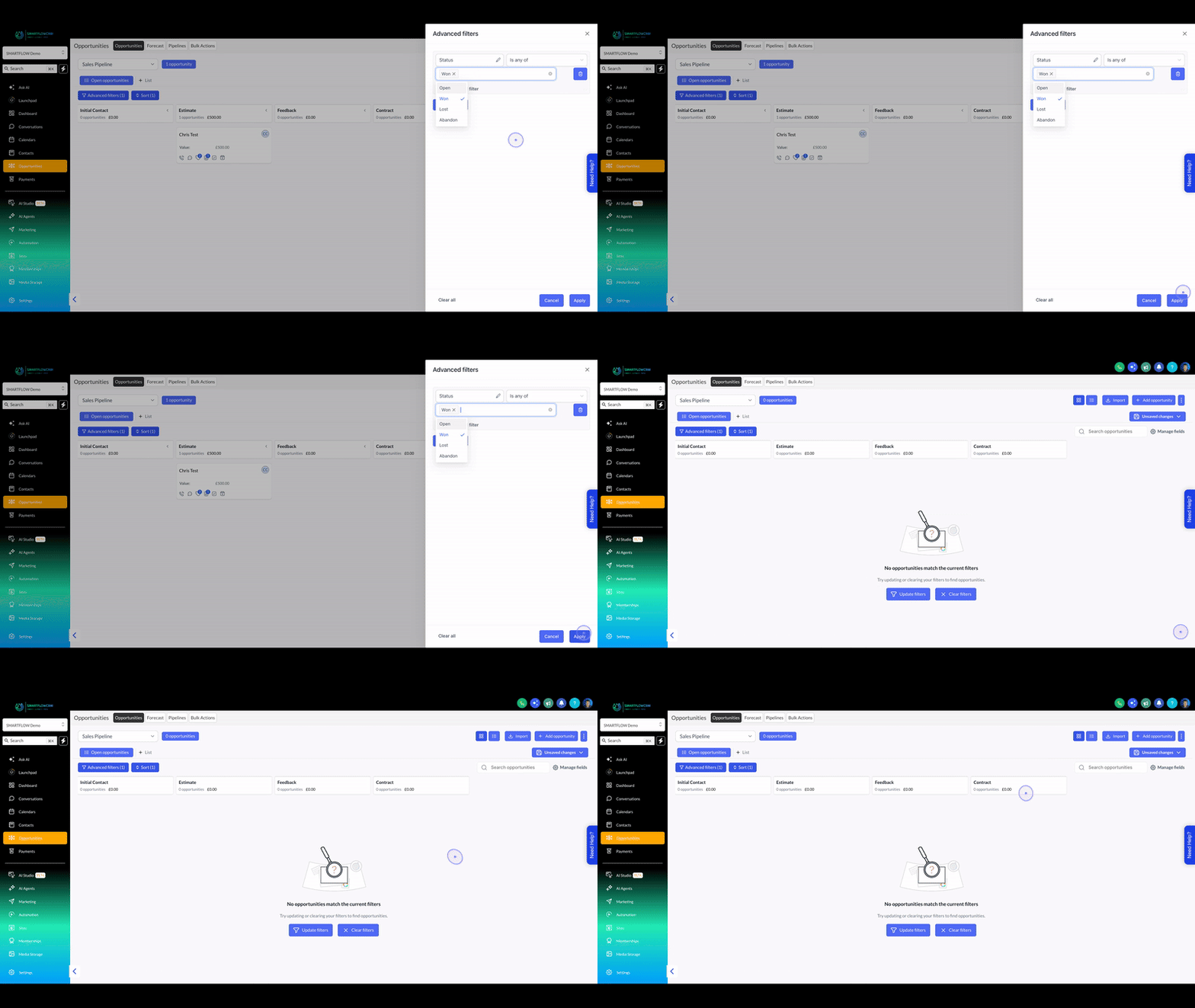
Click the blue Apply button at the bottom of the panel. The board refreshes to show only matching opportunities, and an empty state appears if nothing matches your criteria.
Reopen the Advanced filters panel, remove the current status pill, and select a different status such as Lost from the dropdown.
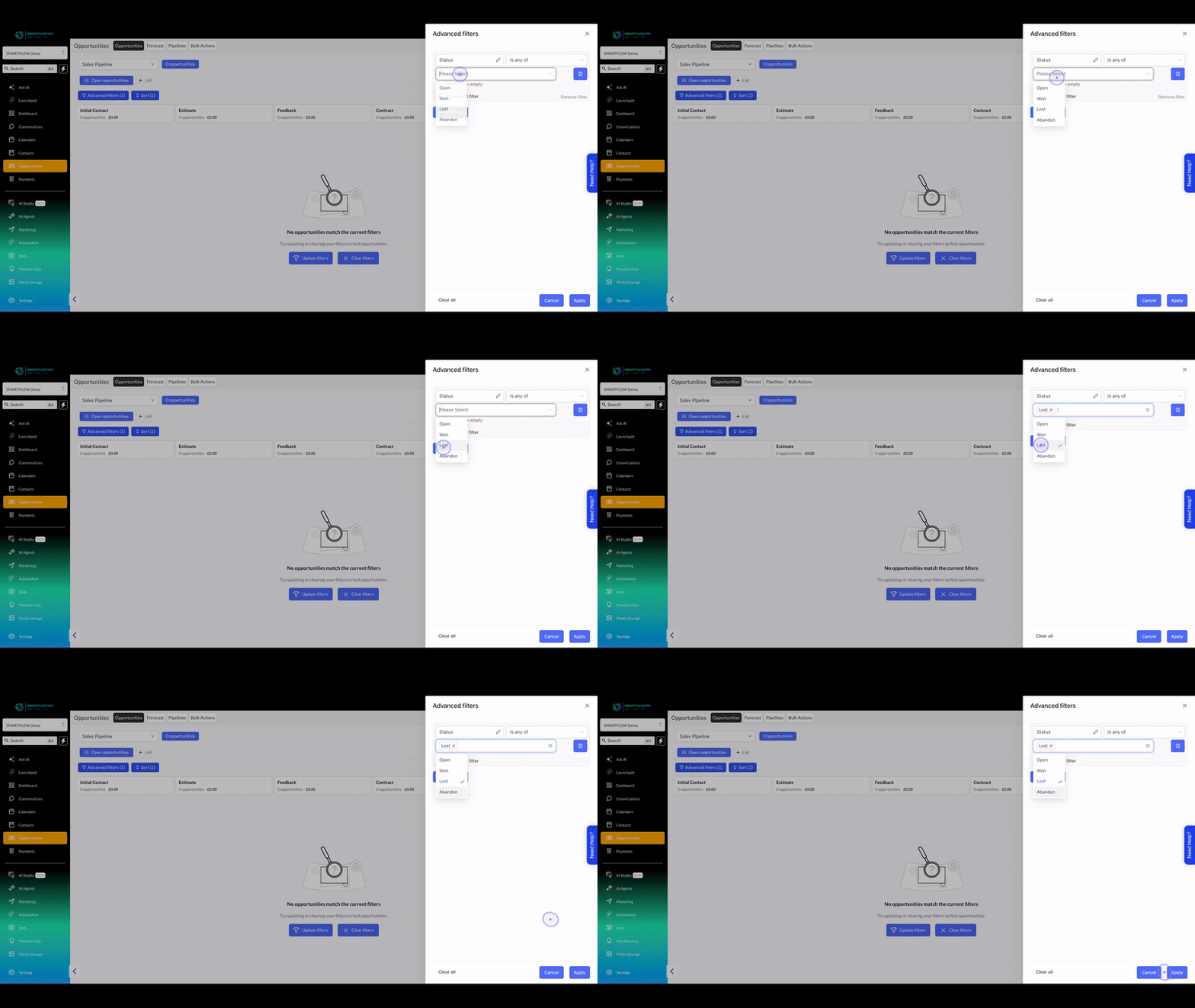
Click Apply again to refresh the board with the new criteria. The opportunity count at the top of the page updates to reflect the filtered results.
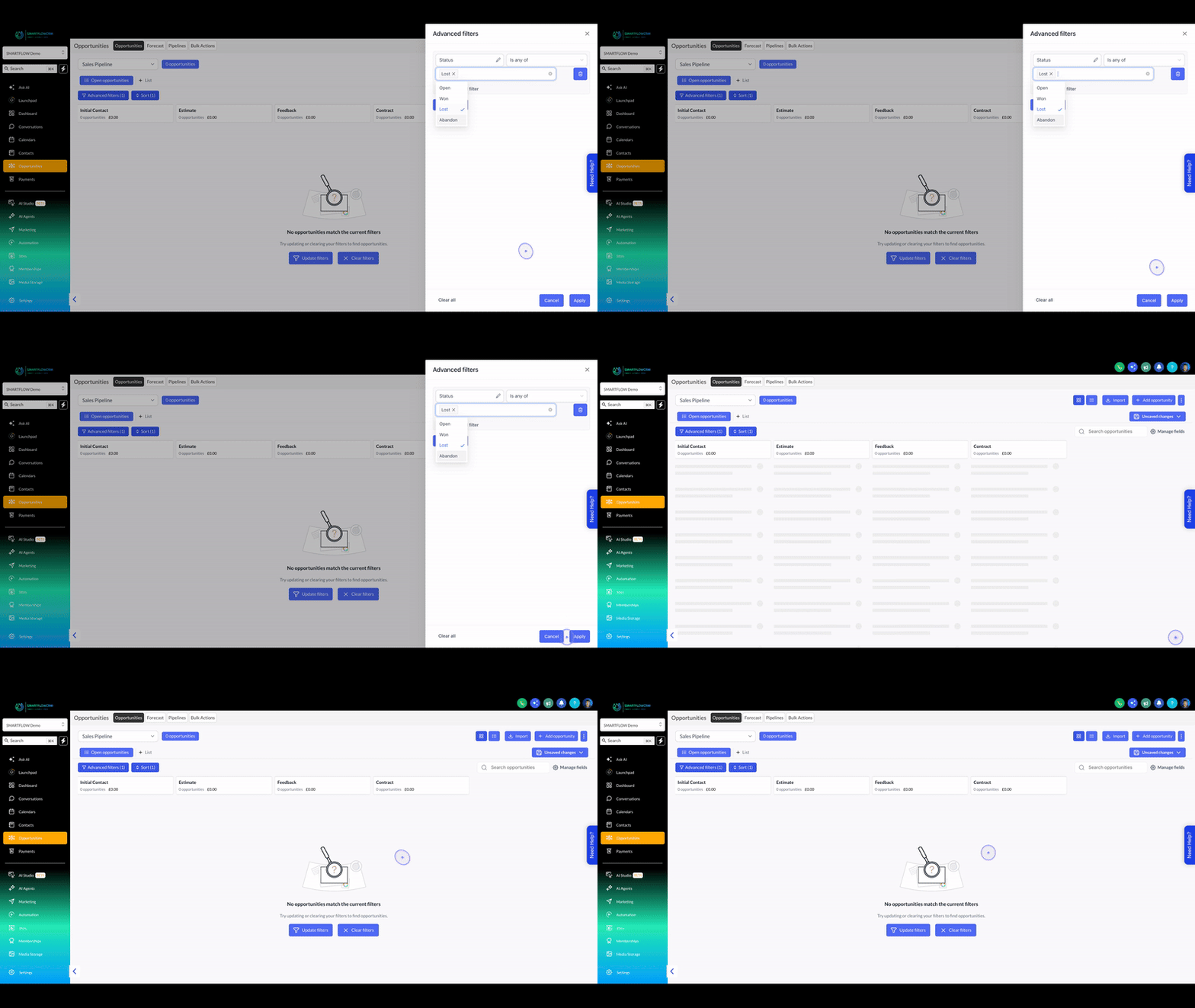
Select more than one status in the dropdown, such as Open and Abandon. Each selection appears as a removable pill inside the field.
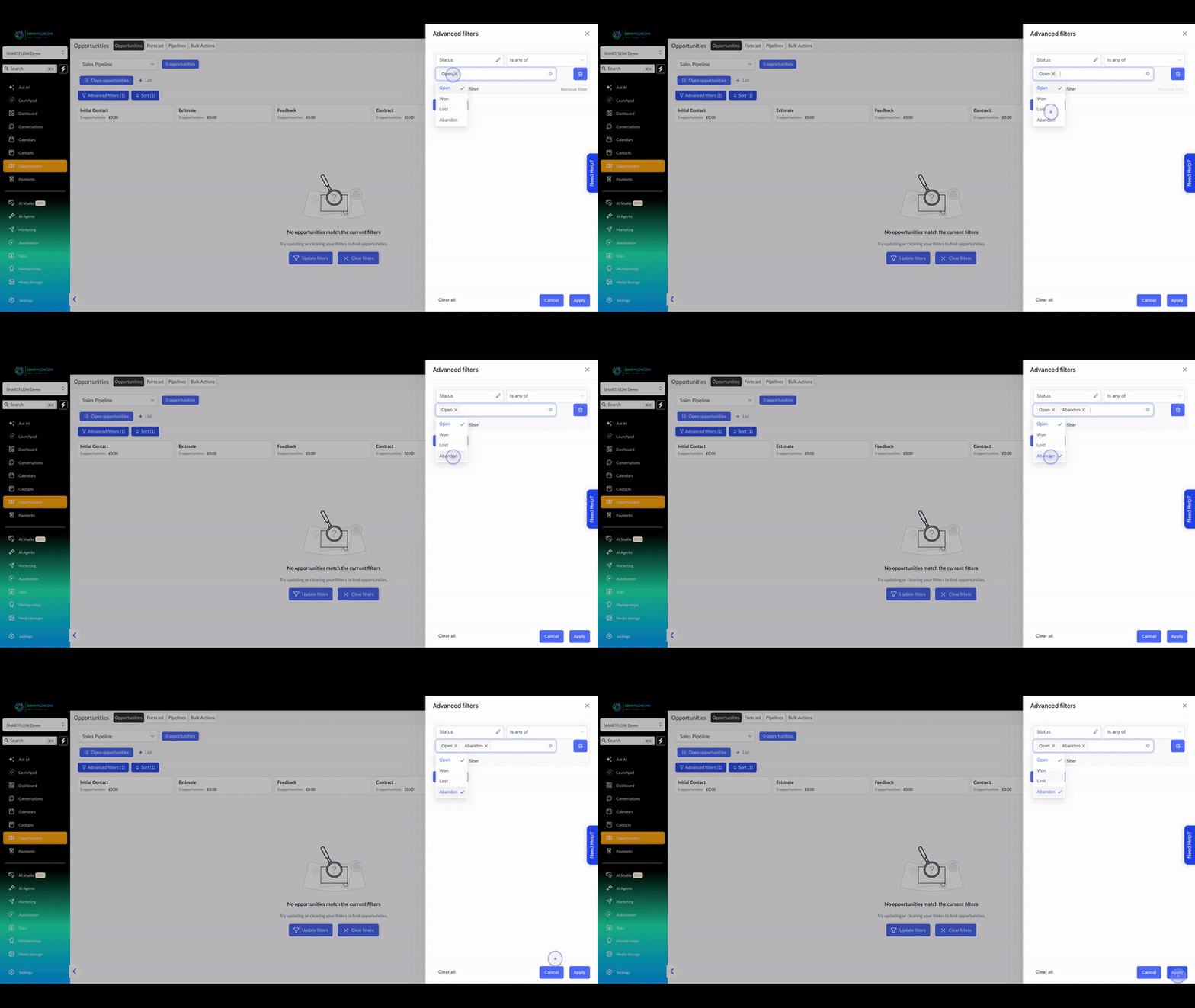
Click Apply to show opportunities that match any of the selected statuses. In this example the Open opportunity returns to the board.
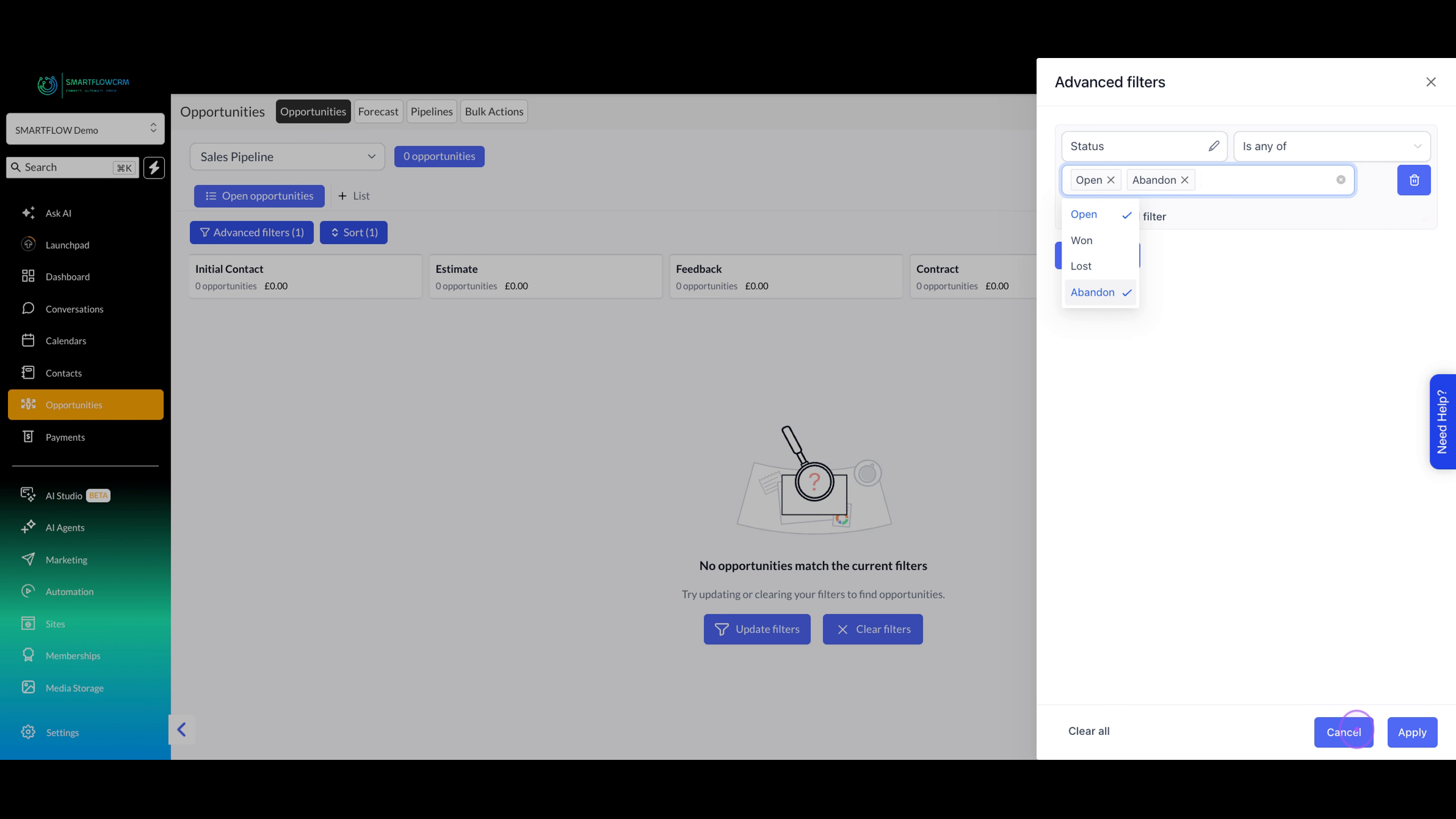
Reopen the panel, remove the selected status values from the field, and click Apply to restore the full, unfiltered pipeline view.
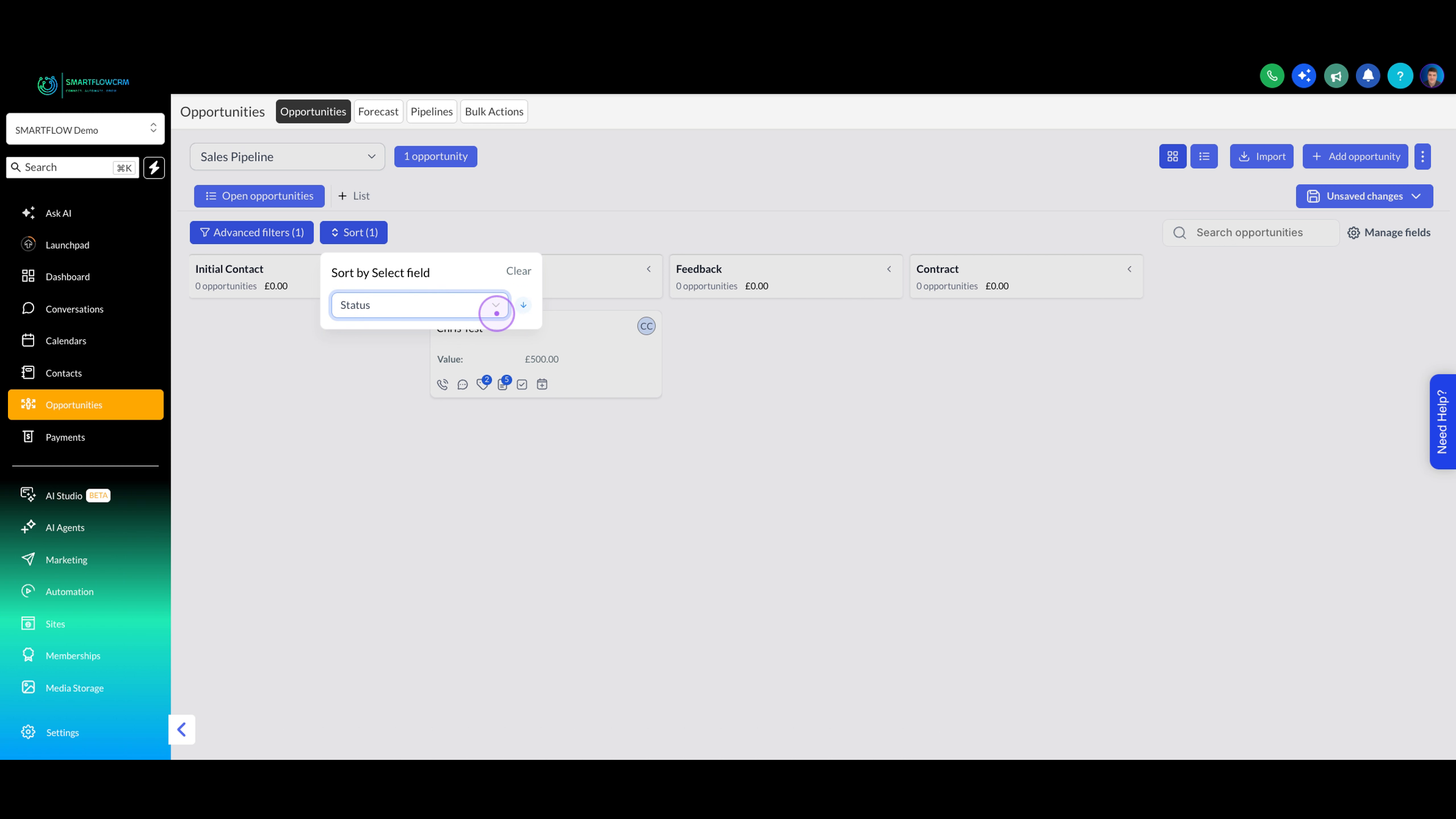
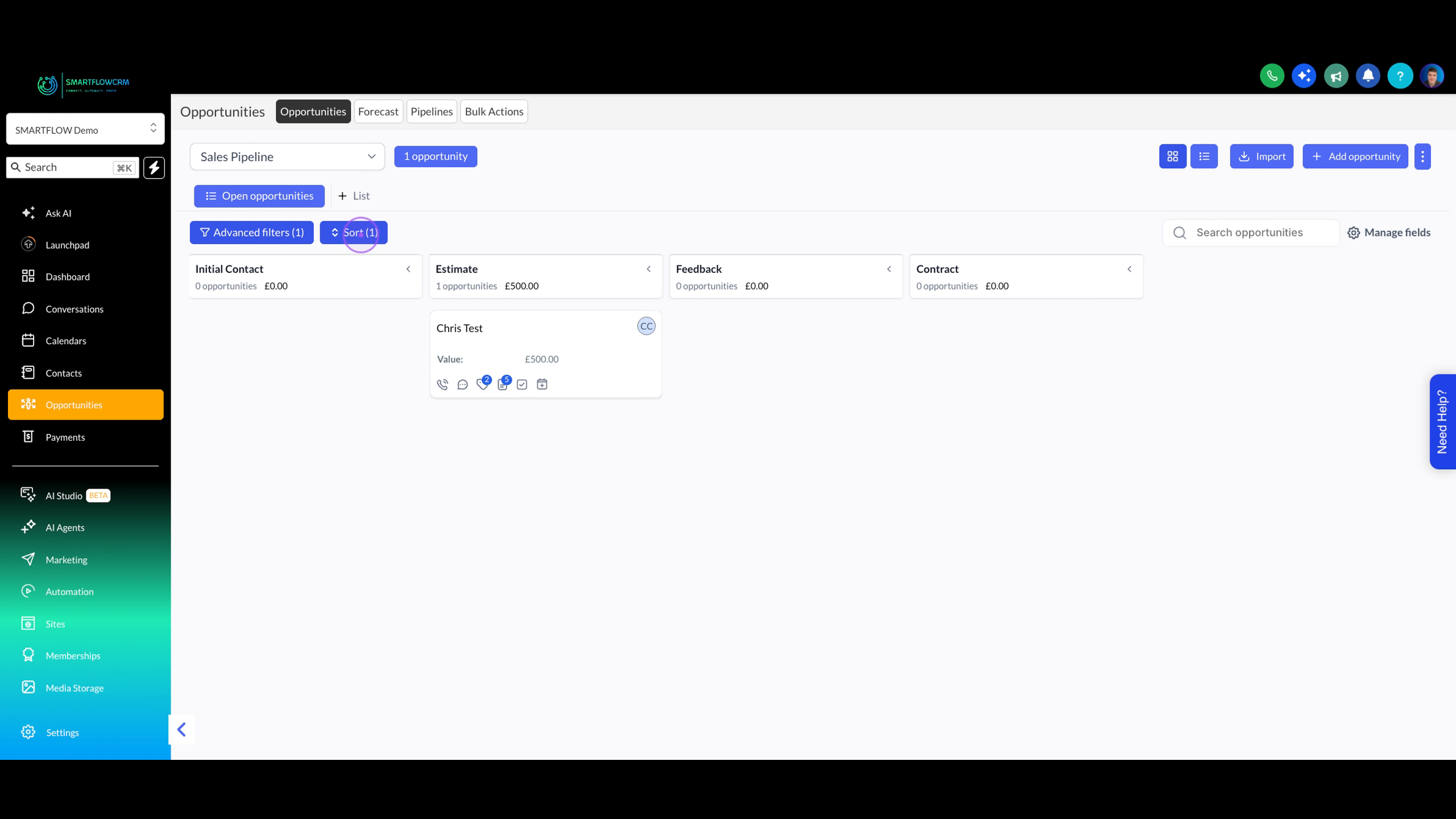
Click the Sort button next to Advanced filters. A 'Sort by Select field' popover appears showing the current sort field and a Clear option.
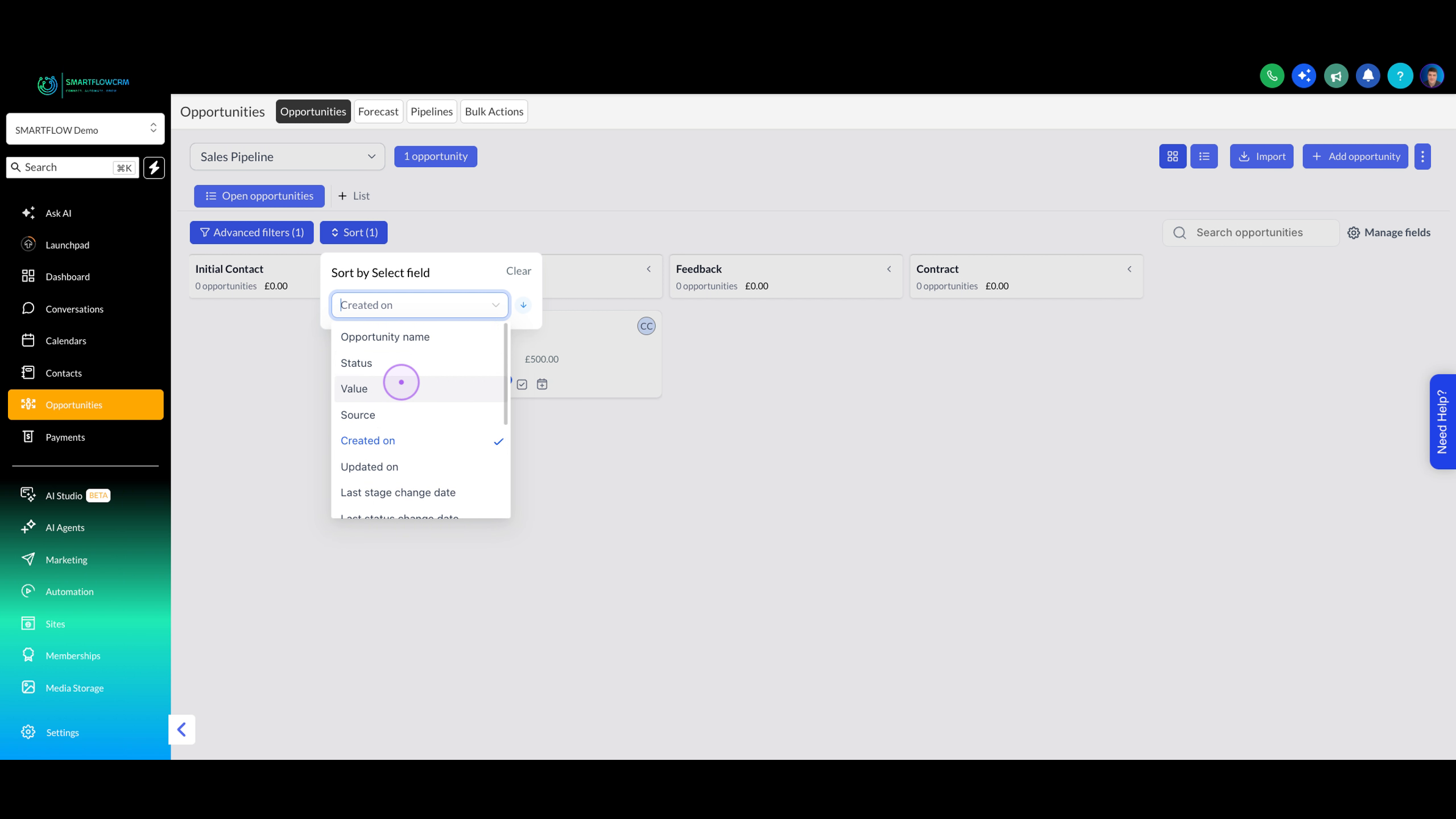
Open the field dropdown and choose an attribute such as Value. Other options include Opportunity name, Status, Source, Created on, Updated on, and Last stage change date.
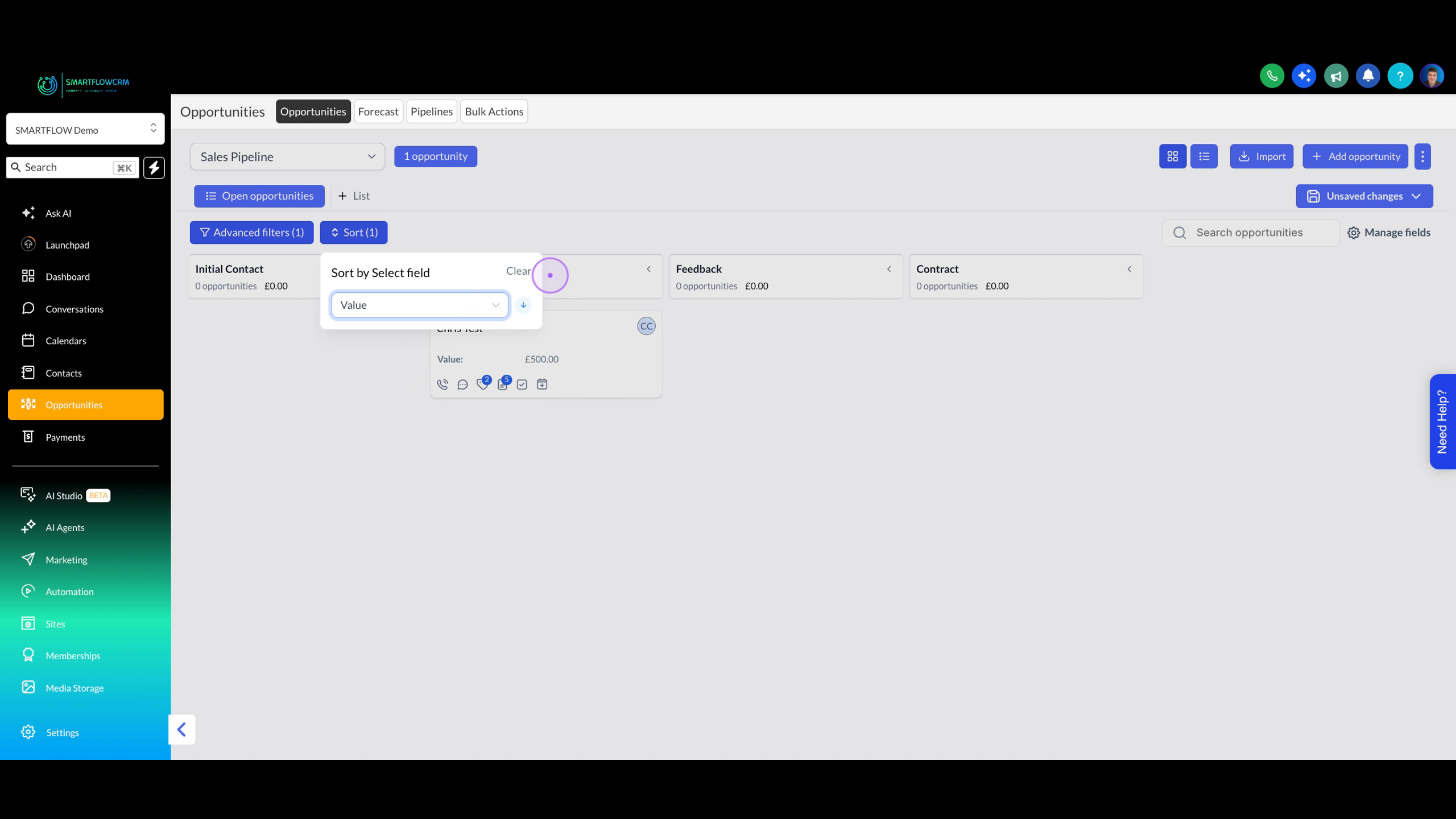
Click Clear in the top-right corner of the Sort popover to remove the current sort field and start over.
Pick a different field from the dropdown, such as Status, to reorder the opportunities on the board.
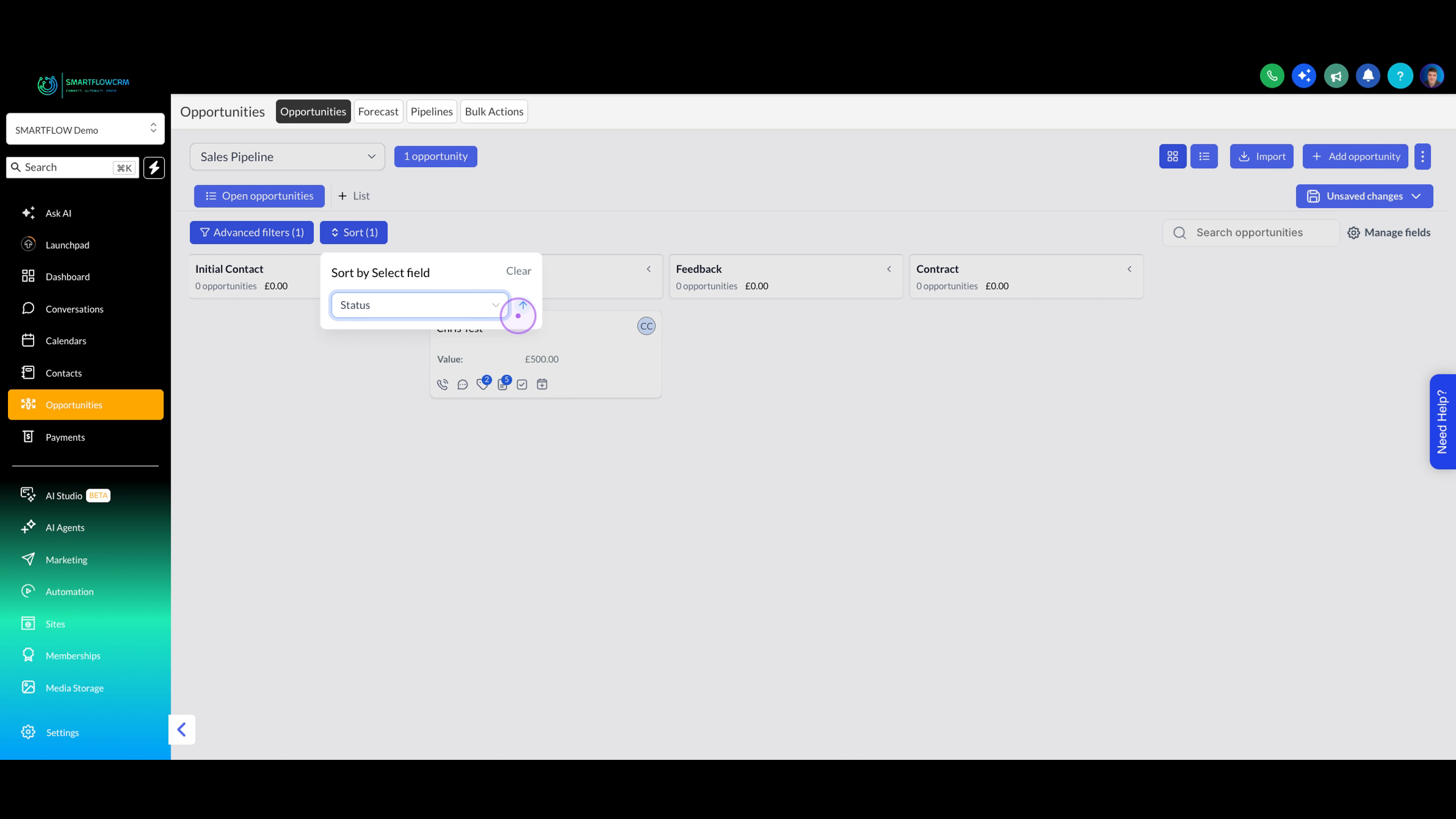
Click the arrow icon beside the selected field to toggle between ascending and descending order, then click elsewhere on the board to close the popover.